
Events are scheduled commands. When an event’s triggers occur, its actions run. An agent can create the same timer and flag events described in Configuring Events, and they appear on the Timeline Panel like events created in Studio.
An agent event can do two things when it fires: set a variable, or call an action on an object. Events are only created, enabled, or deleted while the simulation is reset, because they are scheduled when the simulation starts.
Finding Actions
An action is a command an object can perform, such as Fire 10 Seconds on a thruster or Safe Mode on a guidance computer. object_actions lists the actions of an object.
What actions can EventSat's thruster and computer perform?Objects without actions, such as a battery, can still be changed by an event that sets one of their variables.
Creating a Timer Event
A timer trigger compares the simulation time, in seconds from the start of the run, against a time you choose:
- Equal (
==): Fires at the time. Add an interval to repeat it, for example every 120 seconds. - Comparisons (
>,<,!=): Compare the simulation time against the time. - Ranges (
inside_range,outside_range): Compare the simulation time against a range between the time and a second time bound.
For this example, the thruster will fire for 10 seconds at 30 seconds and then every 120 seconds:
Create an event on EventSat that fires the thruster for 10 seconds at 30 s, repeating every 120 s.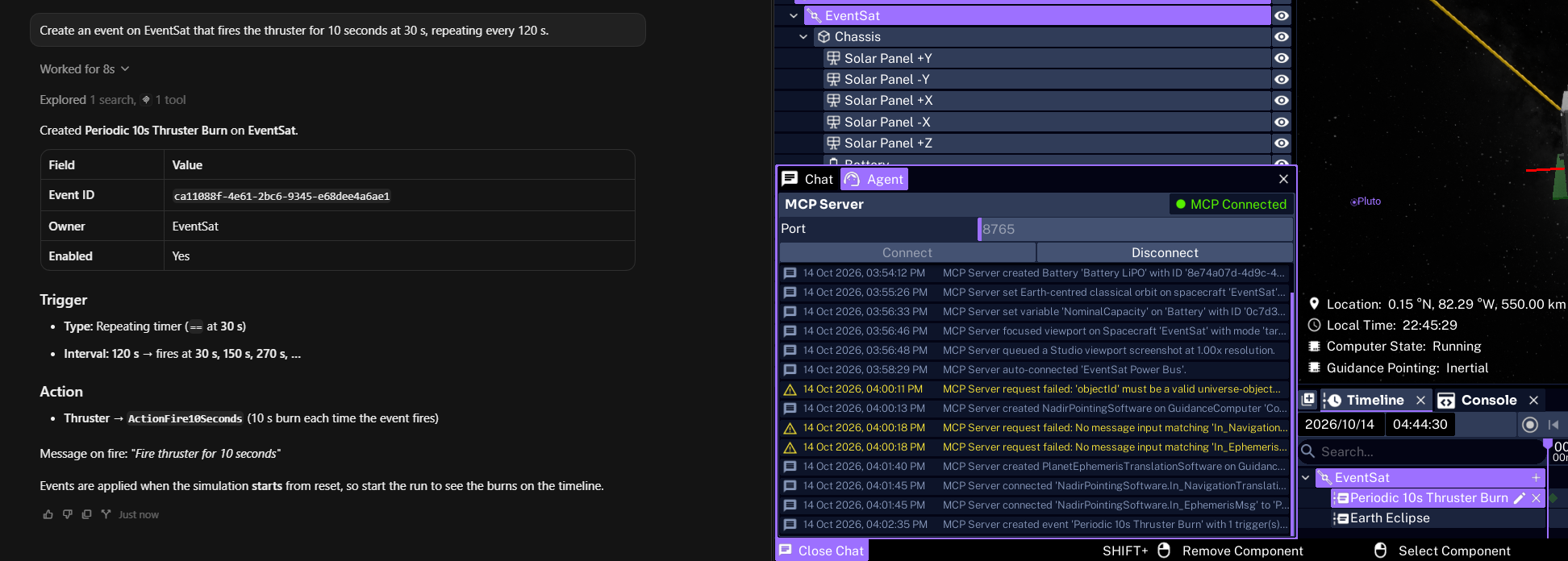
A second event can turn the transmitter off at 60 seconds by setting its IsEnabled variable to false.
Creating a Flag Event
A flag trigger watches a variable and fires when a condition becomes true, for example when the battery charge drops below 20 percent. Flags can watch numbers, booleans, enums, and vectors, and support ==, !=, >, <, >=, <=, and passes.
Create an event that puts EventSat's computer into safe mode when the battery charge fraction drops below 0.2.The variable can be a value on the object, such as ChargeFraction, or a field of one of its messages, such as Out_BatteryMsg.ChargeFraction. A vector is reduced to a single number before it is compared. By default its size is used, and the agent can choose a single component, the minimum, maximum, average, sum, or product instead.
By default, a flag fires every time its condition changes from false to true. Ask for a non-repeating flag when the event should only fire the first time.
NOTE
A flag fires as soon as its condition is true, including at the start of the run. If the battery already starts below the threshold, the event will fire immediately.
Combining Triggers
An event can have several triggers. By default, the event fires when any one of them occurs. An event using the and operator only fires while every trigger condition is true at the same time.
Create an event that starts sun pointing when the simulation time is past 300 s and the battery charge fraction is below 0.5.An event can also run several actions. They run in the order they were given.
Enabling and Deleting Events
event_list shows every event with its triggers, actions, tags, and whether it is enabled. It can filter by owner object or tag.
A disabled event keeps its triggers and actions but does not fire. event_enable turns an event on or off, which is useful for comparing runs with and without a command.
Events are not edited in place. To change an event, ask the agent to delete it with event_delete and create it again with the new settings.
Configuring World Events
Studio creates some events automatically: an eclipse event for each spacecraft, a passover event for each spacecraft and ground station pair, and an altitude warning for each spacecraft that falls below a set altitude. world_events reports which of these are on and changes them.
Turn on altitude warnings at 200 km and turn off ground station passovers.Built-in events cannot be deleted. Turn their type off with world_events, or disable one with event_enable.
Reviewing Firings
After a run, event_list reports when each event fired. Each firing has a time, and lasting conditions such as an eclipse also have a duration. The same firings are drawn as markers on the Timeline Panel.
Run the simulation for 5 minutes, then tell me when each event fired.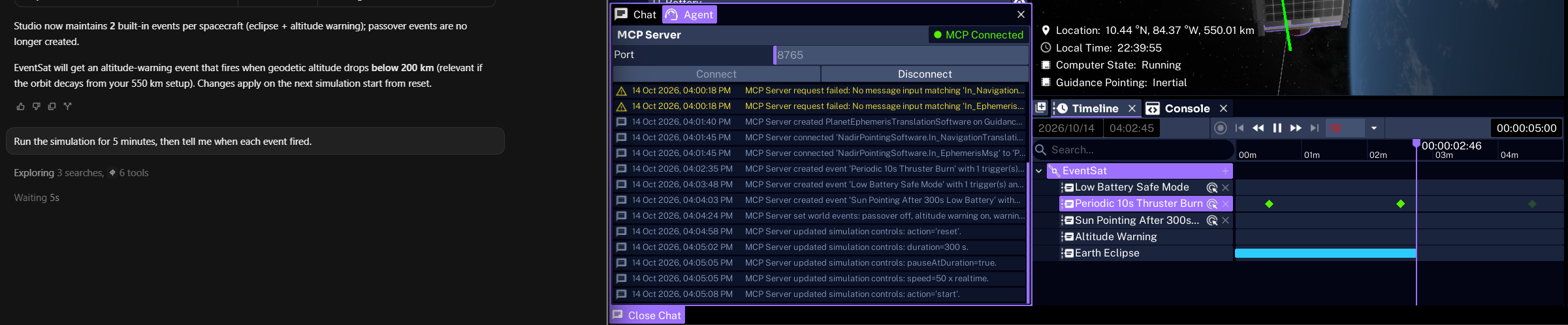
Next, learn how to have the agent start running and recording simulations.