
The Console Panel is the live log in Zendir Studio. It lists messages from the simulation, the user interface, and systems such as Space Range as they occur. Use it to confirm commands ran, watch for warnings, and diagnose errors.
The Console Panel is a tab next to the Timeline Panel in the default layout. If it is closed, add it from + on a tab bar. You can also tear the tab into its own window. See Adding Panels.

Reading Messages
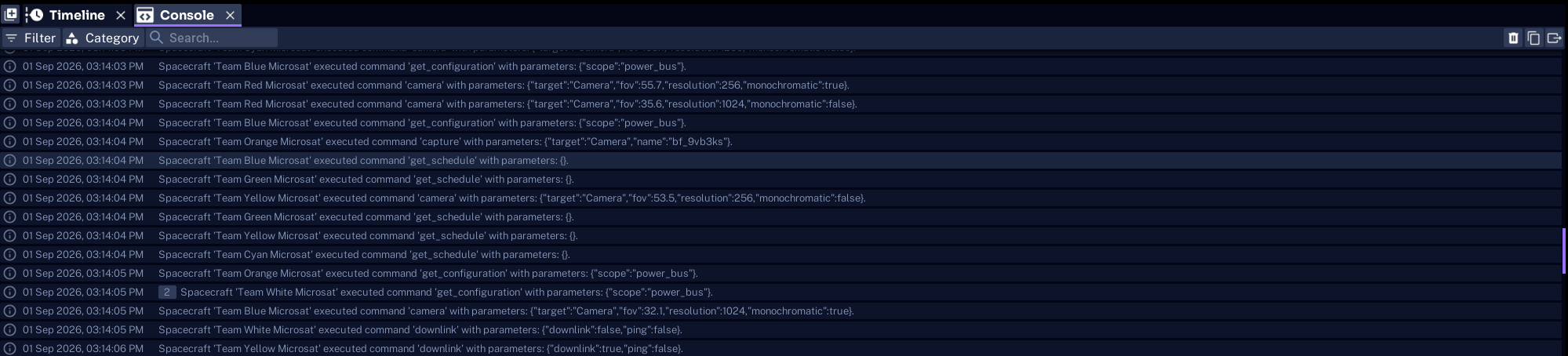
Each row is one log. From left to right it shows a type icon, a local timestamp, and the message. Identical messages that arrive one after another collapse into a single row. A count badge on that row is how many extra copies were grouped with it.
| Type | What it means |
|---|---|
| Log | Ordinary output, such as a status line |
| Info | Extra detail about an action that completed |
| Warning | Something to check. The row is yellow |
| Error | Something failed. The row is red |
Timestamps use your local clock, in the form 01 Sep 2026, 03:16:16 PM. The logger stores UTC. Copied lines use the same local time you see in the list.
The list follows new messages while you are scrolled to the bottom. Scroll up to read older rows. New logs will not jump the view until you return to the bottom. The panel keeps the newest 500 visible groups. Older rows drop off the display as the session continues.
Filtering Messages
Select Filter to choose which types stay visible. Tick any combination of Log, Info, Warning, and Error. Untick a type to hide it. Unticking every type hides every row.

Select Category to show or hide sources. Categories group messages from the same system. Hidden categories stay off until you tick them again. Search still applies on top of both filters.
Following a Live Session
During a run, the Console Panel fills with the actions Studio is recording. In a Space Range exercise this often includes spacecraft commands, such as capture, downlink, and get_configuration, with their parameters.
Searching Messages
Type in Search... to keep only rows whose message contains that text. Matching is not case-sensitive. Clear the field, or select x, to show every row that still passes the type and category filters.

Search combines with Filter and Category. Searching for a team name, spacecraft name, or command is the fastest way to follow one asset in a busy log.
Copying and Clearing Logs
Select a row to highlight it. CTRL-click adds or removes a row. SHIFT-click selects the range from the last row you picked. CTRL+A selects every visible row.
- Copy on the toolbar, or CTRL+C, copies the selection. With nothing selected, Copy copies every visible row.
- Right-click a row for Copy and Remove. Remove deletes that log from the in-memory history shared by every open Console Panel.
- Clear (trash) empties the in-memory history in every open Console Panel.
Copied lines use the timestamp, type, category, and message. Clearing or removing rows does not delete any log file written to disk.
NOTE
Several Console Panels share the same history. Clearing one list clears the others. Each panel can still use its own filter, category, and search.