
The Properties Panel is where every setting on a selected object lives in Zendir Studio. A breadcrumb picks what kind of thing you are looking at, a category rail lists the pages registered for that object, and the body below shows the page you picked.
In the default layout the Properties Panel sits beside the Outliner Panel. Select a row there, a mark on the Ground Map Panel, or an object in the Viewport Panel, and the Properties Panel updates to it. If the panel is closed, add it from + on a tab bar. You can also tear the tab into its own window. See Adding Panels.
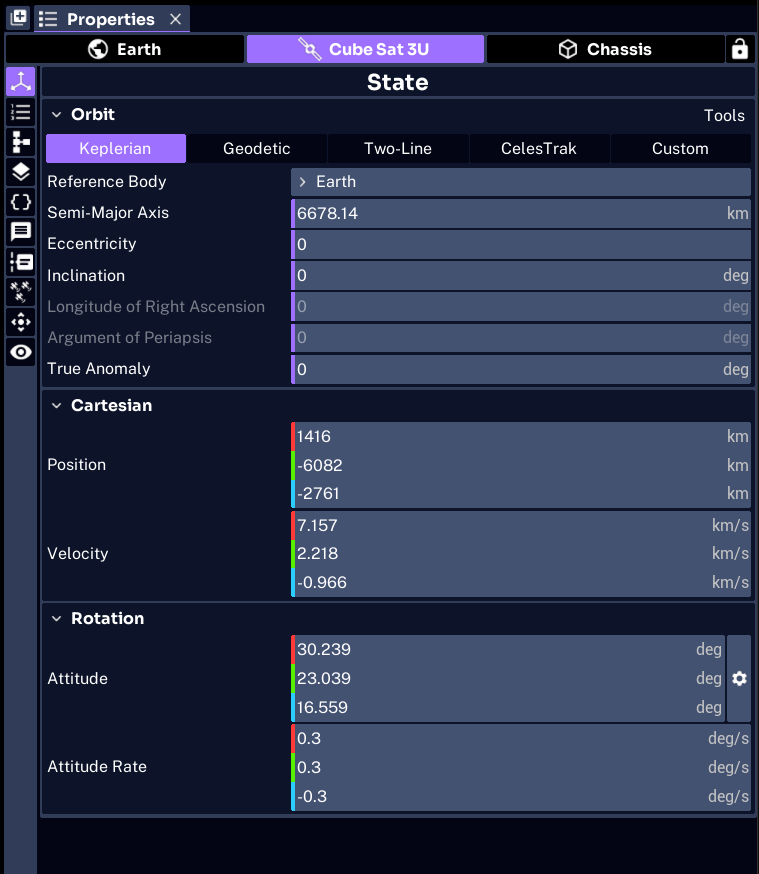
Reading the Breadcrumb
Three crumbs sit above the category rail: Planet, Entity, and Component. Planet always shows the planet, moon, or other body behind the current selection. Entity appears once a spacecraft, ground station, vehicle, or vessel is selected. Component appears once a part attached to that entity, such as a battery or transmitter, is selected.
Select a crumb to jump back to it, the same as selecting that level in the Outliner Panel. A crumb with nothing behind it falls back a level: selecting Component with no component selected drops to Entity, and so on.
Each crumb remembers its own category. Switching from Entity to Component and back shows whichever category was open on each crumb, rather than carrying one category’s selection across to the other. Switching the selected object without changing crumbs tries to keep the same category open by name, and falls back to the first category on the rail if the new object does not have one by that name.
Reading the Category Rail
The rail is a vertical, icon-only list down the left of the panel body. It lists every category registered for the crumb you are on and the class of object you selected: a category can be shared by every entity, every component, or scoped to one specific class, such as only spacecraft or only ground stations. Where a shared category and a more specific one share the same name, the more specific one takes its place on the rail, in the same position.
Select an icon to show that category’s section in the body below, and to set the title under the breadcrumb. The section underneath stays alive when you switch away and back, so switching categories does not lose scroll position or rebuild the page from scratch.
Shared Tabs
These categories are not specific to one kind of object. The sections below only list what is different for that object.
| Category | Shown For | Description |
|---|---|---|
| Data | Every entity and component | Lists the object’s editable and readable Variables, grouped by category, with a button to export them. Variables are disabled while the simulation is running, by default. |
| Messages | Every entity | Messages stored on the object, with an option to download them. |
| Models | Every entity | Environment and payload models that can be enabled on the object. |
| Visualization | Every entity | Options for how the object is drawn: model visibility, color, and icon. |
| Behaviours | Every entity | Scripted behaviors attached to the object. Add one from the list of registered behavior types with Append Behaviour. |
| Events | Every entity | Events associated with the object or its components. Add a new one with Add Event. |
Spacecraft
Selecting a spacecraft adds three categories on top of the shared tabs above.
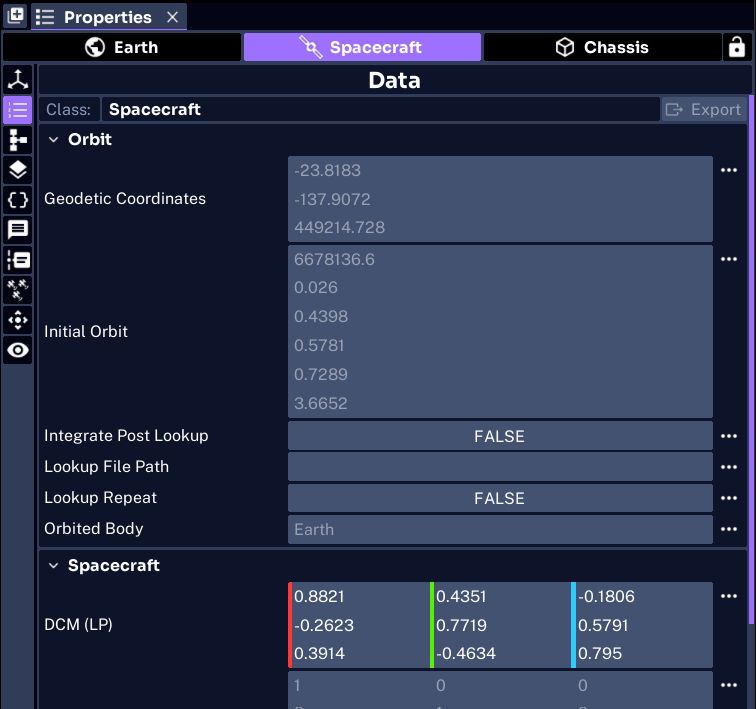
| Category | Description |
|---|---|
| State | Defines the orbit: a Keplerian, Cartesian, or Geodetic element set, or a Two-Line Element (TLE) set, plus orientation and attitude rate. |
| Constellation | If the spacecraft belongs to a constellation, its membership and configuration. Create, join, or leave a constellation from here. |
| Schematic | A node-based schematic for wiring the spacecraft’s power, fuel, and other networked components together. |
Ground Stations
Selecting a ground station replaces State with the station’s own, and adds Connections on top of the shared tabs above.
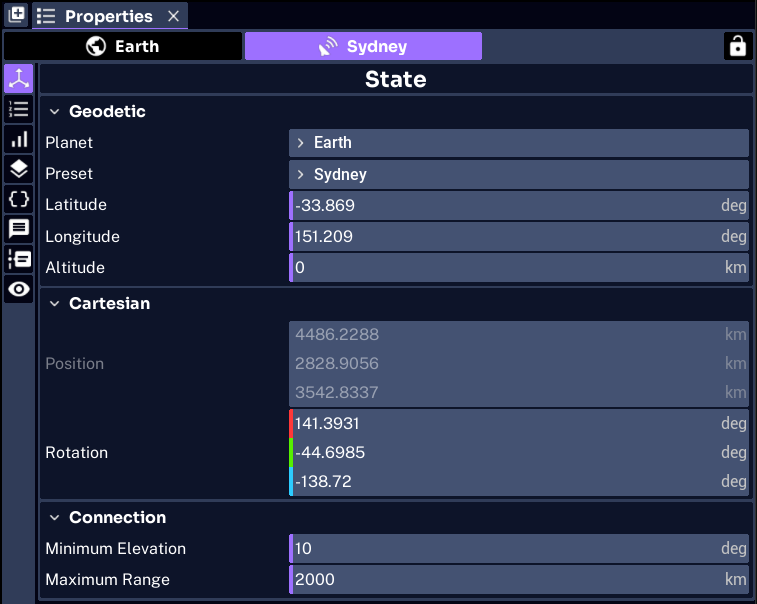
| Category | Description |
|---|---|
| State | The ground station’s latitude, longitude, and altitude on the planet it is stationed on, and the Min Elevation and Range used for its ground visibility on the Ground Map Panel. |
| Connections | Antenna links to spacecraft, and an option to assign a database for recording telemetry and command (TT&C) traffic. |
Aircraft, Vehicles & Vessels
A vehicle replace State with their own, and otherwise use the shared tabs above with no extra category of their own.
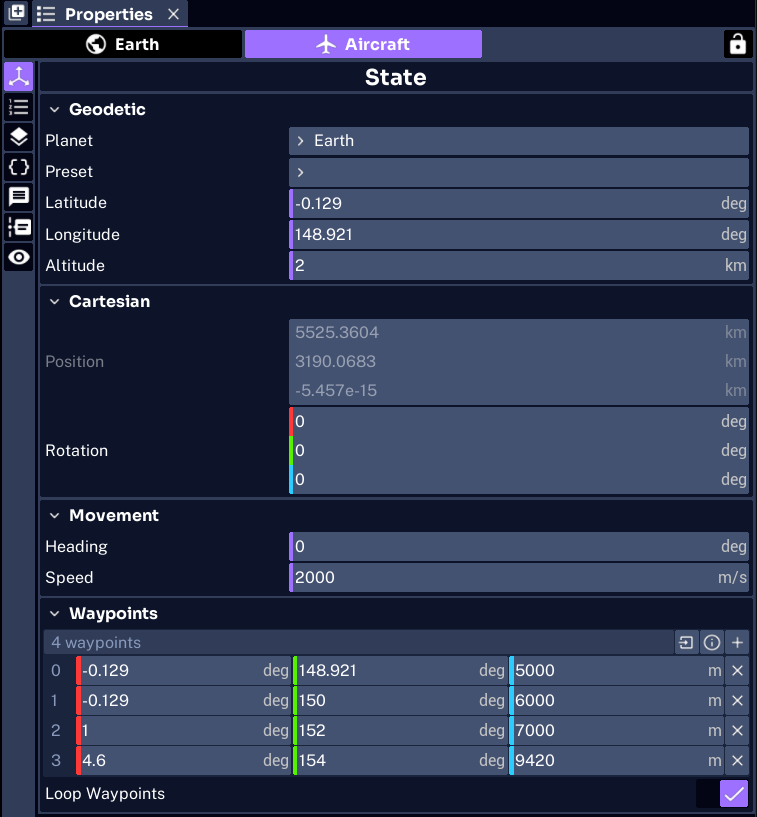
| Category | Description |
|---|---|
| State | The platform’s position and velocity along the surface it moves on, and its orientation. A vessel’s position additionally follows the WGS-84 globe and is reported through AIS (Automatic Identification System). |
Components
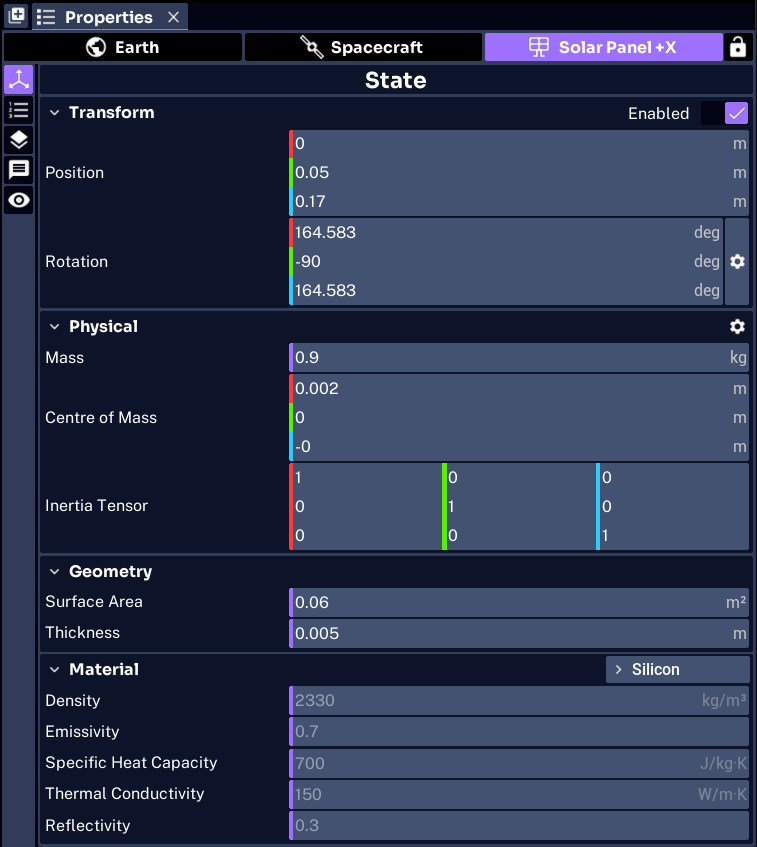
Selecting a part attached to an entity, such as an antenna or a sensor, moves the breadcrumb to Component. Every component gets the same two categories:
| Category | Description |
|---|---|
| State | The component’s position and rotation relative to its parent, and its mass properties and inertia tensor. |
| Data | The component’s Variables. Also lists any models or messages on the component, since most components have only one or two to show and do not need a separate tab for either. |
Component-Specific Tabs
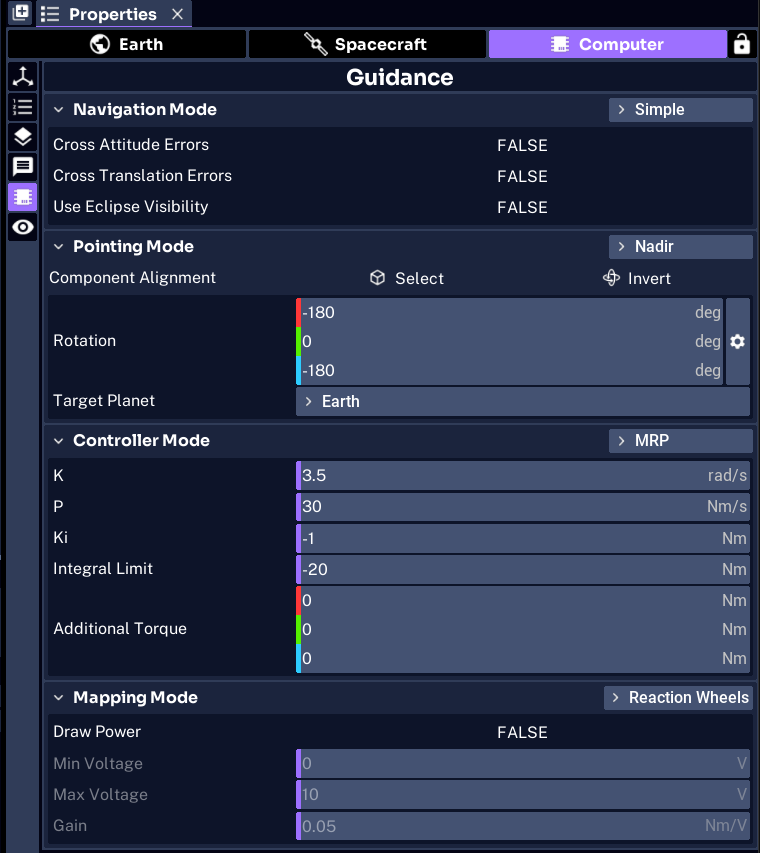
Some component types add one more category on the rail for controls specific to that type. It replaces neither State nor Data; it sits alongside them.
| Component Type | Extra Tab | What It Adds |
|---|---|---|
| Battery | Battery | Connects the battery to a power network, or opens the network it is already on. |
| Camera | Camera | Configures the camera’s optics and previews its field of view in the viewport. |
| Charge Coupled Device | Charge Coupled Device | Captures an image on demand or every tick, and previews the sensor’s color data. |
| Docking Adapter | Docking Adapter | Starts a spacecraft docked, or undocks it with a separation and capture tolerance. |
| Gimbal | Gimbal | Drives the gimbal to a target angle, or to its minimum, maximum, or stop position. |
| Ground Network Receiver | Ground Receiver | Assigns which ground stations this receiver links with, individually or all at once. |
| Ground Network Transmitter | Ground Transmitter | Assigns which ground stations this transmitter links with, individually or all at once. |
| Guidance Computer | Guidance | Points the host at a selected ground object, or sets a relative target or rotation directly. |
| Heater | Heater | Enables or disables the heater. |
| Jamming Transmitter | Jammer | Enables or disables jamming. |
| Receiver | Receiver | Shows how many messages are waiting, and refreshes or clears the incoming buffer. |
| Synthetic Aperture RADAR | Synthetic Aperture RADAR | Triggers a capture, sets the output resolution, and toggles compressed visualization. |
| Partitioned Data Storage | Storage | Registers message types to store, and exports or deletes what has been stored. |
| Physical Text | Text | Edits the displayed text, its font size, and its color. |
| Tracking Mount | Tracking | Jogs azimuth and elevation by hand, or starts the mount tracking a target. |
| Transmitter | Transmitter | Sends a test string or file as a transmission. |
Planets
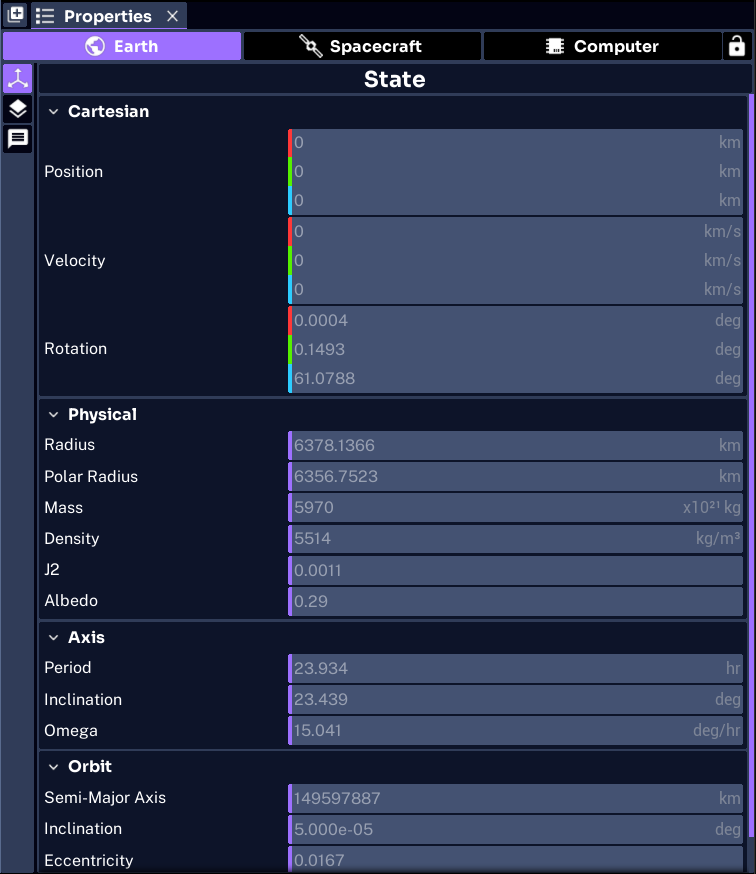
Selecting a planet, or anything on a planet, always keeps a Planet crumb available. Selecting the crumb itself shows the planet’s own categories.
| Category | Description |
|---|---|
| State | The planet’s current radius, position, and other variables at the current simulation time, plus its physical, axial, and orbital properties. |
| Models | Environment models that can be enabled for the planet, such as atmosphere, gravity, and magnetic field models. |
See Configuring Planets for how those models are set up.