
Most facilitator changes should be made through Space Range Settings. Edit the scenario JSON when you need a repeatable change that will be reused across sessions.
This page covers the parts a host can change without redesigning the spacecraft simulation.
WARNING
Work on a copy. A valid JSON file can still describe an invalid exercise, and Studio cannot recover comments from JSON.
Export or download the current scenario
Use the scenario controls in Space Range Settings to save the current scenario configuration as JSON or use the script tab to edit the JSON configuration
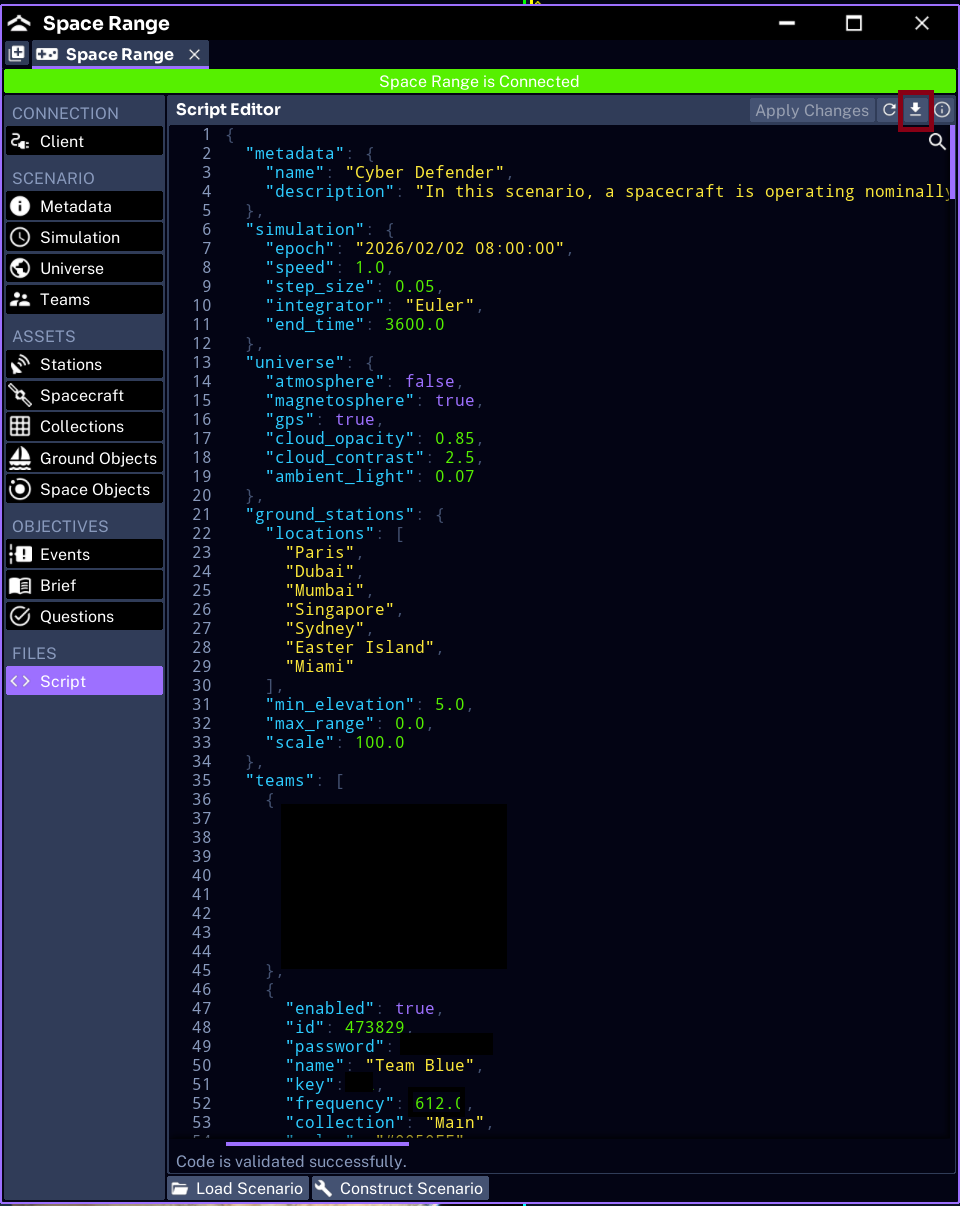
Open the downloaded file in a text editor that validates JSON. Do not use a word processor.
Understand the top level
A Space Range scenario commonly contains:
{
  "metadata": {},
  "simulation": {},
  "universe": {},
  "ground_stations": {},
  "teams": [],
  "assets": {},
  "objects": {},
  "events": [],
  "questions": []
}
For normal hosting, work in metadata, simulation, ground_stations, teams, events, and questions.
Leave assets, spacecraft orbits, components, collections, docking, and objects to the scenario author unless you understand their dependencies.
Brief metadata
A reusable scenario can include its brief:
{
  "metadata": {
    "name": "Training Exercise",
    "description": "A two-team operations exercise",
    "brief": "# Mission brief\n\nYour objectives go here."
  }
}
The value of brief is Markdown stored as a JSON string. New lines must be represented with \n.
For a one-off hosted session, loading a separate Markdown brief in Studio is easier to review.
Simulation settings
{
  "simulation": {
    "epoch": "2026/08/20 09:00:00",
    "speed": 1.0,
    "step_size": 0.1,
    "integrator": "Euler",
    "end_time": 3600.0
  }
}
Hosts normally change:
speed: simulation seconds per real secondend_time: when the exercise ends in simulation seconds;0means no automatic endepoch: only when the exercise depends on lighting, ground tracks, or access at a particular time
Do not change step_size or integrator just to make the workshop run faster. Those affect the simulation solver, not only the clock.
Teams
Each entry in teams[] is one participant team:
{
  "enabled": true,
  "id": 111111,
  "password": "BLUE01",
  "name": "Team Blue",
  "key": 42,
  "frequency": 612,
  "collection": "Main",
  "color": "#0050FF"
}
When duplicating a team:
- give it a unique numeric
id - give it a unique six-character
password - choose a distinct name and colour
- verify
collectionmatches an existing asset collection - choose the intended starting frequency and key
The team password is the Operator access code. The numeric ID is not.
Questions
Questions are loaded in array order and receive their IDs automatically.
{
  "section": "Orbit",
  "title": "What is the semi-major axis?",
  "description": "Use the latest navigation telemetry.",
  "type": "number",
  "answer": {
    "value": 7200,
    "tolerance": 5,
    "unit": "km",
    "score": 4
  }
}
Supported types are text, number, select, and checkbox.
Keep the type lowercase. Give every question a non-zero score, then test it in Operator.
Events
Events use simulation seconds:
{
  "Enabled": true,
  "Name": "Reaction wheel fault",
  "Type": "Spacecraft",
  "Time": 600,
  "Repeat": false,
  "Interval": 1,
  "Assets": ["SC_MAIN"],
  "Target": "Reaction Wheels",
  "Data": {
    "Stuck Index": 1
  }
}
Safe host changes are:
- enable or disable an existing event
- change
Time - change
RepeatandInterval - limit an existing event to the intended asset IDs
Do not invent Target or Data values from their names. Those fields must match systems supported by the scenario build.
Reload and verify
After editing:
- validate the JSON syntax
- load it through the scenario controls in Space Range Settings
- check the team, question, and event counts
- inspect the Console Panel for load errors
- connect with a temporary session name
- join with a test team
- verify the brief, tasks, assets, and event timeline
- reset before the live session
For spacecraft, component, orbit, collection, or object changes, continue to Scenario Authoring.
Next, run the prepared exercise.