
Operator Admin is the facilitator’s browser view of a live Space Range exercise. Studio hosts the scenario and connects it to Space Range. Admin lets you monitor every team and control the running simulation from a browser.
Open operator.zendir.io/admin.
WARNING
Do not share the admin password with participants. It gives access to the all-team exercise view.
Connect to the session
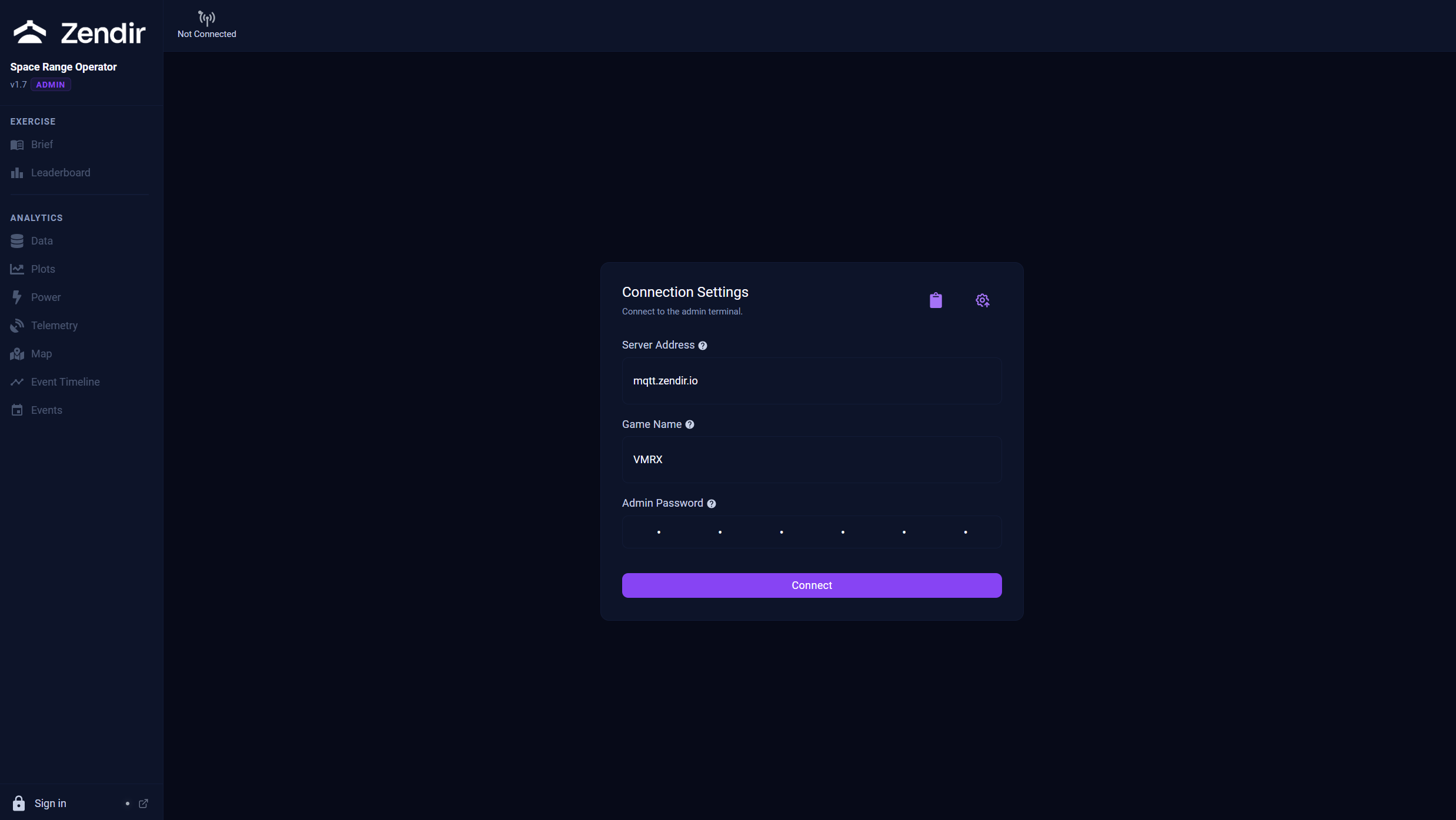
The Admin landing page is Connection Settings. Enter:
- Server Address: normally
mqtt.zendir.io - Game Name: the session name configured in Studio
- Admin Password: the six-character admin code configured in Studio
Select Connect. A successful connection opens Leaderboard automatically.
The dashboard sign-in shown in the standalone sidebar is separate from the Space Range connection. It is optional for the normal MQTT monitoring views. The Game Name and Admin Password are still required.
If you enter Admin from an already connected participant Operator, open the Admin action, enter the admin password, then select Enter admin console.
Connected controls
The connected Admin layout shows:
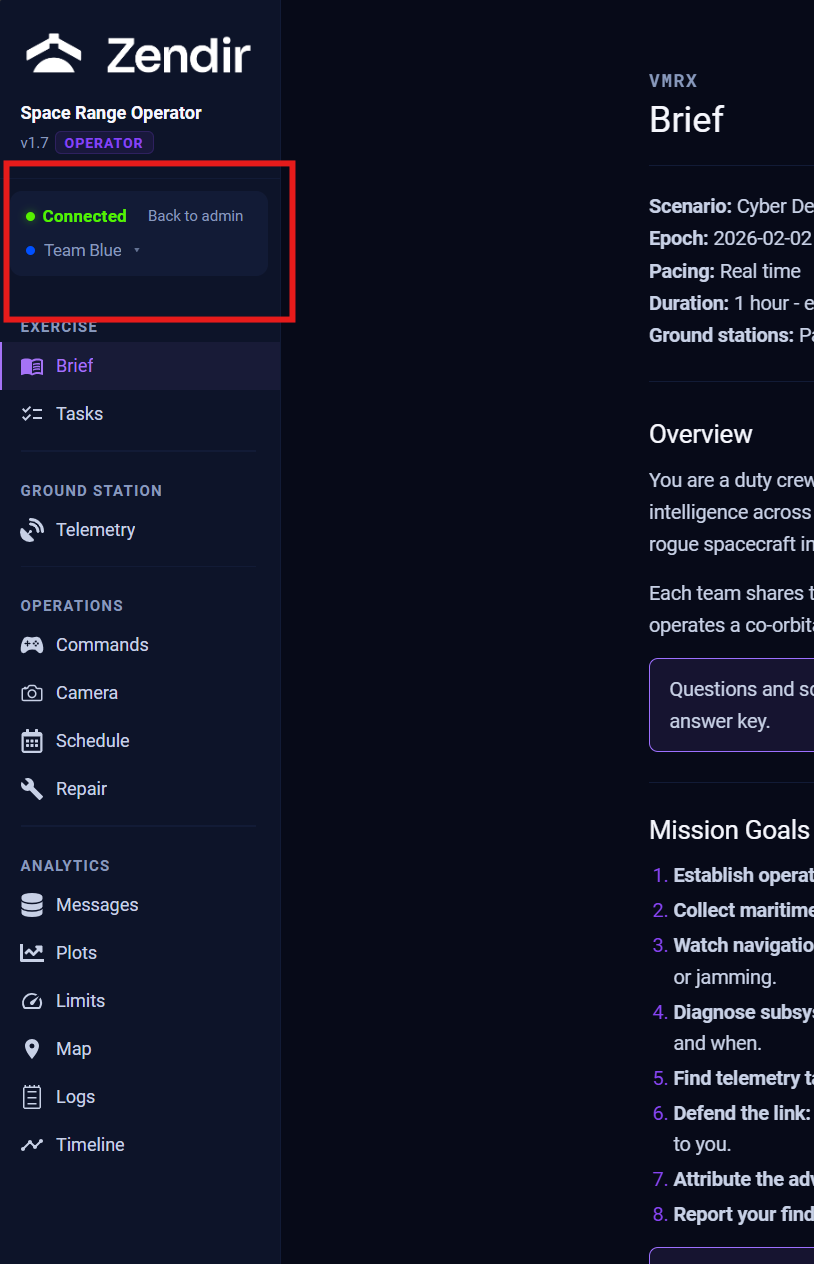
- Connected status and the current game name
- View a team for selecting a team without its access code
- Disconnect to leave the Admin session
- simulation play, pause, stop/reset, and time-scale controls in the top bar
- Packets and the historical-data refresh control
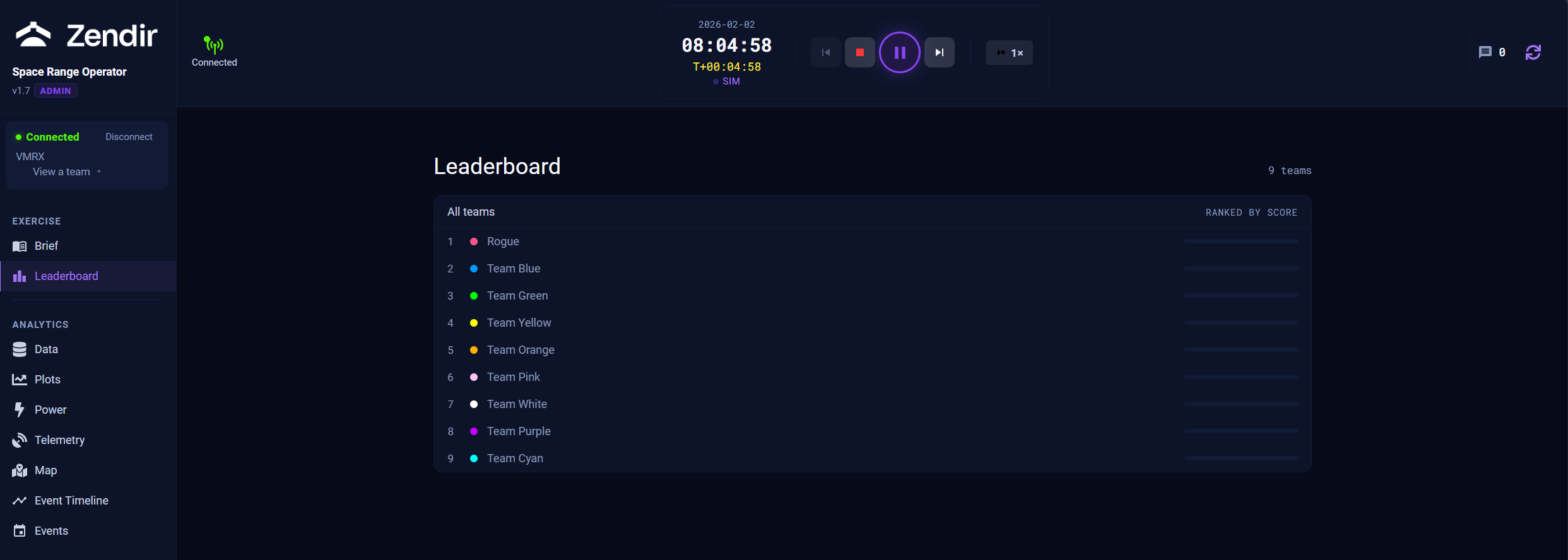
Stopping the simulation opens Reset scenario confirmation. Resetting is destructive: it returns the scenario to its starting state and clears the current run.
What you can monitor
The Admin sidebar groups the live views:
- Brief shows the mission brief published by Studio
- Leaderboard shows team scores
- Data shows team and asset data
- Plots compares values over time
- Power shows spacecraft power state
- Telemetry shows link and packet status
- Map shows assets across teams
- Event Timeline shows recorded activity across teams and assets
- Events shows the predefined triggers loaded from the scenario
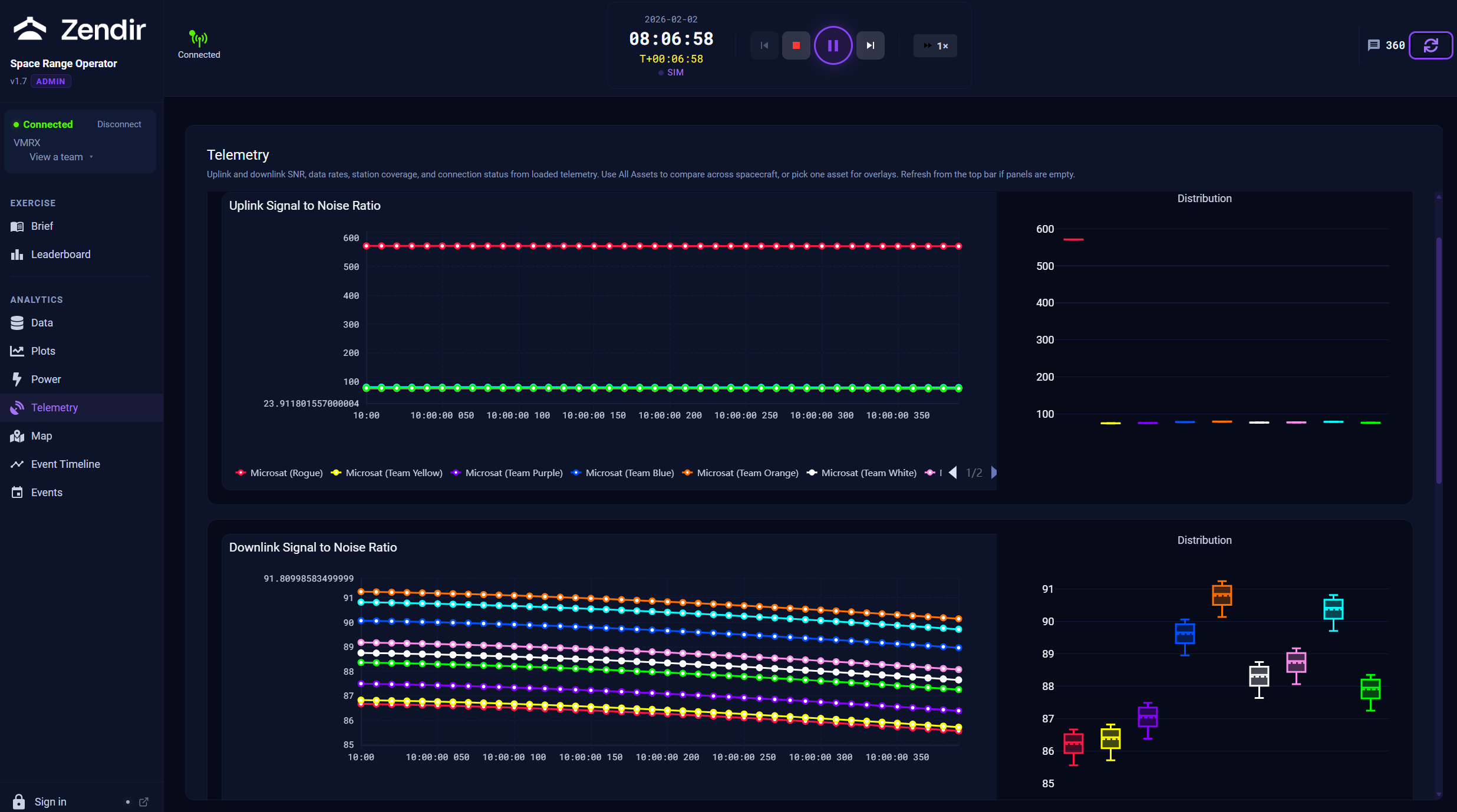
Moving into a team’s Operator view
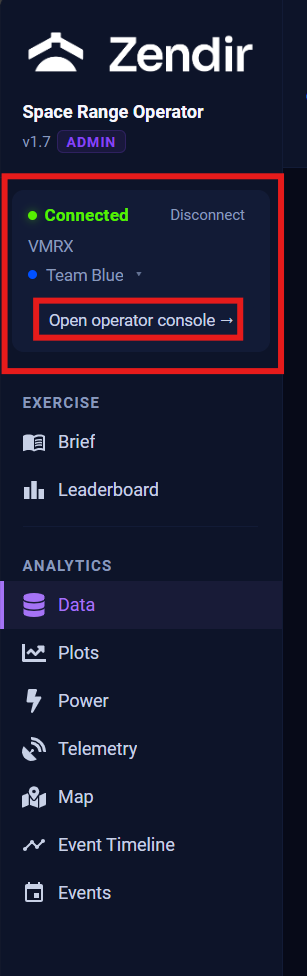
Admin can open a team in the participant Operator without asking for that team’s access code. Use this when you need to see exactly what a team sees or help them recover from a problem.
Return to Admin when you finish coaching so you keep the all-team view.
Admin and Studio responsibilities
Use Studio to:
- connect or disconnect the Space Range server
- edit the loaded scenario configuration
- edit teams, briefs, questions, and scenario events
- recover when the hosted project or MQTT connection fails
Once Admin is connected, its top bar can play, pause, reset, and change the speed of the same simulation. Keep Studio available because it is still the host.
Admin has no separate End workshop action. Pause or stop the simulation, collect the results you need, then disconnect through the status panel.
For the complete facilitator workflow, continue to Host Troubleshooting or return to Hosting a Space Range.