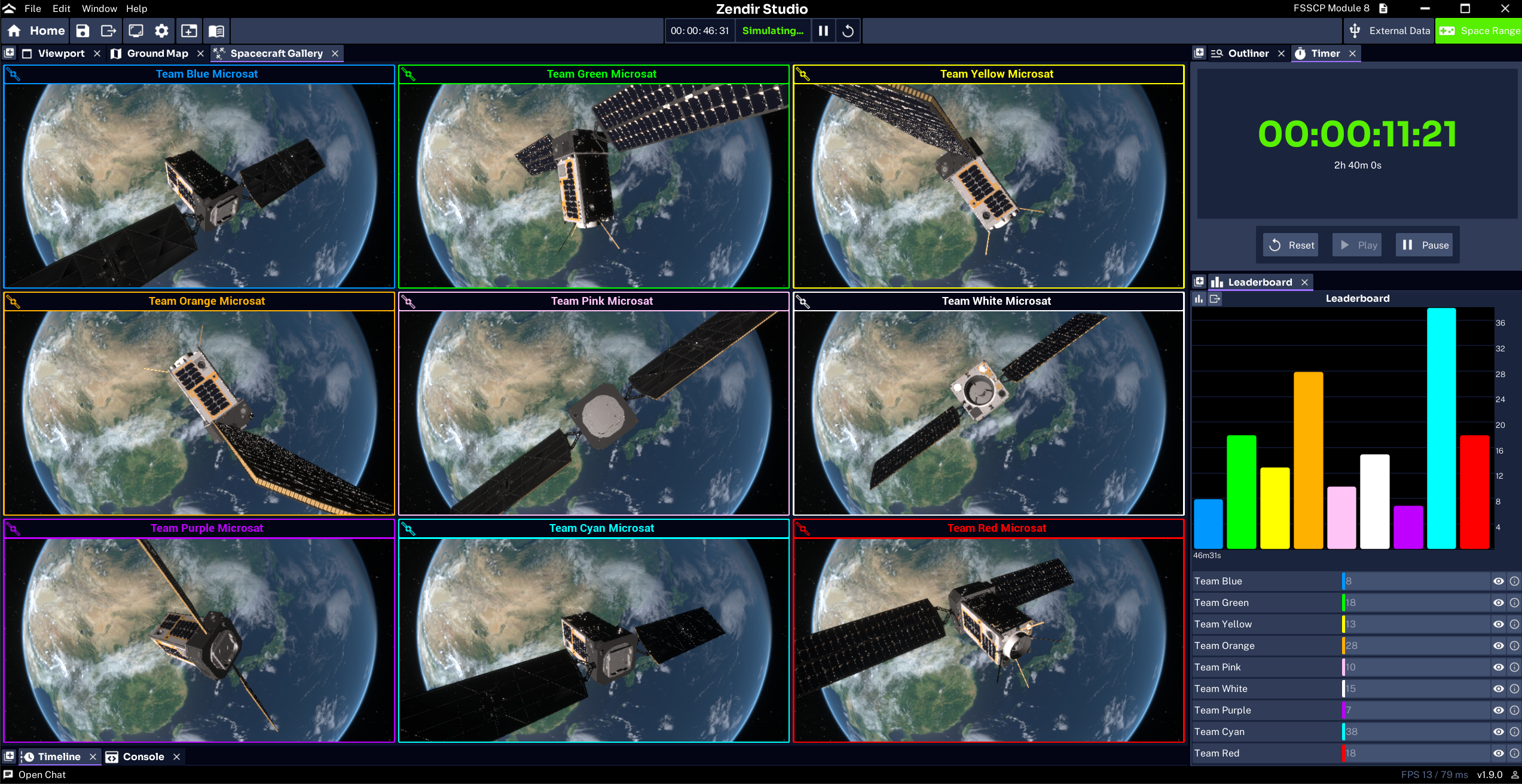
This guide is for facilitators running an existing Space Range scenario. You import a .zen scenario into Studio, prepare the session, connect the range, and start the simulation when the teams are ready.
Participants use Zendir Operator. You use Studio to control the simulation and Operator Admin to monitor the exercise in a browser.
NOTE
This guide assumes the scenario is already built. It covers safe facilitator changes such as teams, briefs, questions, event timing, and simulation speed. Building spacecraft and components is a separate authoring task.
Before you begin
- Install Zendir Studio
- Add an AI token in Studio Preferences once on this machine. Mission Assistant in Operator uses that host token. Operators never enter a key. The token is stored in local preferences, not in the
.zenfile. See Configuring the Provider, Adding an API Token, and Using Chat During Space Range. - Read the Studio interface overview
- Read Running a Simulation
- Obtain the
.zenscenario file and any separate brief supplied by its author - Decide which teams will take part and who receives each access code
The hosting flow
Work through these pages in order:
- Import and connect the scenario
- Configure the server and teams
- Prepare the brief and questions
- Review and edit scenario events
- Make safe changes to the scenario configuration
- Run and monitor the exercise
- Fix common hosting problems
WARNING
The Space Range settings contain access codes and the admin password. Do not project or share that window with participants.
What happens during a session
Studio remains the authoritative simulation:
- the Space Range button is red while the range is disconnected
- Connect Client connects Studio to the configured MQTT server
- the Space Range button turns green after Studio connects
- Play, Pause, Reset, and simulation speed control the exercise clock
- scripted events run against simulation time
Operator Admin is the all-team view. It shows the brief, scores, telemetry, maps, and event history. Its top bar can also play, pause, reset, and change the speed of the simulation after Admin connects. Studio remains the host and is still required for scenario and server configuration.