
Scenario events create planned changes and anomalies during the exercise. Review them before every run, even when you are using an unchanged .zen file.
Events fire against simulation time, not wall-clock time. An event at 600 seconds fires when the simulation clock reaches ten minutes.
Read the event list
Open the Events section in Space Range Settings.
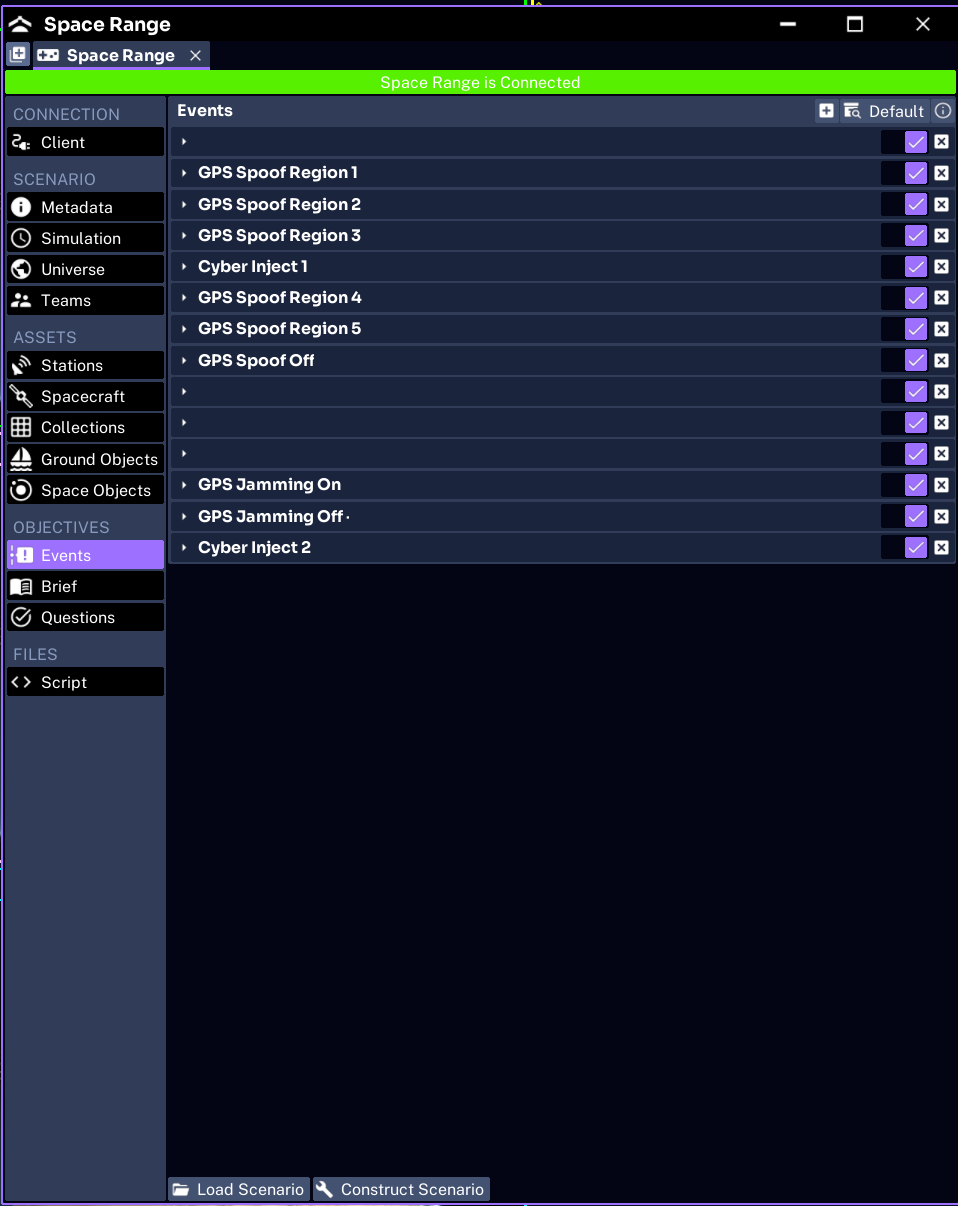
For each event, check:
- Enabled: whether the event will fire
- Name: the facilitator-facing label
- Type: the event system used
- Time: first trigger time in simulation seconds
- Repeat: whether it fires again
- Interval: seconds between repeated triggers
- Assets: the spacecraft affected, when applicable
- Target: the component or system being changed
- Data: the values applied when the event fires
Current scenario event types are:
- Spacecraft for component faults or property changes
- GPS for spoofing or jamming regions
- Cyber for packet-level telemetry changes
Enable or disable an event
Turn Enabled off when you want to keep an event in the scenario but skip it for this run.
This is safer than deleting the event. You can re-enable it for another cohort without reconstructing its target and data.
Change when an event fires
Edit Time to move the first trigger.
Use Repeat and Interval only when the event is intended to recur. A short repeat interval can overwhelm a training session or keep reapplying a fault after teams repair it.
Plan against real workshop time:
real minutes to event = simulation seconds / simulation speed / 60For example, an event at 600 seconds arrives after five real minutes when Studio runs at 2x.
Add an event
Use the new or preset event controls in Space Range Settings. Start from a preset where possible, then change the time, affected assets, and supported data values.
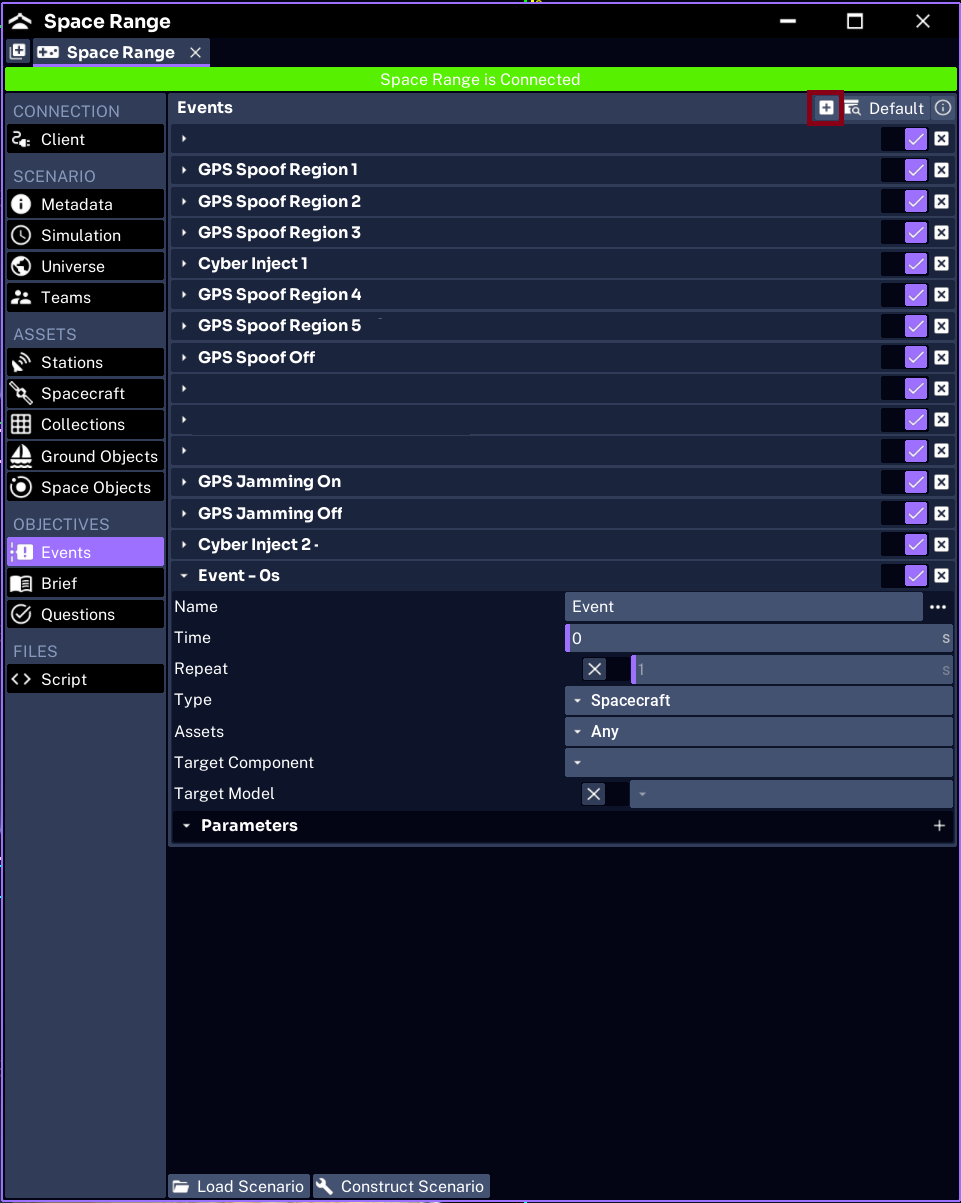
Do not guess a target or Data field. Unsupported values may load without producing the intended effect. Use a known event from the scenario as the template.
Build a facilitator timeline
Keep a simple private run sheet with:
- simulation time
- expected real time at the planned speed
- event name
- affected teams or assets
- what participants are expected to notice
- whether the facilitator should intervene
Do not put fault answers in the participant brief.
Test the events
Before the live session:
- save a working copy of the project
- connect the range with a temporary session name
- increase simulation speed if needed
- run past each important trigger
- confirm the event appears in Admin and changes the intended system
- reset the simulation after the test
Next, review the scenario configuration a host can safely change.