
The brief tells participants what they are doing. Questions turn mission outcomes into scored tasks.
Prepare both before the simulation starts. Answers and scoring rules are facilitator information, so keep this part of Space Range Settings off the shared screen.
Review the brief
Open the brief section in Space Range Settings and check what loaded with the scenario.
A useful brief should tell participants:
- the mission context
- their objectives
- any operating constraints
- what evidence they need to collect
- when the exercise ends
The Operator displays the brief as Markdown, so headings, lists, links, and emphasis can be used to make it easy to scan.
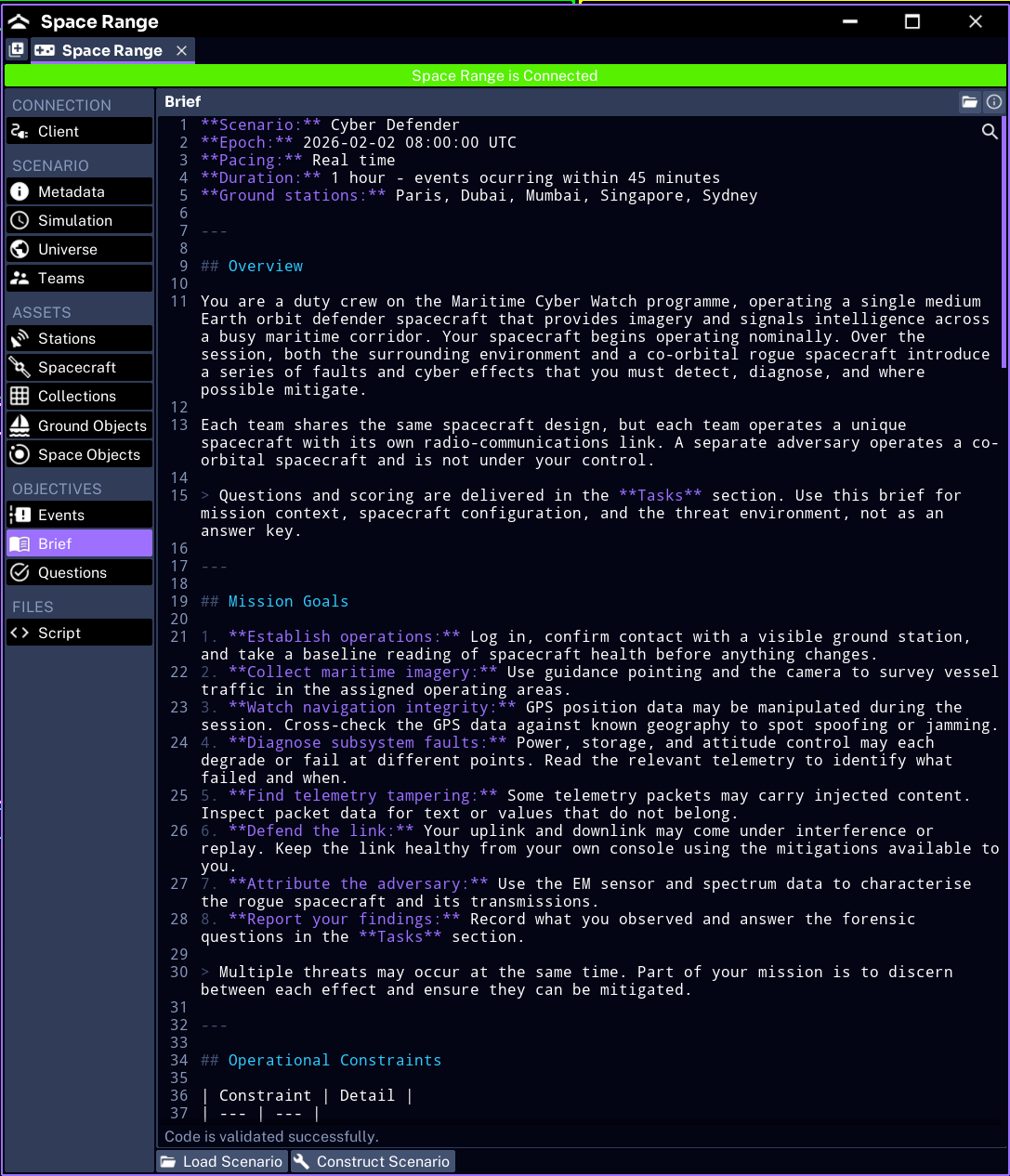
Load a brief when one is missing
If the brief area is empty, load the Markdown brief supplied with the scenario. Brief files normally use the .md extension.
After loading it:
- confirm the title and objectives are visible in Studio
- save the Studio project if you want the brief kept with this hosted copy
- connect the range
- open the Brief panel in Operator or Admin and confirm it arrived
NOTE
A scenario may also carry its brief in the JSON under
metadata.brief. Use the Studio brief controls for normal hosting. Edit JSON only when you need a repeatable file-level change.
Review the questions
Questions appear in the Operator Tasks panel. They are scored per team and feed the leaderboard.
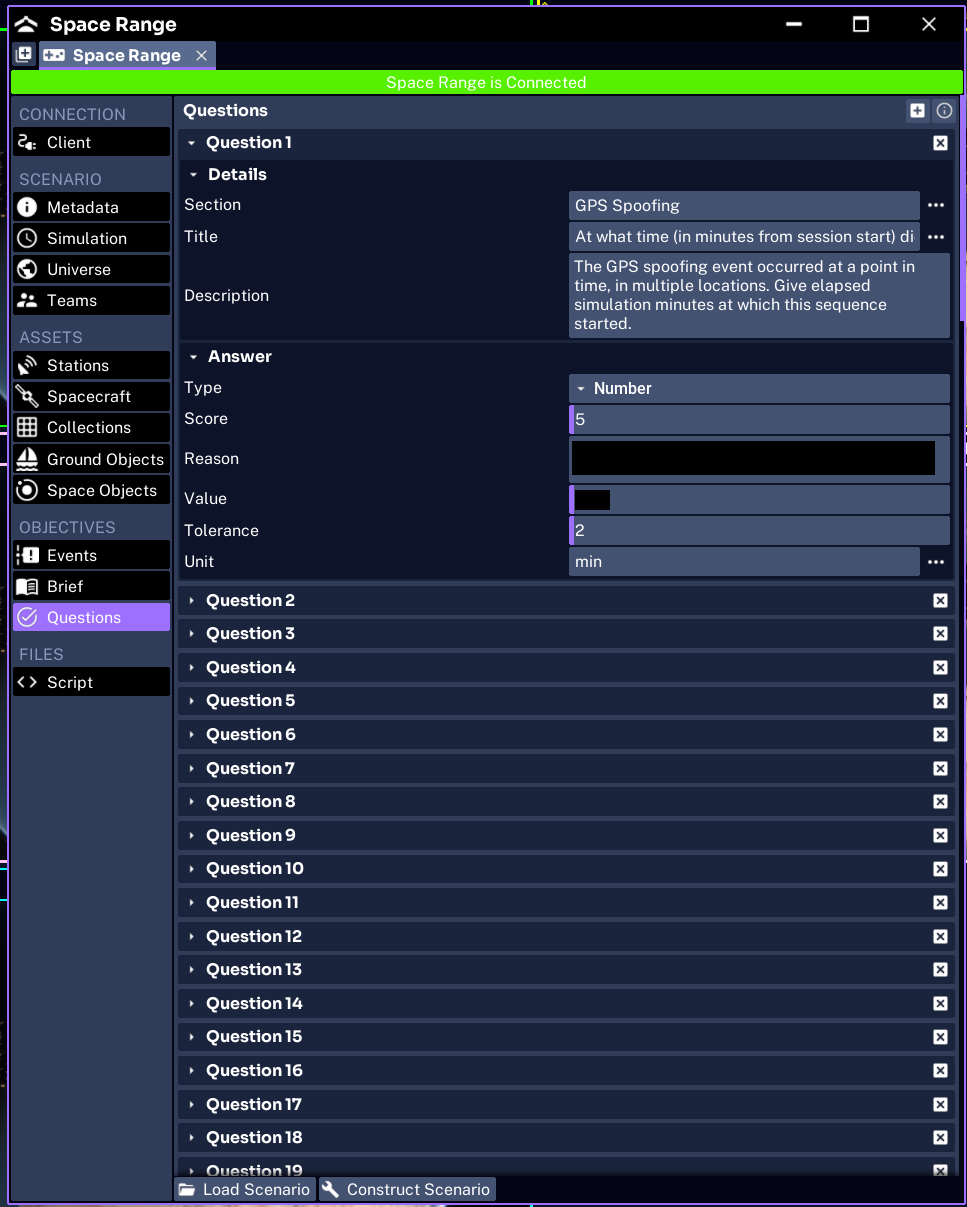
For each question, check:
- Section groups related questions in Operator
- Title is the short prompt
- Description gives any extra context
- Type matches the expected answer
- Answer contains the correct response
- Score reflects the value of the task
- Reason or feedback explains an incorrect answer when the question type supports it
Space Range supports:
- Text for a short written answer
- Number for a numeric answer, optionally with a tolerance and unit
- Select for one answer from a list
- Checkbox for one or more answers from a list
Edit or add a question
Use the question controls in Space Range Settings to add, remove, reorder, or edit questions.
Keep prompts short enough to read while operating. If the question requires a long procedure, put the procedure in the brief and use the question to ask for the result.
Test the participant view
Before the workshop:
- connect the range
- open Operator with a temporary team
- open Brief and confirm the Markdown renders correctly
- open Tasks and check section names, ordering, options, and score values
- correct any answer or wording problems before teams begin
Submitting a test answer changes that team’s score. Reset the simulation or use a disposable test team before the real session.
Next, review the scenario events.