
Open Space Range Settings from the red or green Space Range button in the top-right corner of Studio.
Make these changes while the simulation is paused. If the range is already connected, tell participants before changing anything they use to join.
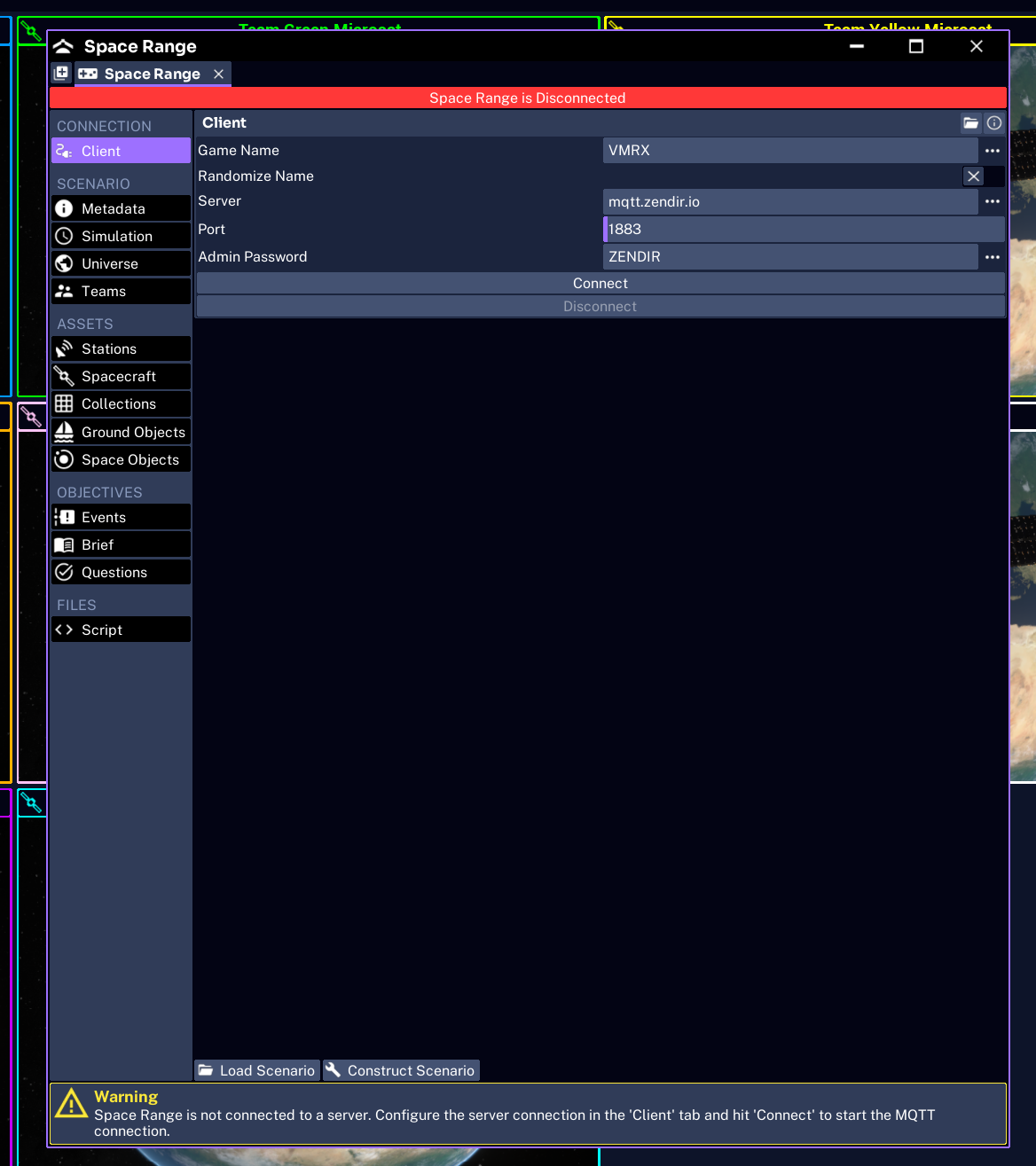
Server settings
Name
The session name participants search for in Operator.
Use a short, distinctive name. If several facilitators are running the same scenario, include a room, cohort, or date so teams do not join the wrong session.
Randomize Name
Generates a new session name when the project loads. This is useful for repeated workshops where every run needs a fresh name.
If you need to publish the name in advance, leave this disabled.
MQTT Server and MQTT Port
These identify the MQTT broker carrying Space Range traffic.
The normal hosted values are:
- server:
mqtt.zendir.io - port:
1883
Only change these when your organization operates a different broker.
Admin Password
The six-character code used to open Operator Admin. It is separate from every team access code.
Keep it private. Anyone with this password can open the facilitator view.
Connect Client
Connects Studio to the broker. After a successful connection, the control changes to Disconnect Client and the Space Range button turns green.
Teams
The Teams section controls who can join and which configured asset collection they operate.
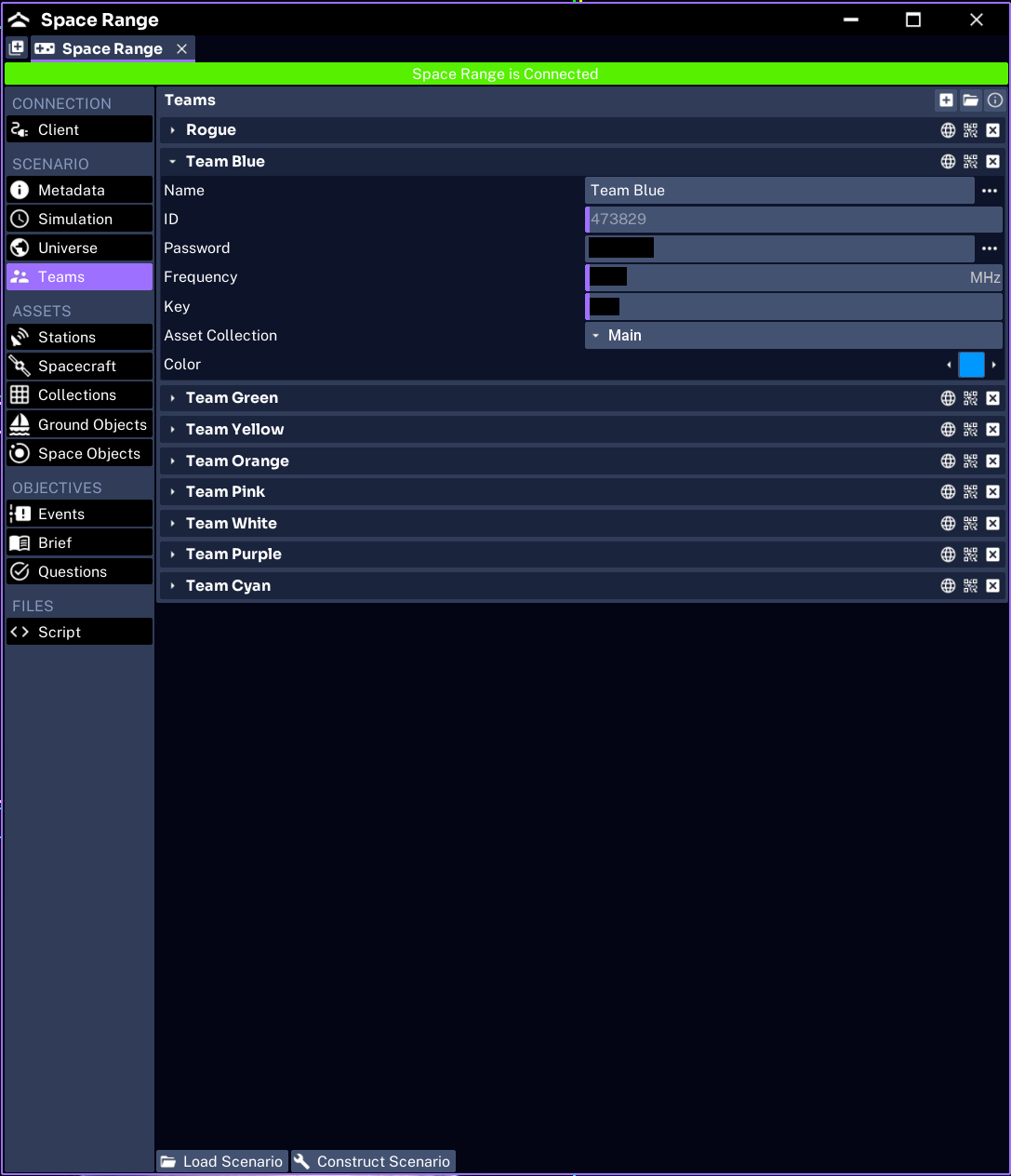
Each team contains:
- Enabled: whether the team is available in this run
- Name: the name shown in Operator and Admin
- ID: the numeric internal identity used by Space Range
- Password: the six-character access code participants type to join
- Frequency: the team’s starting radio frequency
- Key: the team’s starting telemetry cipher key
- Color: the team colour used on maps, plots, and team labels
- Collection: the group of scenario assets assigned to the team
IMPORTANT
ID is not the team password. Participants join with the six-character Password. Do not send them the numeric ID unless the scenario instructions specifically require it.
Add, disable, or remove a team
- Use the add control to create another team
- Turn Enabled off when you want to keep a team definition without using it in this run
- Remove a team only if you are sure the scenario does not depend on it
New teams need a valid asset collection. Duplicating a team without assigning the correct collection can produce a team that joins successfully but has no spacecraft.
Share access with participants
Use the team actions to open Operator for a team or show the team’s QR code when those actions are available in your Studio build.
Otherwise send:
- the session name
- the team name
- the team password
Participants should never receive another team’s password or the admin password.
Validate before connecting
Check that:
- every enabled team has a unique ID and password
- team names and colours are easy to distinguish
- each team points to the intended asset collection
- frequencies match the exercise design
- the session name is the one you plan to announce
Next, prepare the brief and questions.