
This lesson uses the Heading Estimation example from the Library to introduce the playback controls: play, pause, reset, and speed.
If Studio is still on the home screen, load Heading Estimation from a featured card or the Library tab. Studio will duplicate it into My Simulations and open the copy. See Home Screen for more information.
Playing the Simulation
Playback controls appear in the Toolbar Panel and the Timeline Panel. Either set controls simulation time.
Press the play button. The spacecraft begins to move along its orbit, the timeline advances, and the solar panel starts tracking the sun.
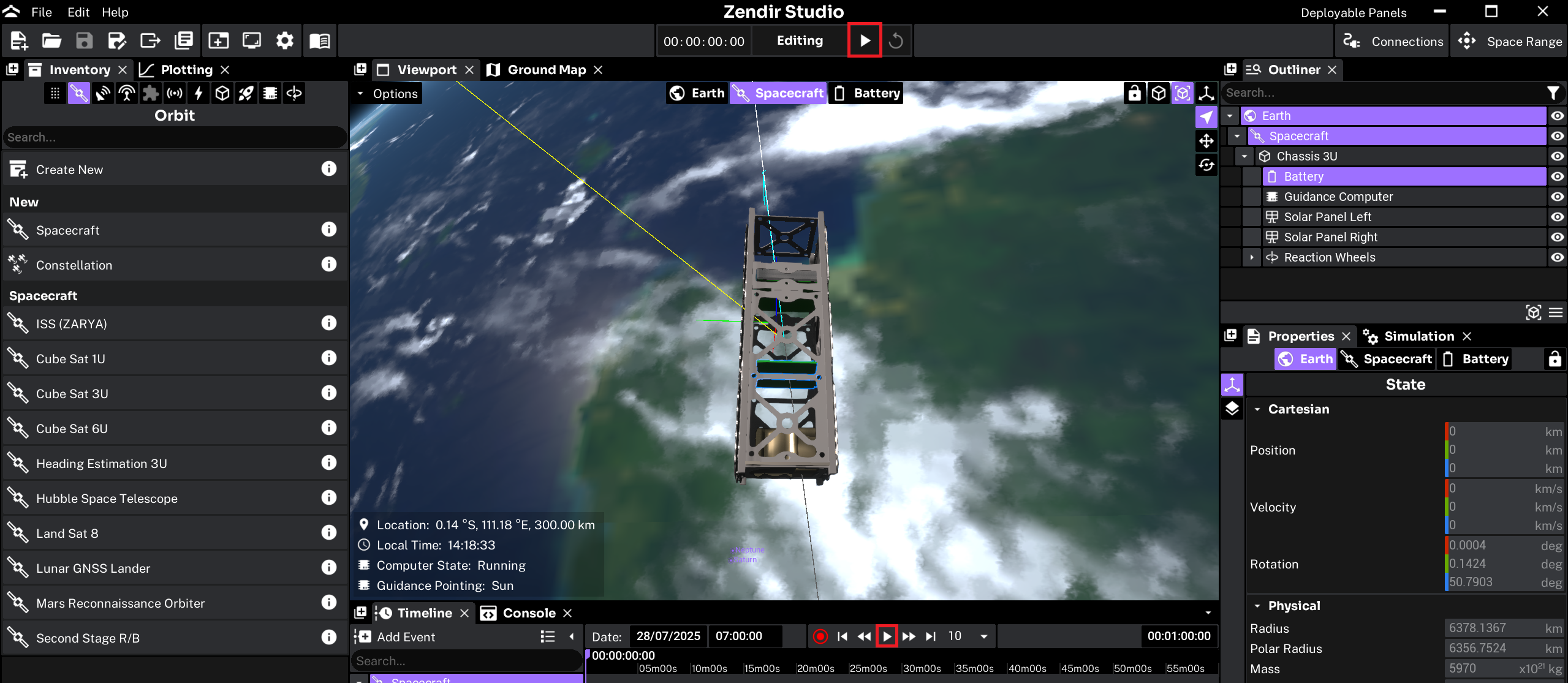
The same button pauses the simulation. While paused, the spacecraft holds its last state. Press play again to continue from that time.
NOTE
Keyboard shortcuts: CTRL + P plays or pauses. CTRL + R resets the simulation to the initial conditions.
Watching the Simulation
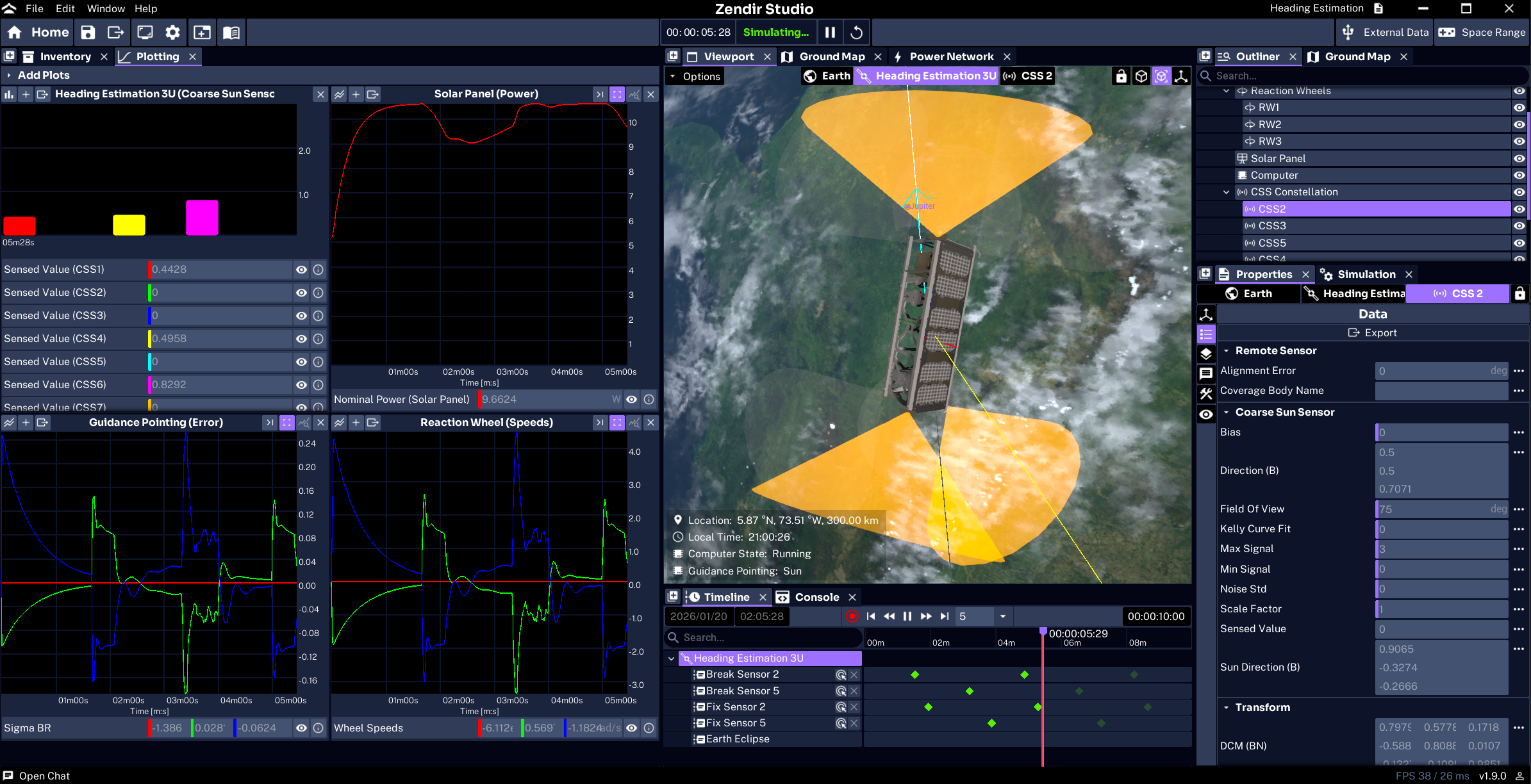
Let the example run for a short time at the default speed. The spacecraft will slew so the solar panel faces the sun. In the Viewport Panel, the spacecraft will move away from its initial attitude. Any open sun-sensor or estimated-heading plots will also begin updating.
NOTE
This page does not configure the sensors. It only runs the example as shipped. To build a spacecraft from scratch, use Spacecraft Simulation.
Changing the Playback Speed
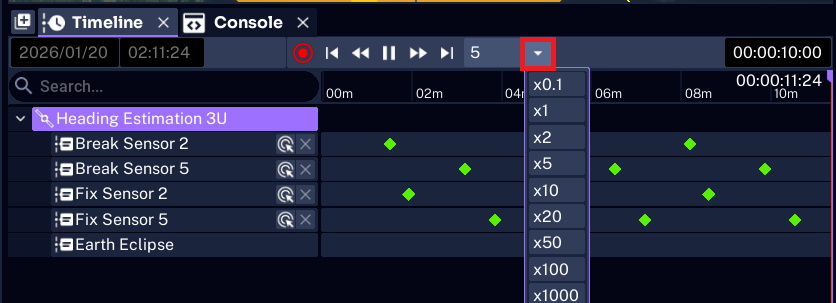
The Timeline Panel shows the current simulation time and speed multiplier. By default, the simulation runs at 1x. Open the speed control and select a higher multiplier, such as 10x, to see the pointing complete sooner.
The maximum speed depends on the machine and on how heavy the scenario is.
WARNING
If the speed number is red, Studio cannot reach that multiplier. Lower the speed, or simplify the scenario, until the number returns to the normal color.
While the simulation is paused, drag the blue timeline marker to preview a time that has already been simulated. The red bar marks the most recent time Studio has computed.
Timeline scrubbing is available only while the database is recording. Turning off database recording can improve performance, but Studio will no longer record simulation history for scrubbing.
Resetting the Simulation
While the simulation is running or paused, spacecraft and most component properties are locked. Reset the simulation before editing it.
Select the reset control in the Toolbar Panel or Timeline Panel. Studio will restore the initial orbit, attitude, events, and plots from before the first play.
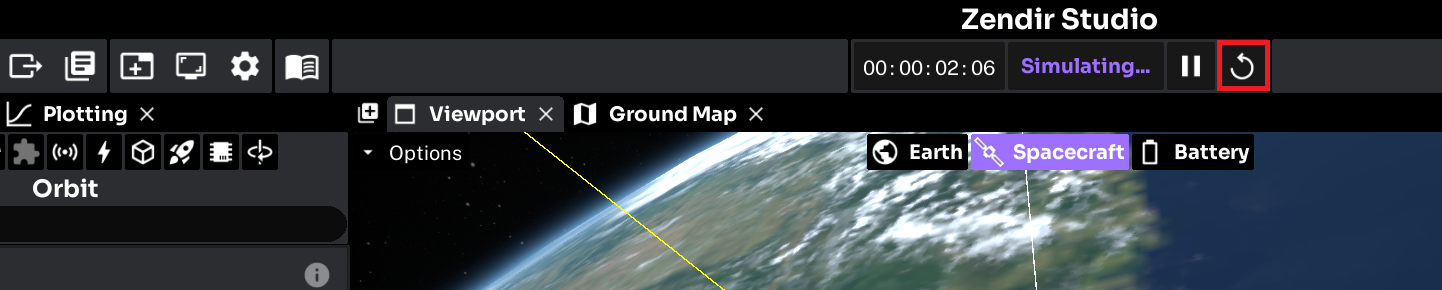
Reset acts as stop for this workflow. It does not close the simulation. After resetting, change any required properties, then select play again.
NOTE
Simulations cannot be modified while running or paused. Reset to the initial state before adding components, changing variables, or removing objects.
When you are ready to keep the example (or your edits), continue to Saving a Simulation.