
The Space Range Operator is the browser tool you use during a training exercise. Your facilitator runs the simulation in Studio; you connect as a team and fly your spacecraft from the Operator.
To open it, go to dashboard.zendir.io, sign in, and choose Operator from the product list. operator.zendir.io still works if you want to skip straight to the tool.
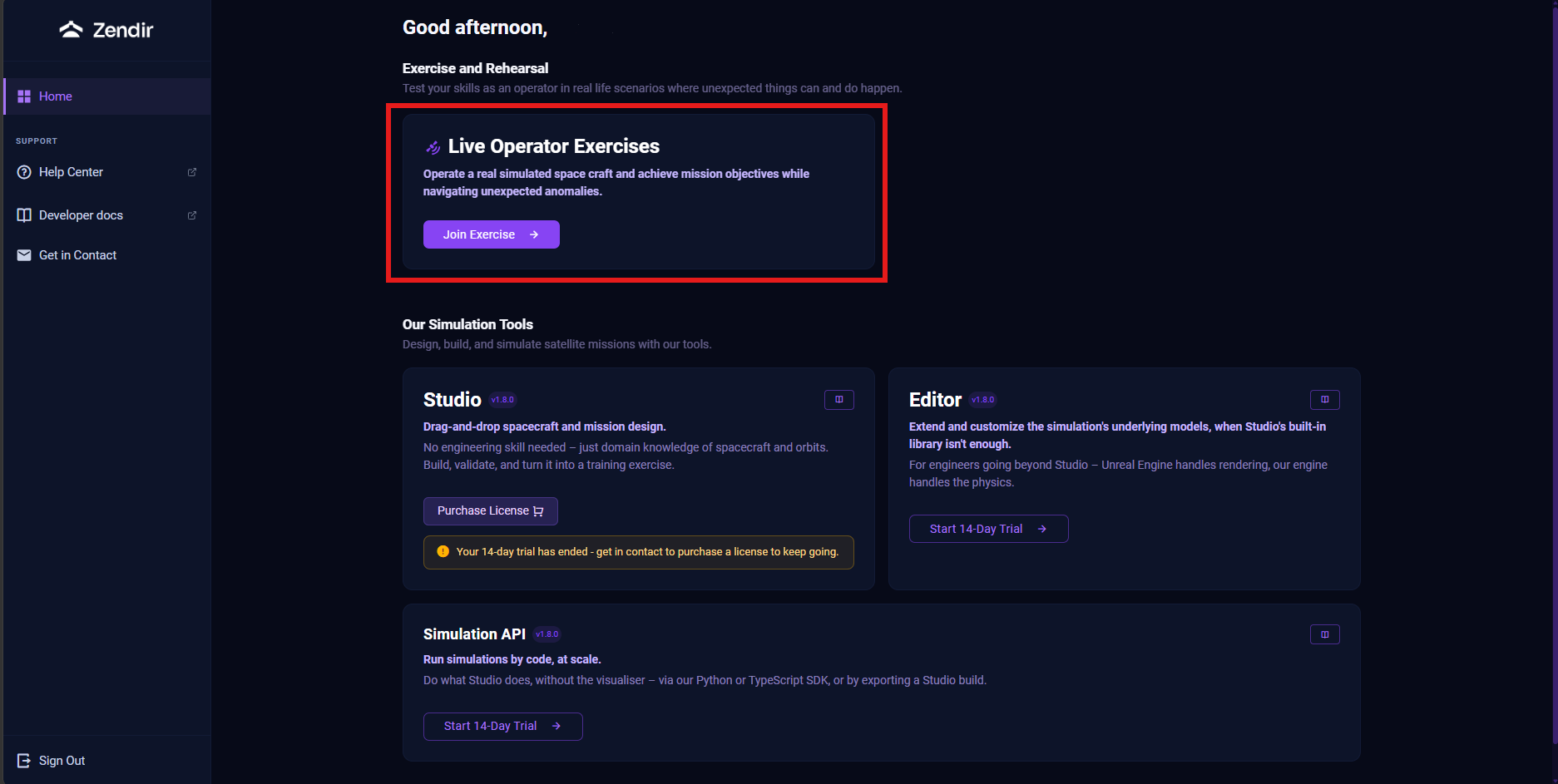
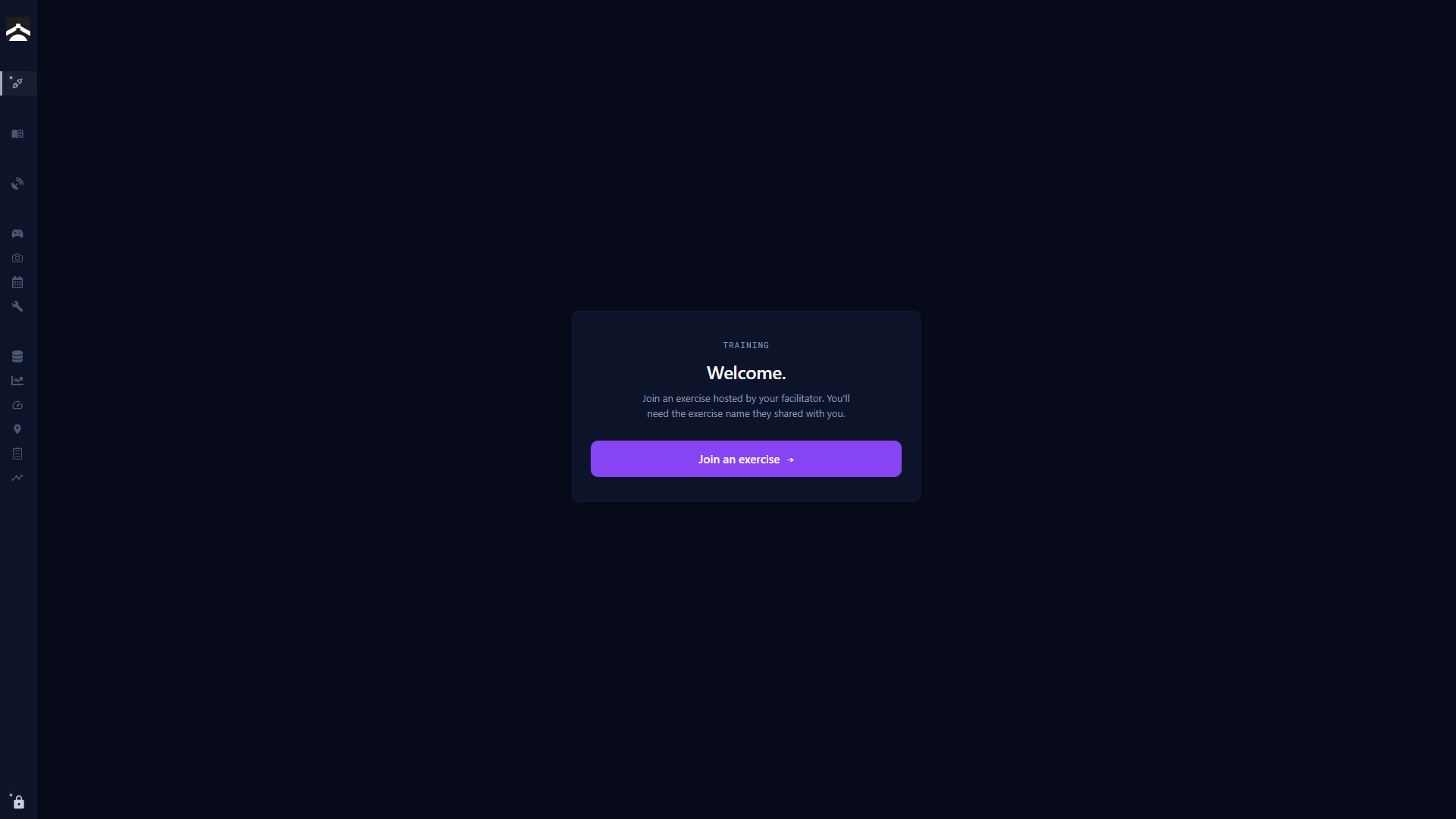
You do not need to install anything. Open the Operator, join the exercise with the name and access code your facilitator gave you, and the panels unlock once you are connected.
NOTE
This guide is for operators (participants). If you are hosting the session in Studio, see Space Range Server instead.
How the tool is organized
The left sidebar is your main map. Before you join, only Connection is available. After you join, the rest of the panels unlock and Connection becomes your session overview.
| Section | Panels | What you use them for |
|---|---|---|
| Network | Connection | Join the exercise, then see session status and the team leaderboard |
| Exercise | Brief, Tasks | Read the mission and answer scored questions |
| Ground Station | Telemetry | Check the radio link, frequency, and encryption key |
| Operations | Commands, Camera, Schedule, Repair | Point the spacecraft, capture images, manage the command queue, reset failed components |
| Analytics | Messages, Intercept, Plots, Limits, Map, Logs, Timeline | Inspect packets, SIGINT, trends, location, and event history |
Some panels only appear when your spacecraft supports them. Tasks shows when the scenario has questions. Intercept shows when uplink intercept is enabled for your asset.
Along the top of most panels you will see the mission clock, your spacecraft selector, and quick status chips for link, battery, storage, ground station, and packet counts. On the right, Mission Assistant opens a chat sidebar for help during the exercise, plus a compact Tasks view when questions are available. The host Studio machine answers those chats with its own AI token. You do not configure a key in Operator. If Mission Assistant cannot reply, ask the facilitator to set the token in Studio Preferences. See AI Chat Panel.
Guided path for your first session
- Join the exercise with the name, team, and access code from your facilitator
- Open Brief, then work through Tasks as the mission progresses
- Use Commands to point, downlink, and operate onboard systems
- Open Camera when you need imagery
- Check Map and Plots when you need situational awareness
- If a component fails, use Repair
- If nothing is coming down, start with Troubleshooting