
Your facilitator hosts the exercise in Studio. You join from the Operator tool in your browser.
Go to dashboard.zendir.io, sign in, and choose Operator from the product list. You land on the welcome screen. You can also open operator.zendir.io directly.
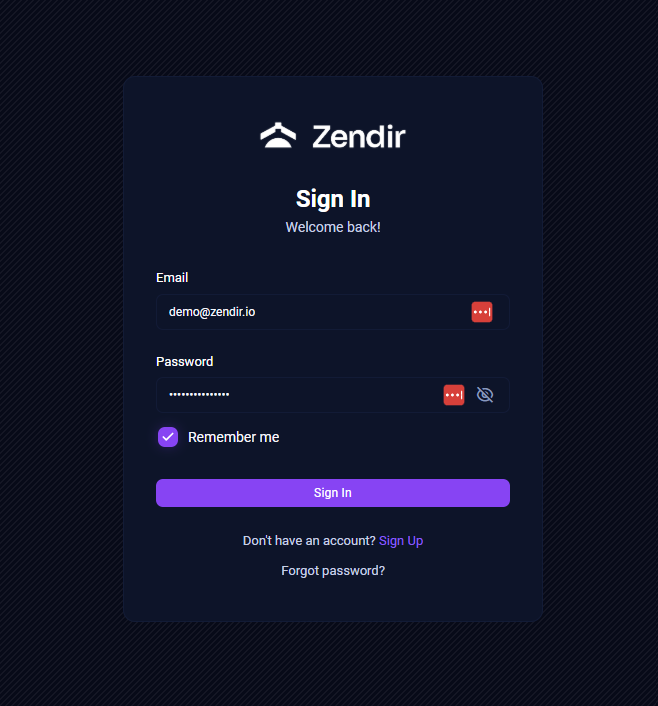
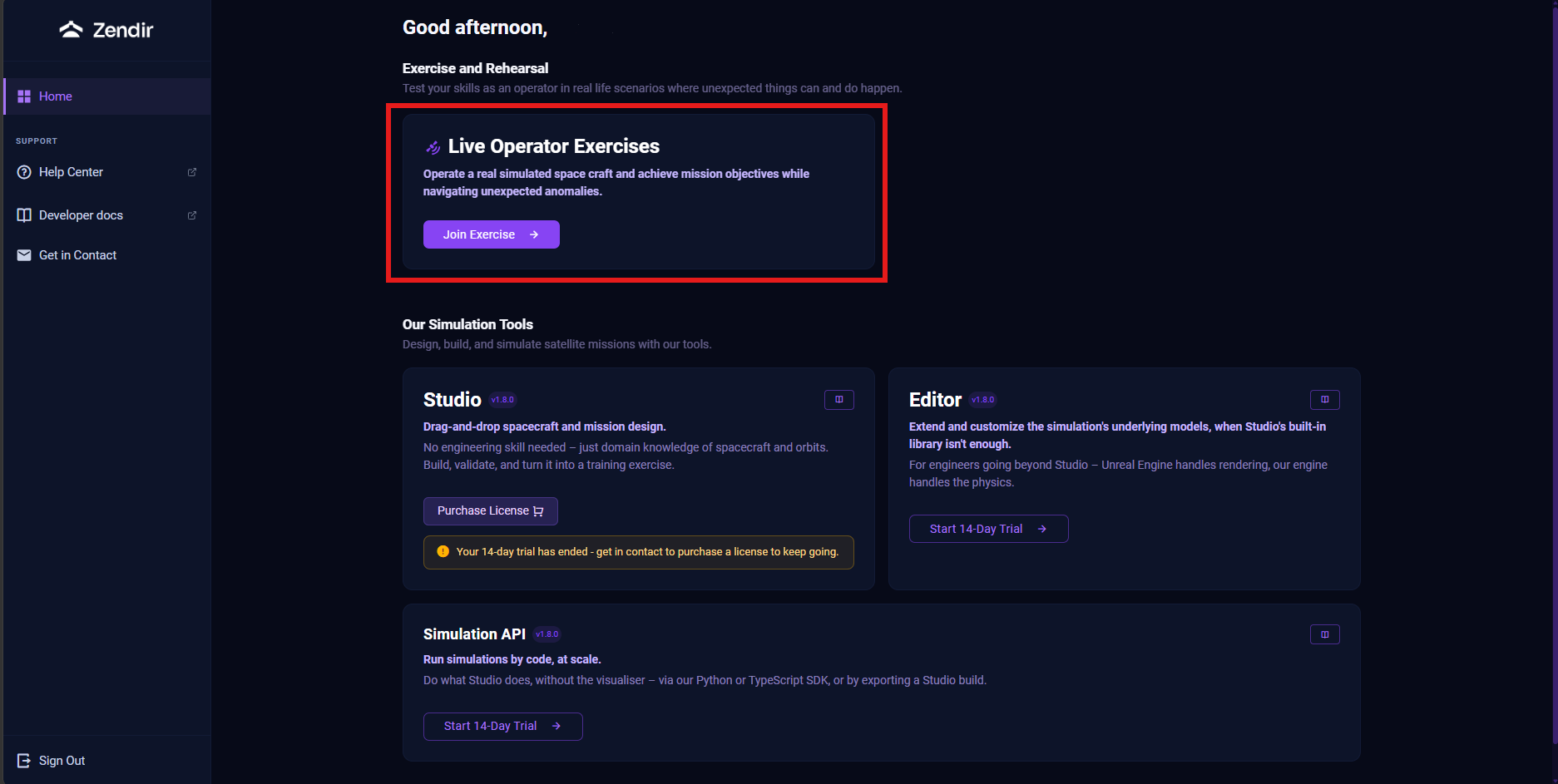
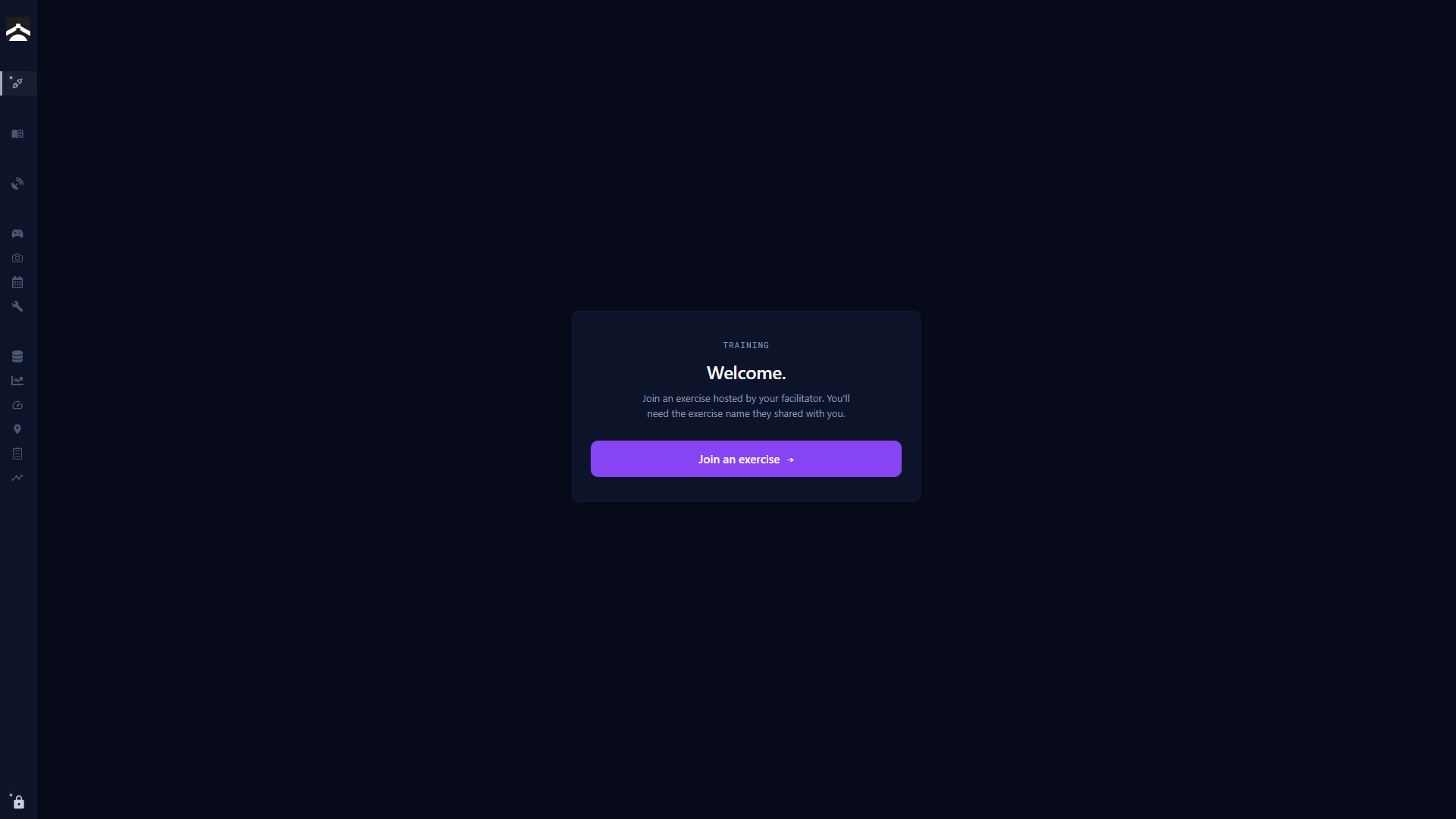
Click Join an exercise to start the four-step join flow.
NOTE
You need three pieces of information from your facilitator: the exercise name, your team (if they assigned one), and your 6-character access code. Treat the access code like a password. Do not share it with other teams.
Step 1: Find the session
Enter the exercise name exactly as your facilitator shared it, then click Find session.
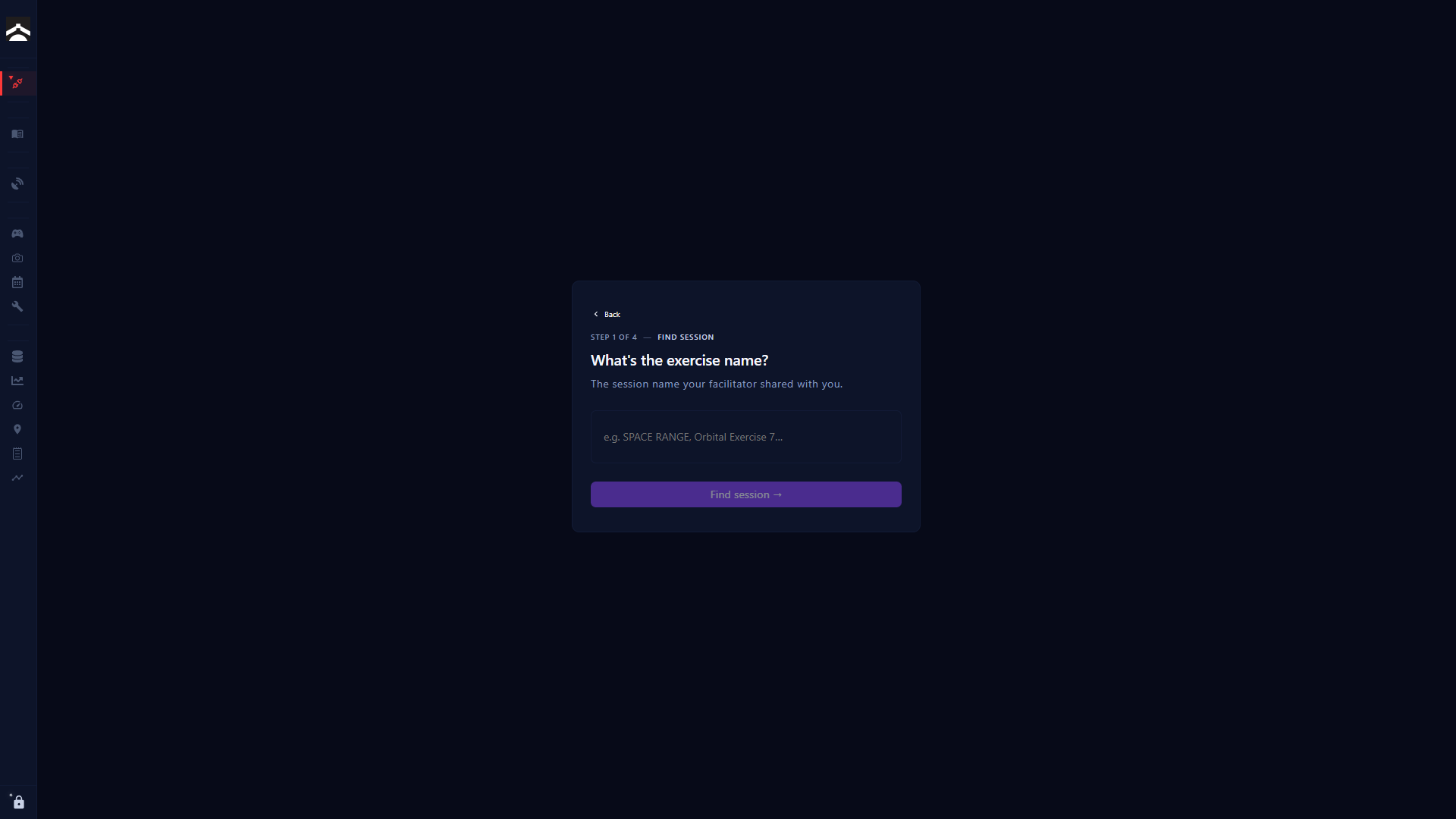
If you have joined before, recent exercise names appear as pills under Recent so you can pick one without retyping.
Step 2: Confirm it is the right session
The Operator shows a session card with the exercise name, status, description, duration, and team count. Check that it matches what your facilitator announced, then click Yes, join this workshop.
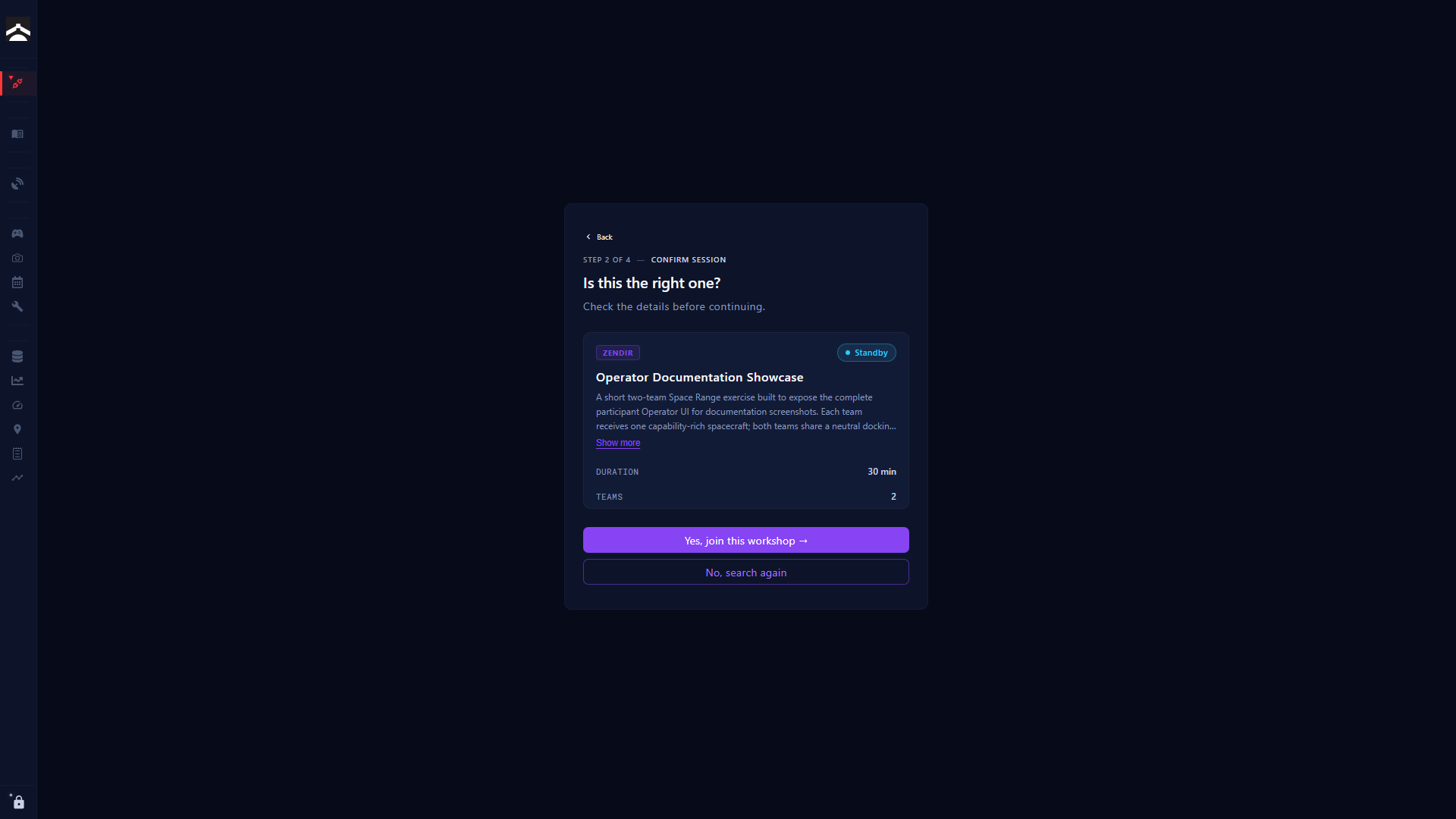
If it is the wrong exercise, click No, search again.
Step 3: Select your team
Pick the team your facilitator assigned. Teams appear as a coloured list when the session advertises a roster.
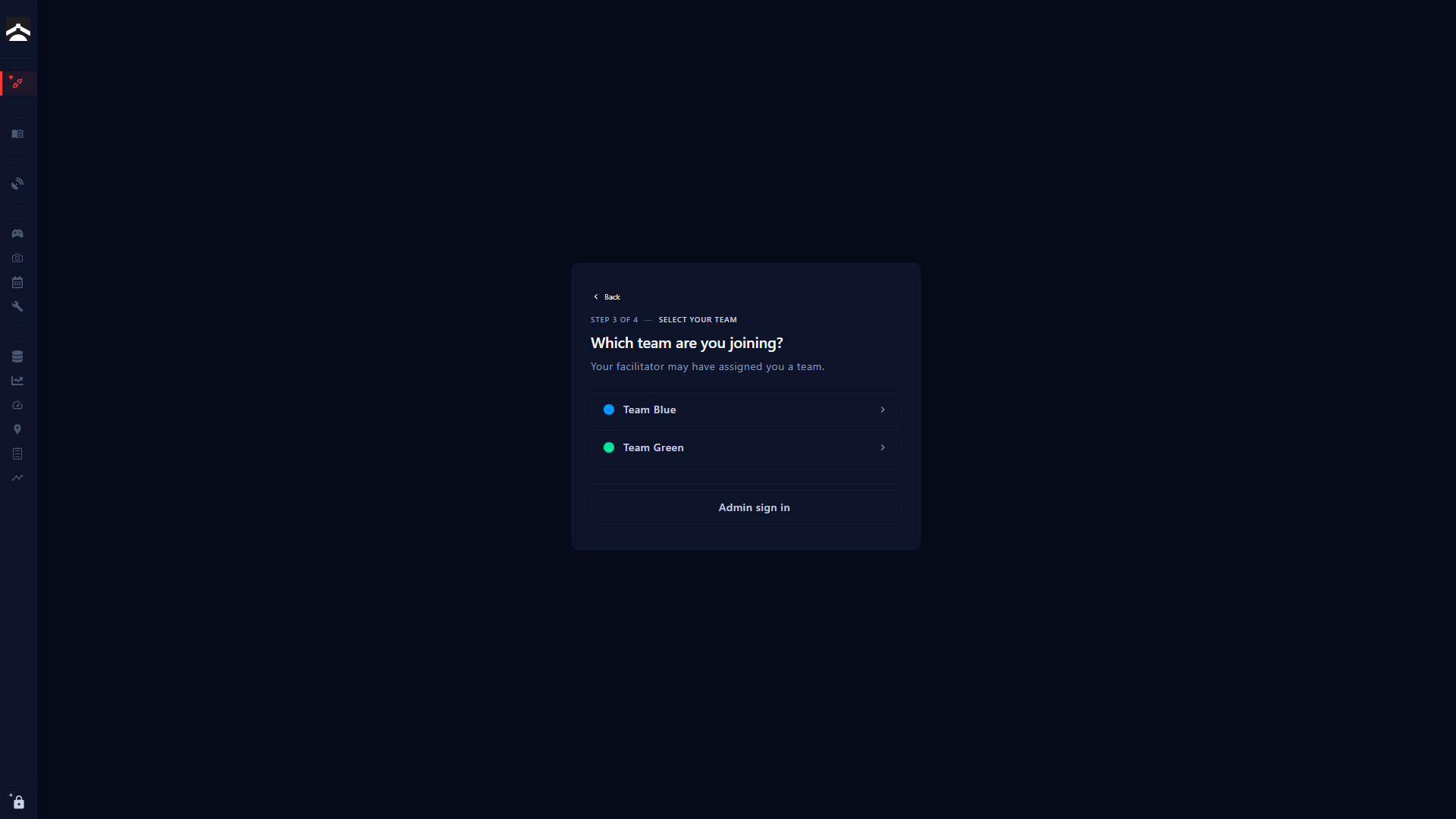
If no roster is advertised, you will see a Team ID field instead. Enter the numeric ID your facilitator gave you and click Continue.
Step 4: Enter your access code
Type the six-character access code. The form submits when all six characters are filled, or you can click Join team.
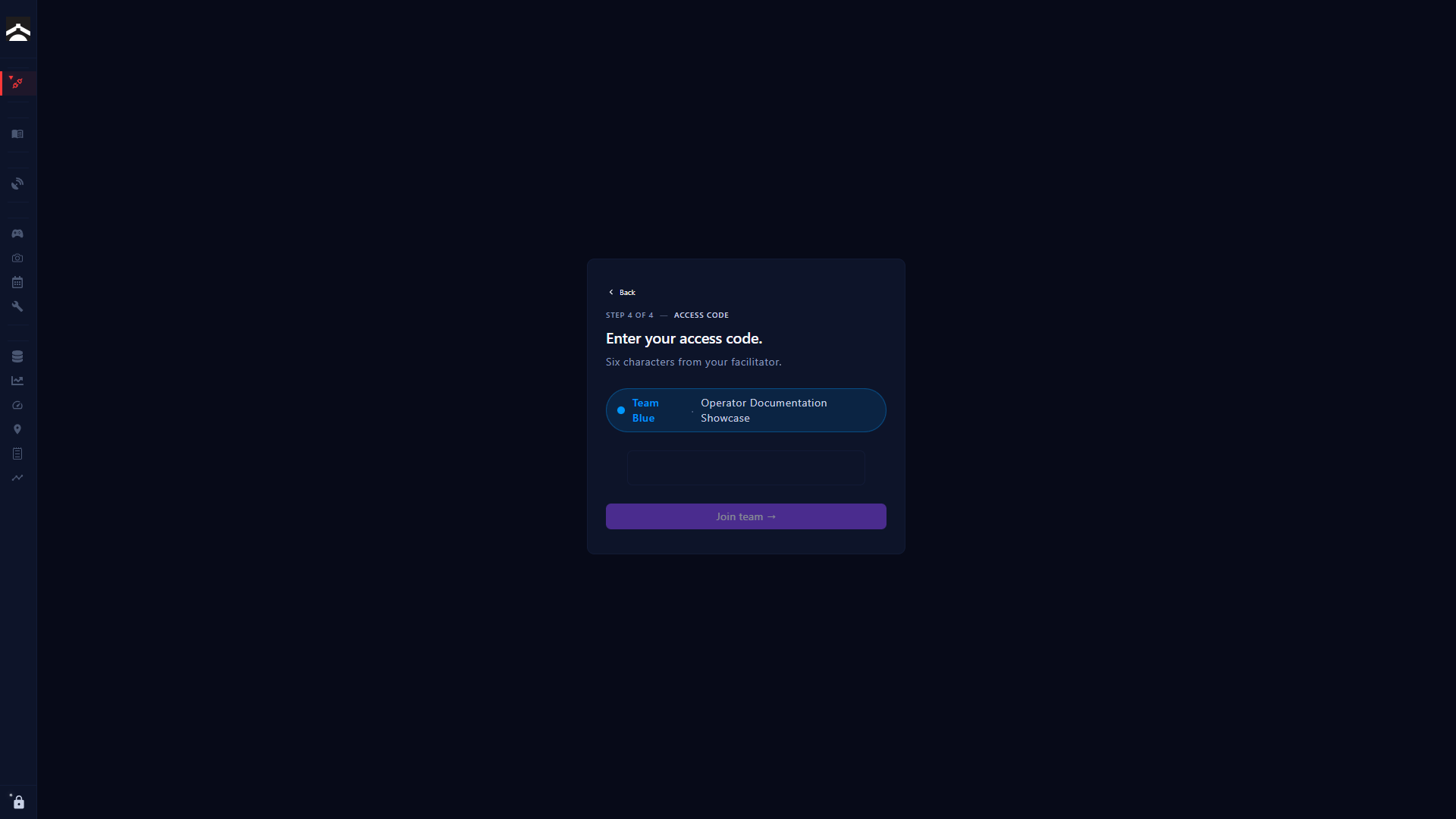
If the simulation has not started yet, you may see a notice that the code cannot be verified until the workshop is running. You can still continue and wait in Standby.
After you join
Once connected, the sidebar unlocks. Connection becomes your overview: session name, your team, status, and a leaderboard when scores are available.
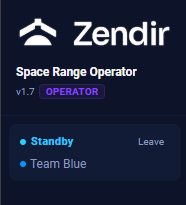
Look at the left sidebar session panel for your connection status (Standby, Paused, Connected, and so on) and a Leave button if you need to exit cleanly.
Your next stop is usually Brief, then Commands once the facilitator starts the simulation.
One-click links
Facilitators can send you a ready-made URL that fills in the exercise name, team, and access code for you. It looks like this:
https://operator.zendir.io/?server=mqtt.zendir.io&game=SPACE%20RANGE&team=111111&password=AAAAAAOpening that link joins automatically. Treat it like a password. Anyone with the link can operate as your team.
NOTE
The Operator talks to the range over MQTT WebSockets (port 8883). You do not need to be on the same network as Studio. You only need internet access to the broker your facilitator is using (usually
mqtt.zendir.io).