
Open Commands in the sidebar (under Operations). This is where you send uplink commands to the selected spacecraft.
Panels appear based on what hardware your spacecraft actually has. If you do not see Jammer, Thruster, or Docking, your asset does not include that subsystem for this scenario.
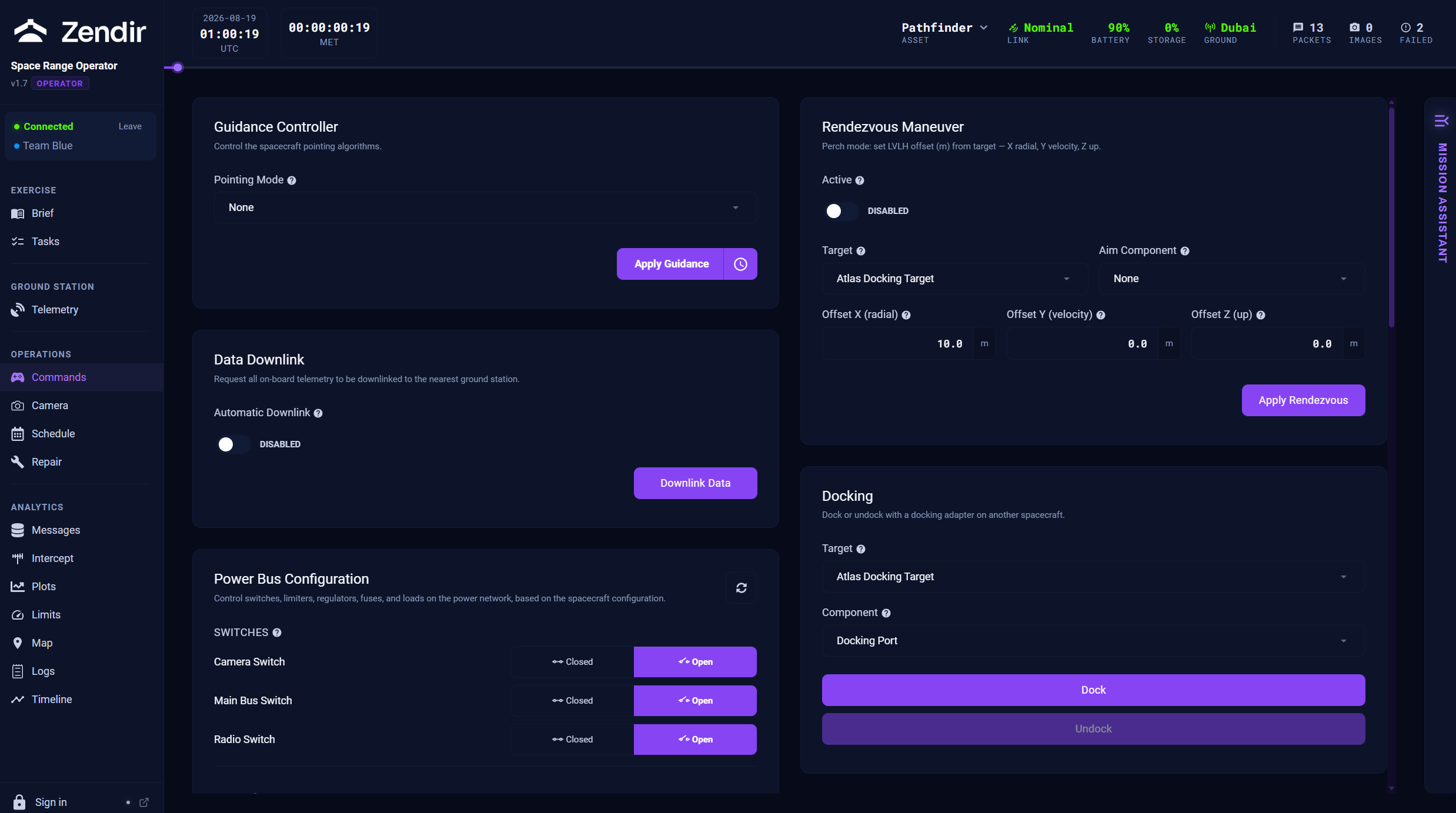
Along the top bar you can confirm you are talking to the right spacecraft (Asset / Spacecraft selector), see link state, battery, storage, and whether you are in view of a ground station.
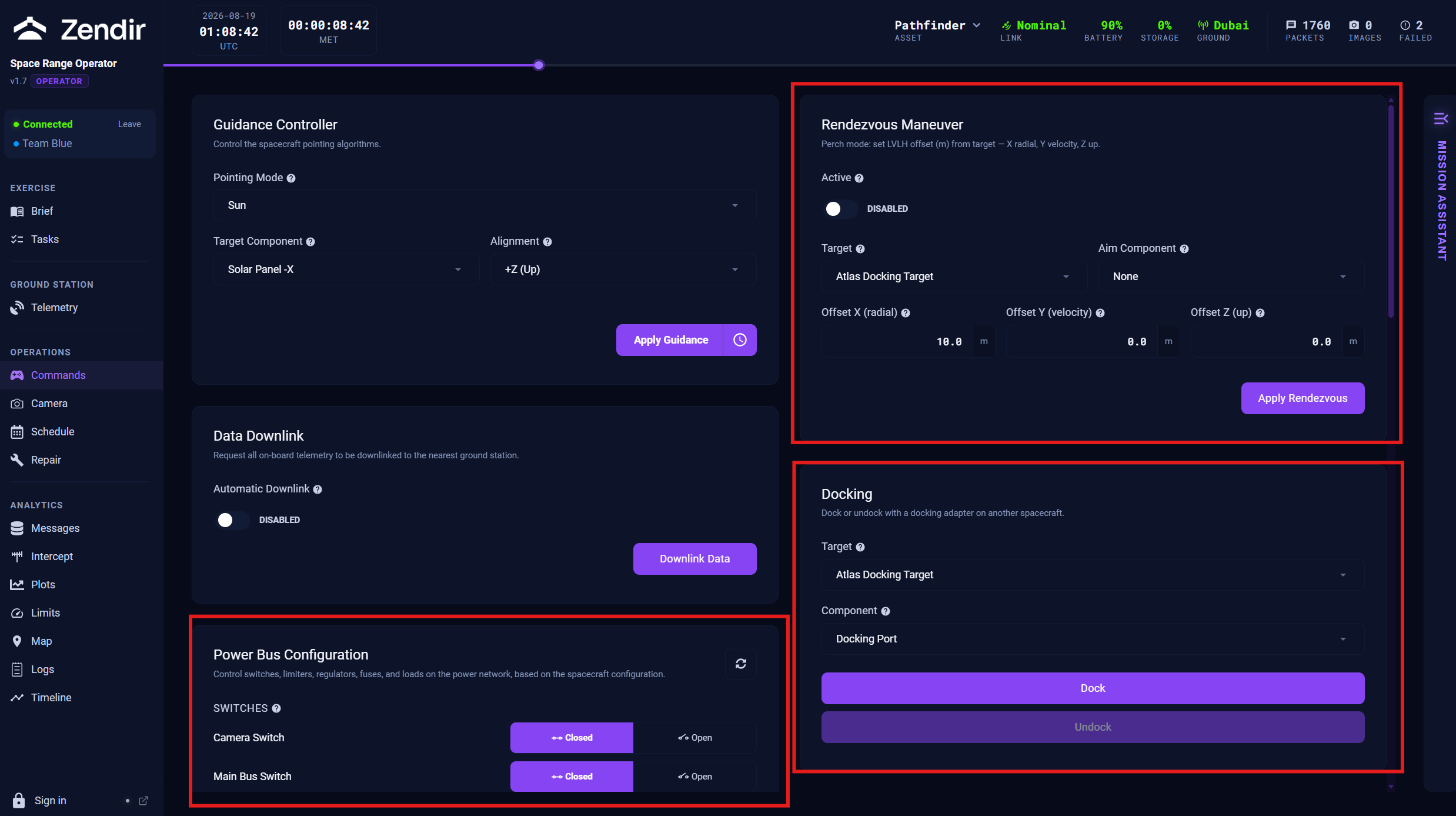
Guidance Controller
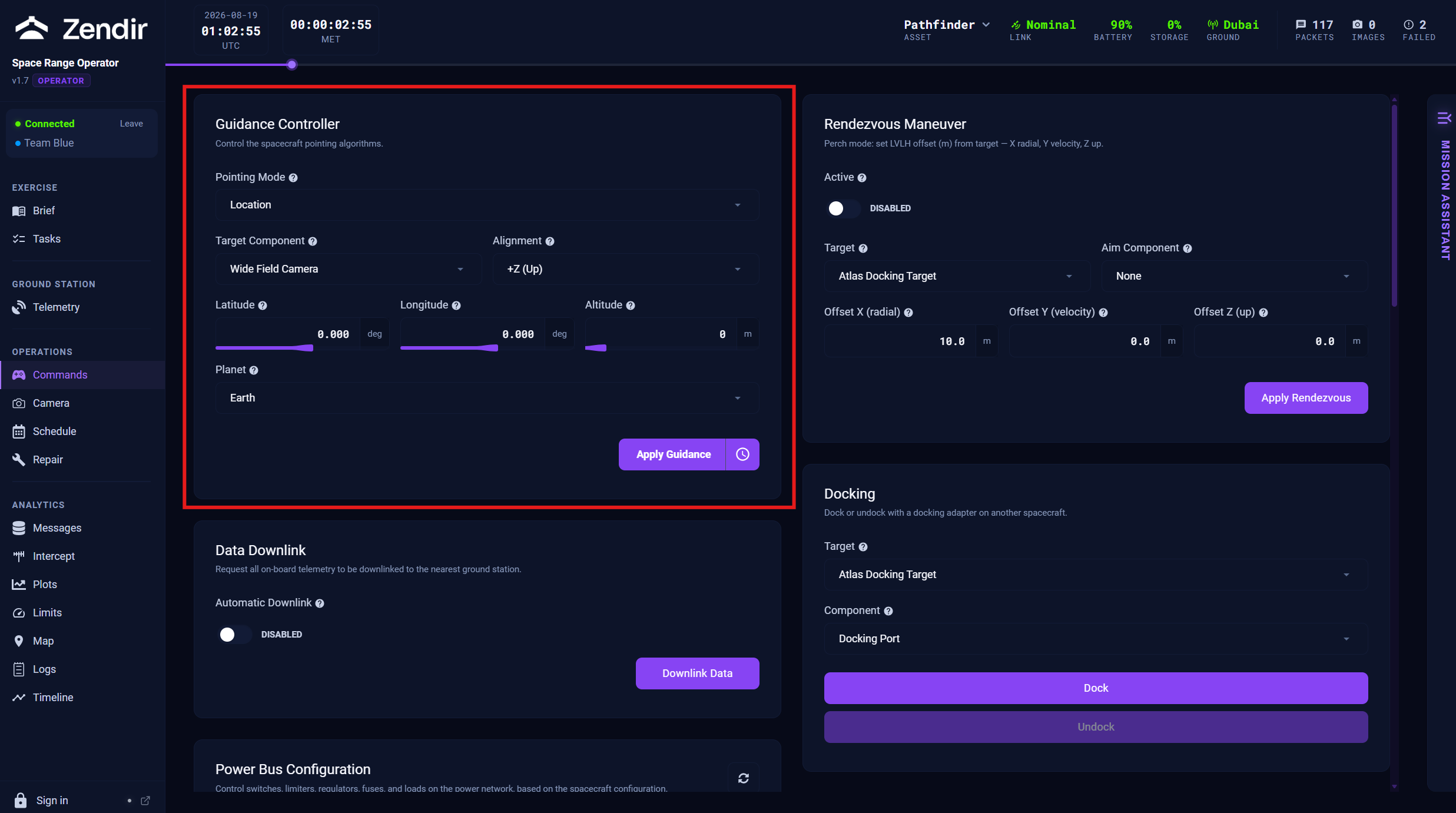
Use Guidance Controller to change how the spacecraft points.
- Choose a Pointing Mode (commonly None, Inertial, Sun, Velocity, Nadir, or Location; Ground or Relative when the scenario exposes them).
- Fill in the fields for that mode (for example Target Component, Alignment, Planet, Station, or latitude / longitude / altitude).
- Click Apply Guidance.
For a walkthrough of each pointing mode, see ADCS Control Modes.
Scheduling a command
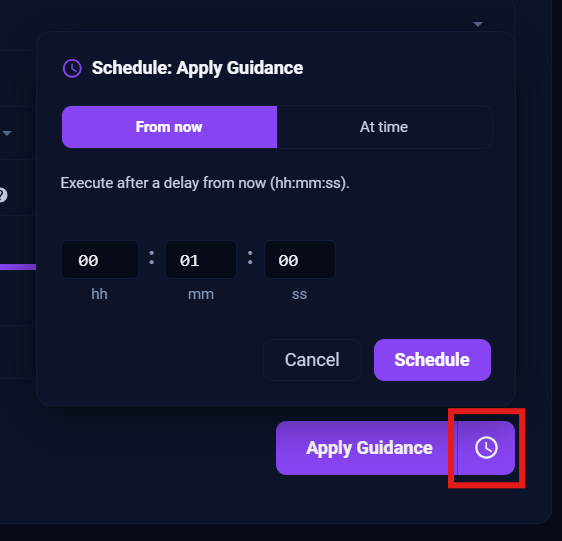
Most command buttons support scheduling. Instead of executing immediately, open the schedule option on the button, choose From now or At time, then confirm with Schedule. Queued commands show up under Schedule in the sidebar.
Data Downlink
By default the spacecraft may only push lightweight status (pings). Sensor data, images, and richer telemetry often stay onboard until you request a downlink.
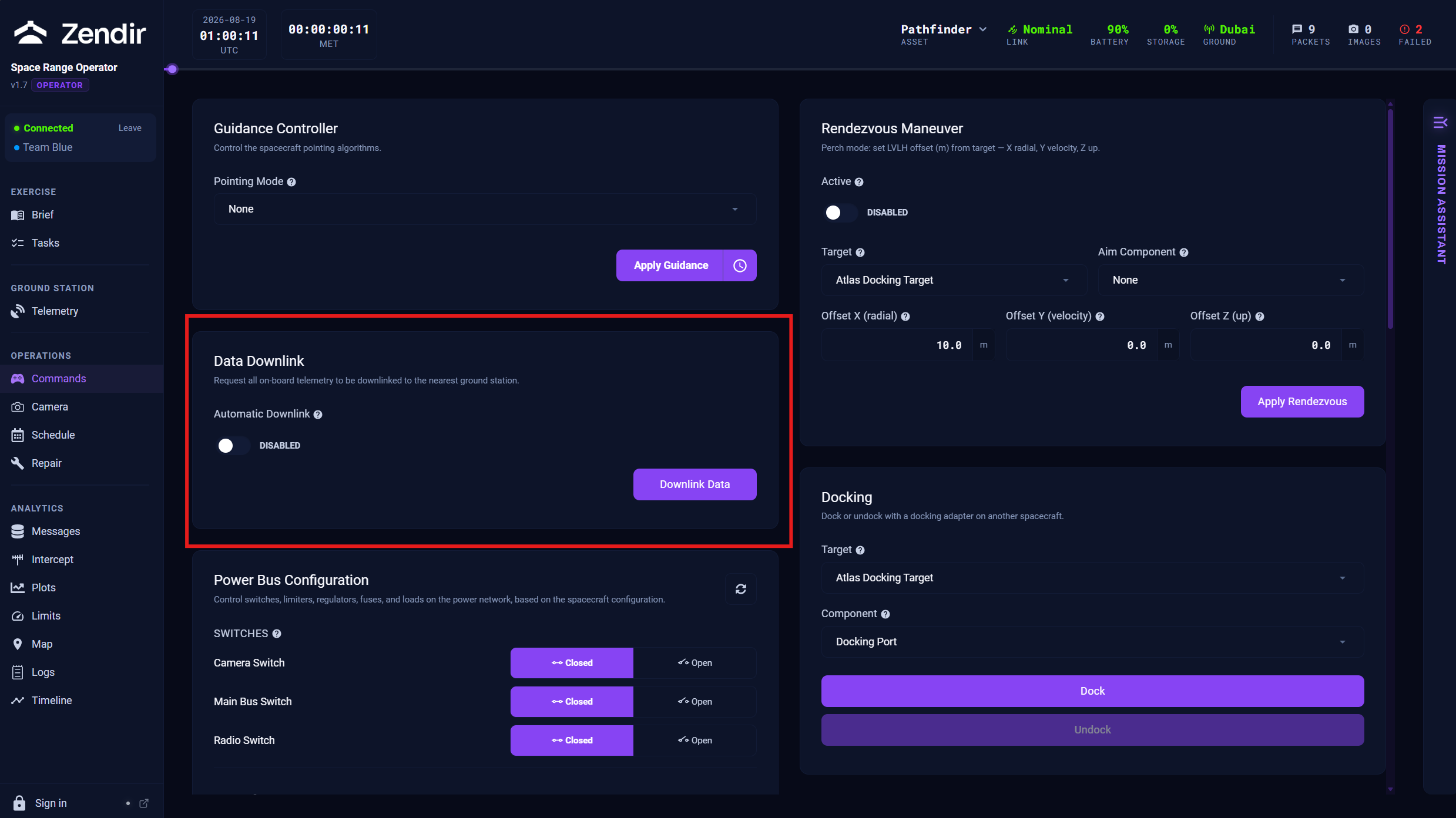
On Data Downlink:
- Toggle Automatic Downlink if you want continuous pulls when the link allows
- Click Downlink Data for an immediate request
Downlink only completes when you have a usable radio path to a ground station. If you are out of view, the request waits until the link closes. Check Telemetry and Map if nothing arrives.
Other command panels you may see
| Panel | When it appears | Primary action |
|---|---|---|
| Power Bus Configuration | Power switches, limiters, regulators, fuses, or diodes onboard | Update Bus (and Reset on a blown fuse) |
| Fuel Bus Configuration | Valves or pumps onboard | Update Bus |
| Jammer | Jammer hardware present | Start Jamming / Stop Jamming |
| Thruster | Thruster present | Start Firing / Stop Firing |
| Rendezvous Maneuver | RPO enabled with another asset available | Apply Rendezvous |
| Docking | Docking adapter / RPO available | Dock / Undock |
After you send a command, watch:
- Logs for a sent/ack style entry
- Schedule if you queued it for later
- Messages / Telemetry for the spacecraft’s response on the next pass
Schedule
Open Schedule to review the command queue for the selected asset. Switch between Upcoming and Past, search, refresh from the spacecraft, or clear the queue if your facilitator allows it.
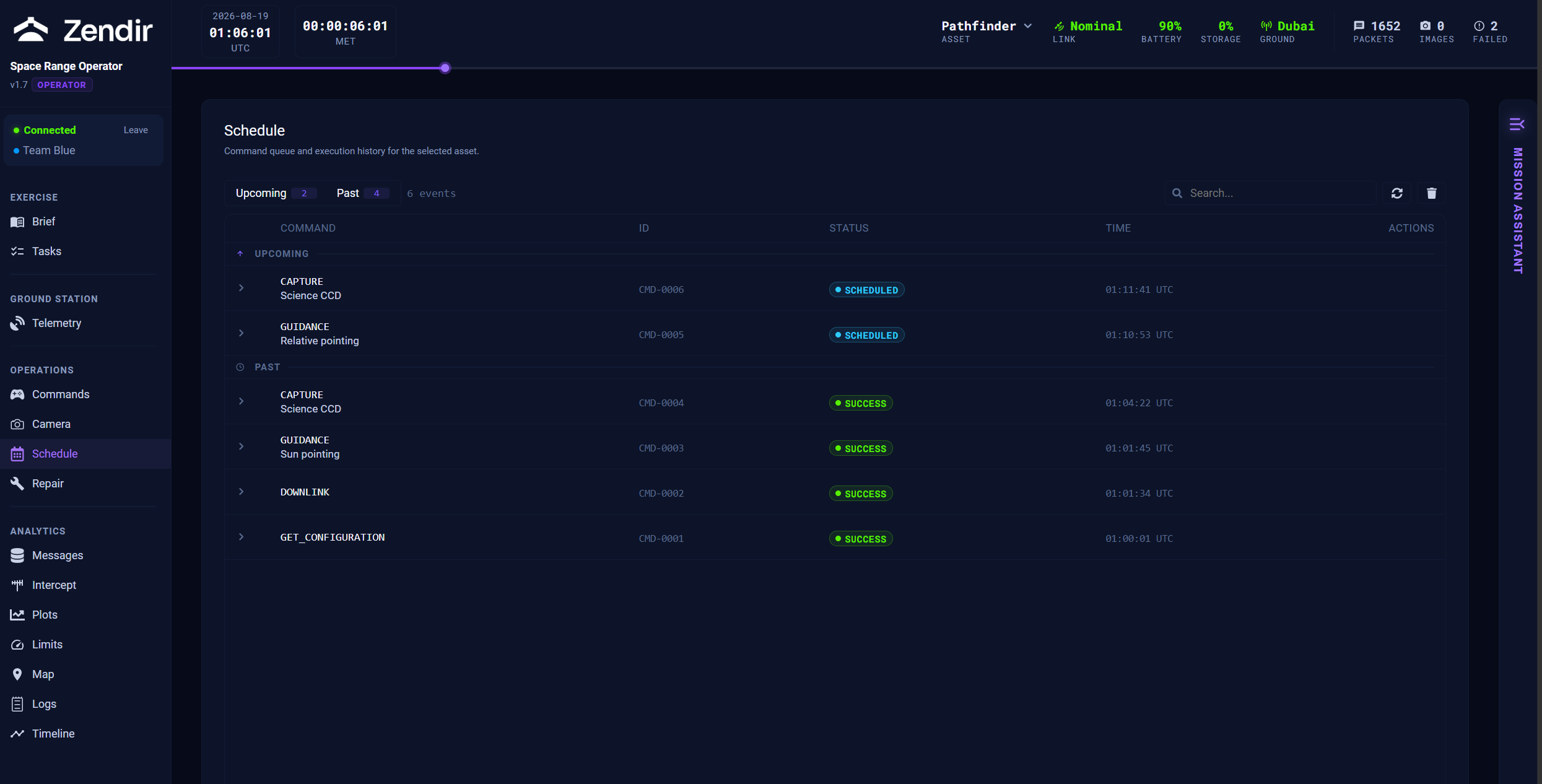
Editable scheduled commands (such as guidance and capture) can be opened from the Actions column.
Practical tips
- Confirm the spacecraft selector before you command. Teams can have more than one asset.
- If guidance “does nothing,” check you are in view and that Telemetry frequency / encryption key still match the spacecraft.
- For imagery workflows, configure and capture on Camera, then downlink from either Camera or Commands. Both use the same downlink path.
- When a subsystem fails mid-scenario, go to Repair rather than re-sending the same command blindly.