
Open Camera under Operations when your spacecraft carries an imager. This page is where you configure the camera, take a capture, downlink the result, and review the gallery.
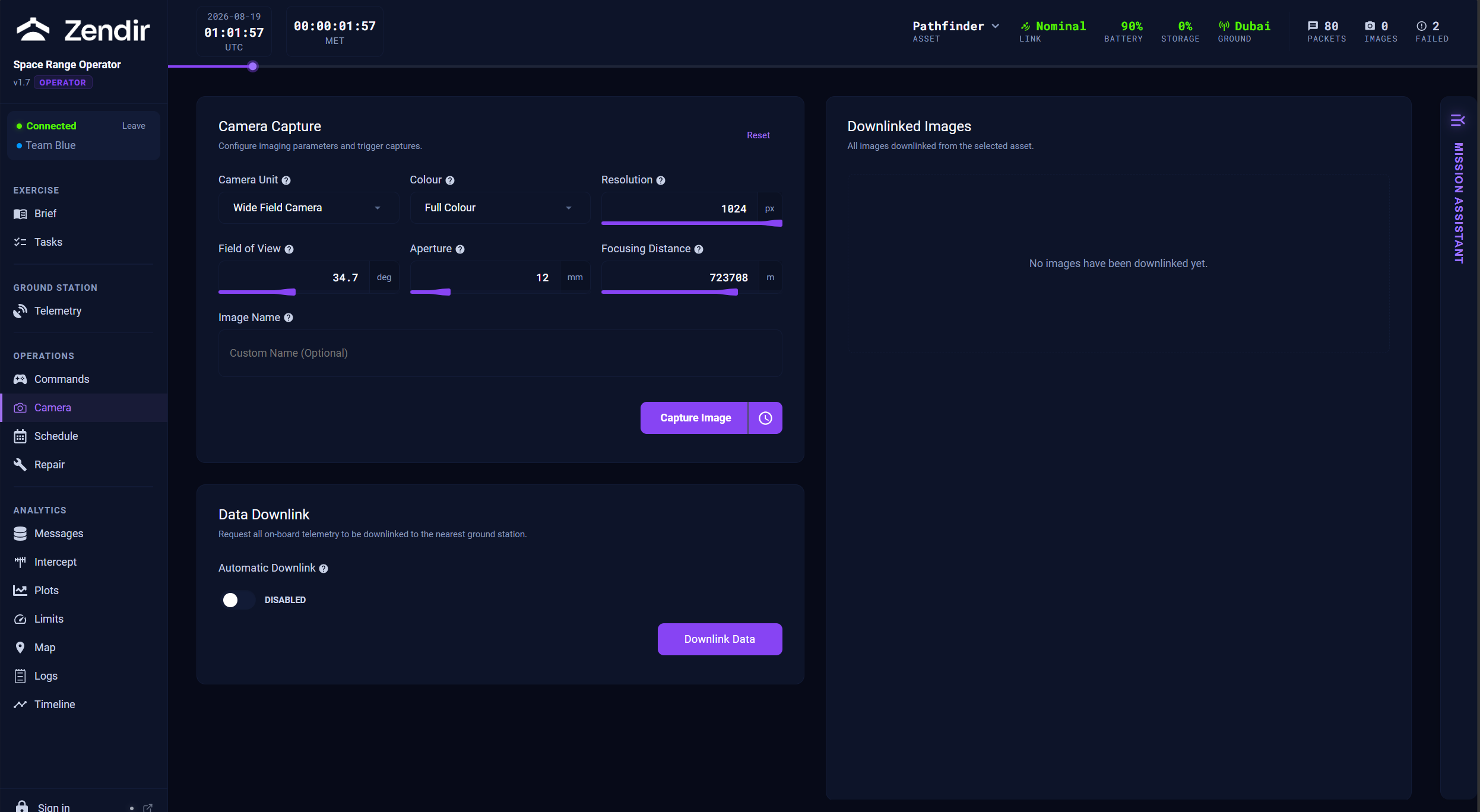
Camera Capture
In Camera Capture:
- Choose the Camera Unit if more than one imager exists.
- Set Colour (Full Colour or Monochromatic), Resolution, and Field of View.
- Optionally give the capture an Image Name.
- Click Capture Image.
Use Reset to return the form to defaults. Like other operations, capture can be scheduled for a future simulation time.
Before you capture, check Map and your pointing mode on Commands. If the camera is not aimed at the target, or you are nowhere near the footprint you care about, the image will still succeed technically, but it will not help the mission.
Data Downlink
Captures are stored onboard until they are downlinked. Use the Data Downlink panel on this page (or on Commands) and click Downlink Data.
Images only appear in the gallery after a successful downlink while you have a usable ground link.
Downlinked Images
The Downlinked Images gallery lists every image received for the selected spacecraft.
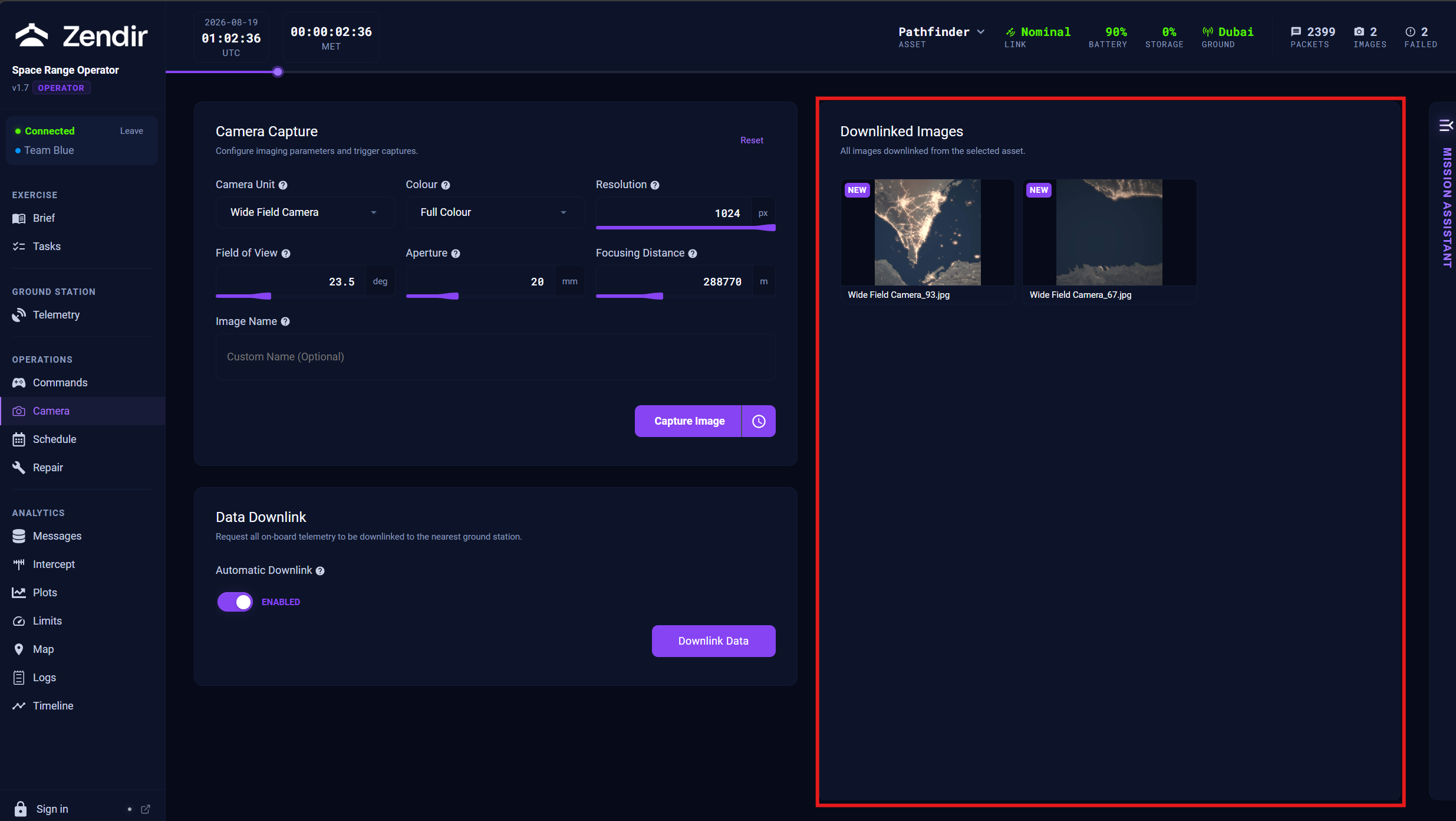
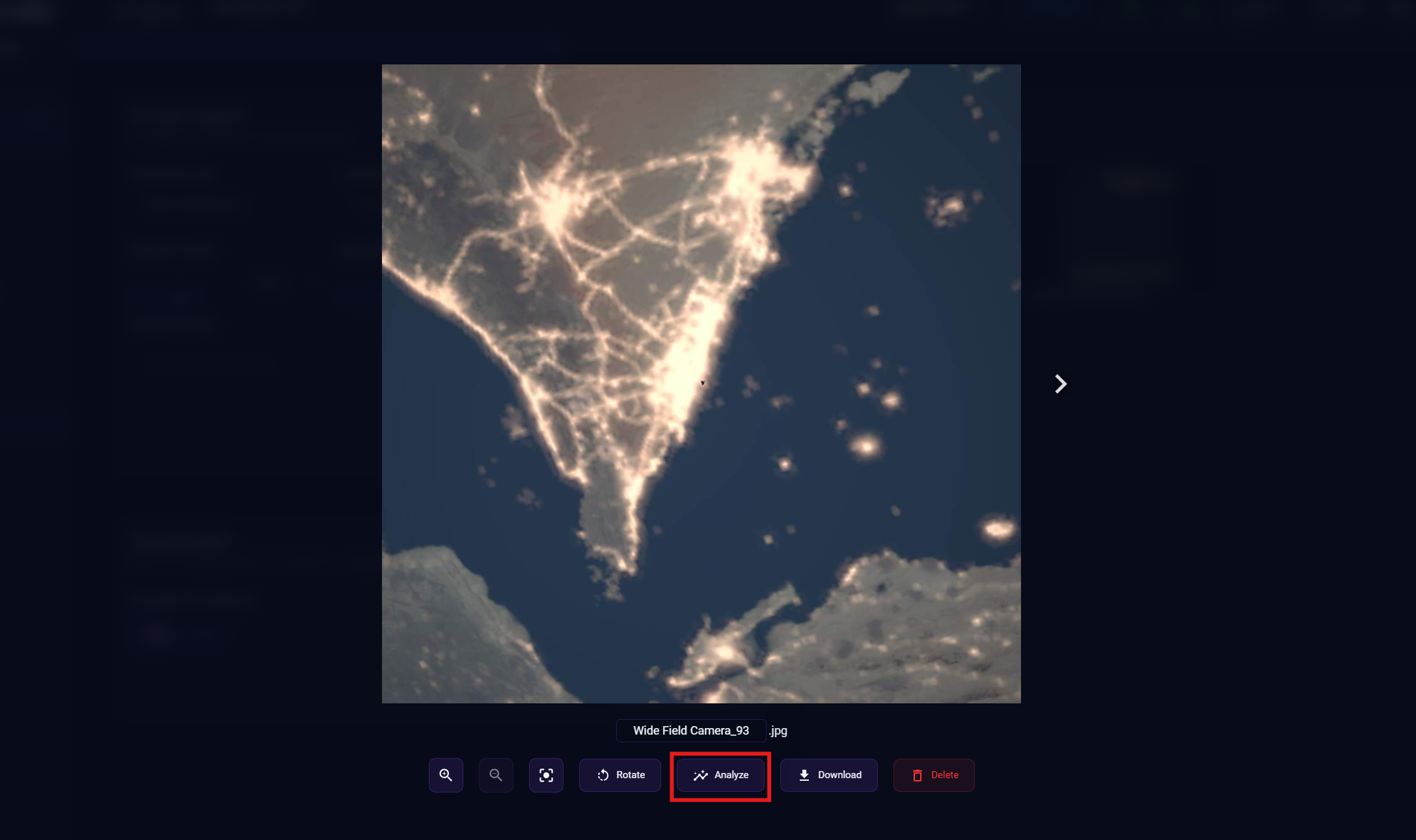
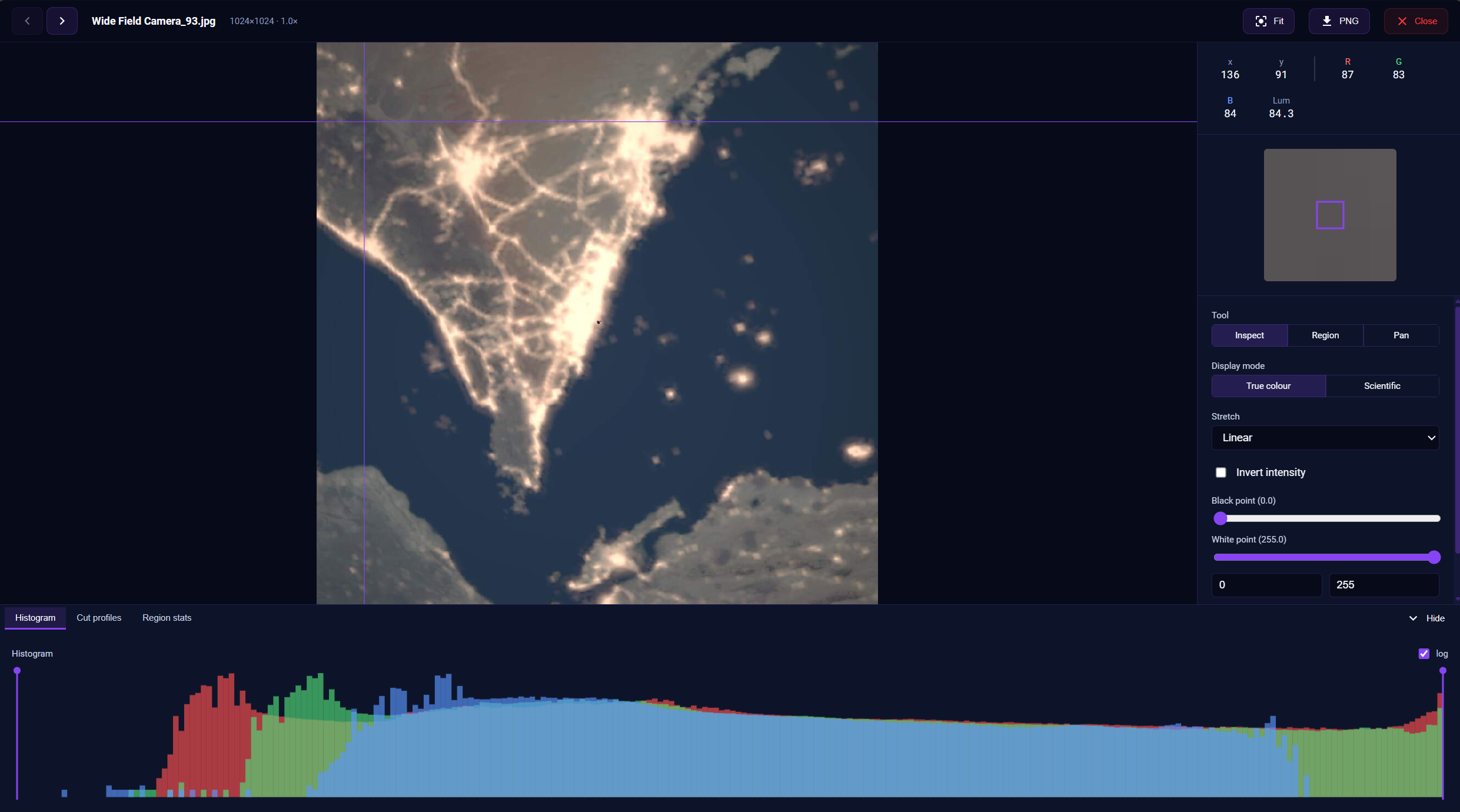
From the gallery toolbar you can move between images, zoom, fit, rotate, open an image in the analysis tool, or delete a capture you no longer need.
NOTE
If the facilitator restarts the scenario, the gallery clears with the new session. Download anything you need for notes before a reset.