
Use this page when the Operator is open but the spacecraft is not behaving the way you expect. Work top to bottom. Most “broken spacecraft” problems are join, clock, or radio issues.
I cannot find the exercise
| Check | What to do |
|---|---|
| Exercise name spelling | Re-enter the name exactly as your facilitator shared it |
| Session not started yet | Wait for the facilitator to connect Studio to the broker, then try Find session again |
| Wrong broker / environment | Confirm you opened Operator from dashboard.zendir.io or operator.zendir.io, unless your facilitator gave you a different URL |
Access code rejected
- Confirm all six characters. Codes are case-sensitive alphanumeric pins
- Confirm you selected the correct team
- If the session is still in standby, the UI may let you continue without live verification; wait until the facilitator starts the sim, then rejoin if packets never appear
Treat facilitator one-click URLs carefully. If someone else’s link was reused, you may be joining the wrong team.
I joined, but nothing is happening
- Look at the sidebar session status: Standby, Paused, Connected, Ended
- Check the top bar mission clock. If elapsed time is not advancing, the simulation is not running yet
- Ask your facilitator whether they have pressed Play in Studio
You can be correctly joined and still wait in standby until the range is live.
No telemetry / no pings
This is the most common live-exercise failure.
- Confirm status is Connected and the clock is moving
- Open Telemetry and compare Frequency / Encryption Key with what the spacecraft is actually using (from a recent ping or your facilitator)
- Click Set Configuration if you needed to correct the ground side
- Check Map. Are you in view of a ground station?
- Request Downlink Data from Commands
- Open Messages. If the packet list is empty, the ground side is still not receiving
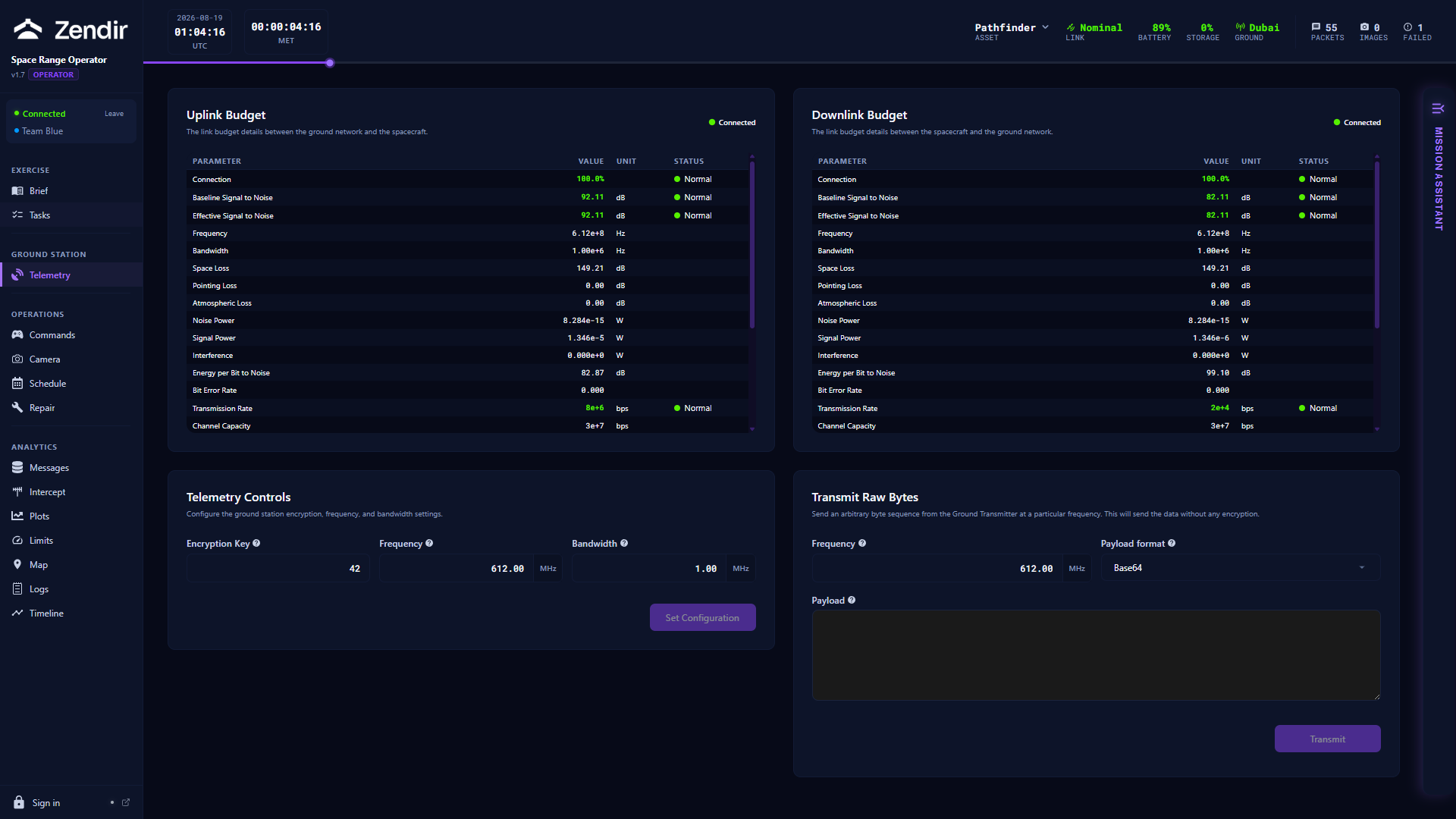
If link budgets show you are out of contact, wait for the next pass or adjust pointing. Do not keep resetting components yet.
Commands seem to do nothing
- Confirm the spacecraft selector is on the asset you meant to command
- Confirm the panel exists because that hardware is onboard (no thruster panel means no thruster)
- Check Schedule. You may have queued the command for a future time
- Check Logs for a sent entry and any failure text
- Remember: many effects only become visible after the next successful downlink
Map says NO LOCATION DATA
- The asset may not include a GPS sensor in this scenario
- Position telemetry may still be sitting onboard. Downlink and wait for the next update
- Wrong asset selected in the top bar
Camera gallery is empty after capture
- Confirm Capture Image succeeded in Logs / Schedule
- Downlink Data while in view of a ground station
- Confirm you are looking at the same spacecraft that took the image
- If the facilitator restarted the session, the gallery was cleared
I reset a component and everything went quiet
That can be normal. Resets can take 1 to 5 minutes of simulation time. Watch the clock and the link chips. If you are still dark after that window, revisit frequency / key settings and ask the facilitator whether the scenario expects a longer recovery.
The exercise restarted and my state looks wrong
When a facilitator stops or hard-resets the simulation, the session can mint a new instance. Operators often need to:
- Re-check that they are still joined to the correct team
- Wait for assets and schemas to repopulate
- Treat previous schedules, galleries, and packet history as cleared
If in doubt, Leave and join again with the same credentials.
Still stuck?
- Capture what you see: status label, mission clock, spacecraft name, and a screenshot of Telemetry
- Ask in Mission Assistant chat for panel-specific help. If the assistant cannot reply, the facilitator must add an AI token in Studio Preferences. See AI Chat Panel
- Escalate to your facilitator with the exercise name and team. They can see cross-team state you cannot