
The AI Chat Panel is the Conversation overlay in Zendir Studio. It answers questions about the open simulation using the current scenario, the objects you attach as context, and a language model that you configure.
NOTE
Studio does not ship with an API key. Chat will not send a request until you add a valid token for the selected provider in Studio Preferences.
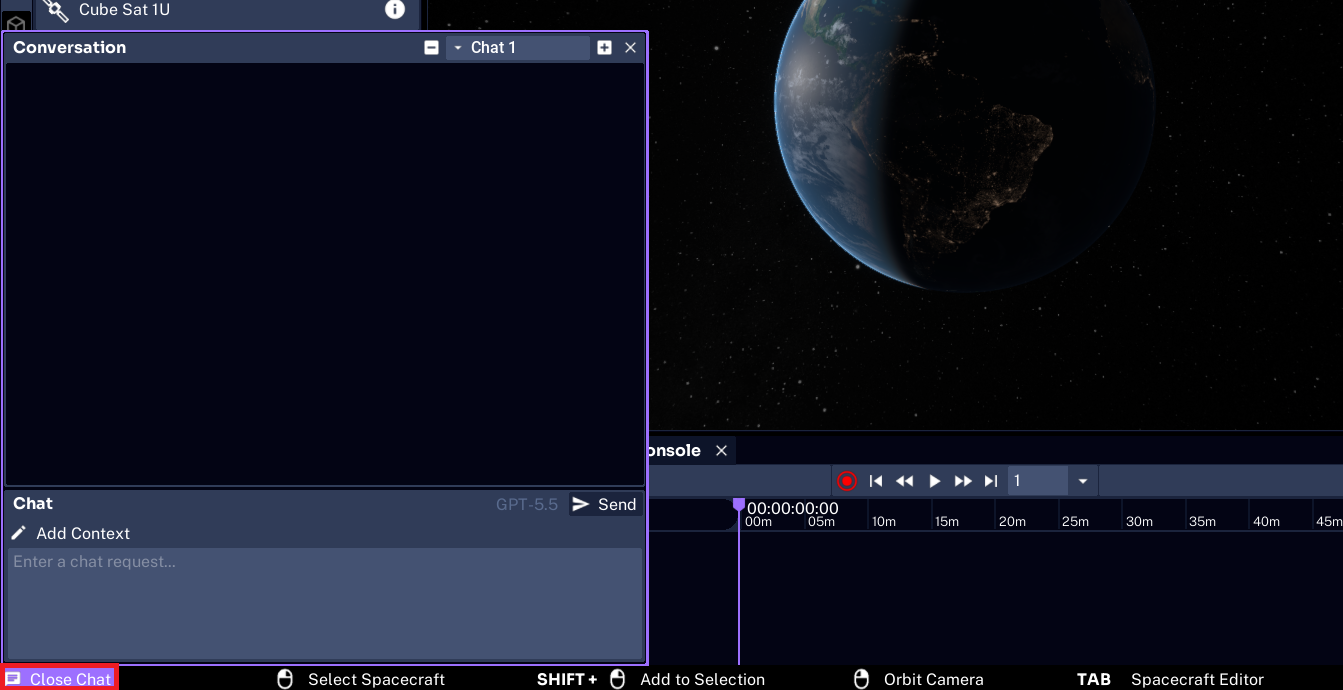
Opening the Conversation
The Conversation overlay can be opened from the status bar at the bottom of the window. It can also be added from + button to a dock. When the overlay is open, the same control reads Close Chat. Select it to hide the overlay. The conversation stays in memory, so opening chat again will show the same thread.
The header is labeled Conversation. Use the chat dropdown (Chat 1) to switch threads. Select + in the header to start a new thread. Each thread keeps its own messages.
Sending a Prompt
Type in Enter a chat request... and select Send. The model name above Send is the model currently selected in Preferences. The overlay shows Waiting for response... until the reply arrives. A second prompt cannot be sent on that thread while it is waiting.
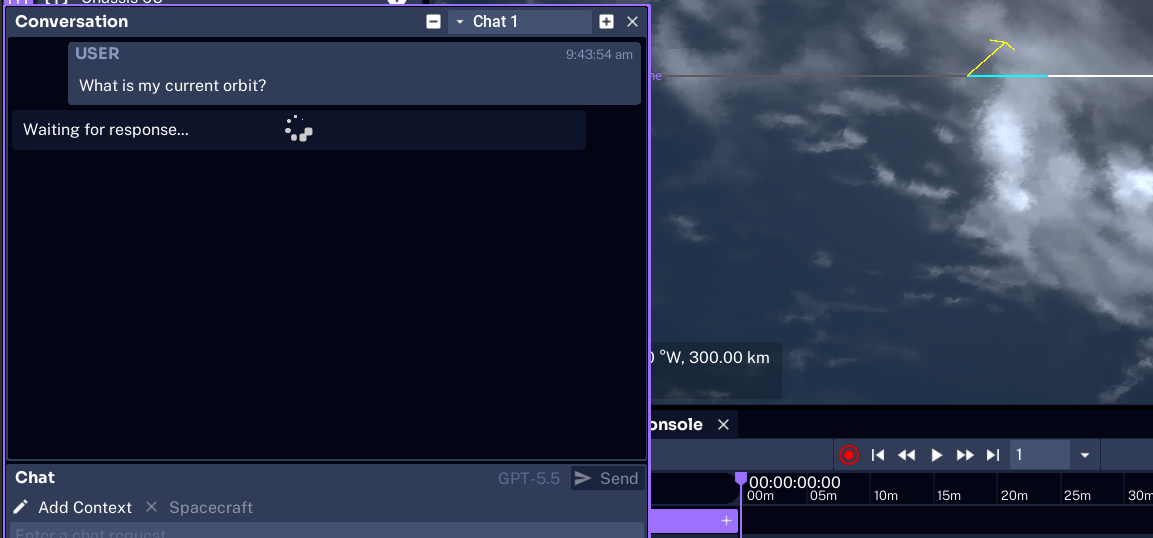
Every request also includes the current simulation snapshot: the scenario name, time, step size, UTC date, whether the run is playing, the origin planet, the entity list, and the selected planet, spacecraft, and component. Ask about the open scenario in ordinary language, for example What is my current orbit?
Replies can include headings, lists, and tables. Use Copy on an assistant message to copy that reply.
NOTE
The assistant answers from the simulation state at the moment you send the prompt. It does not invent missing values, and it does not predict future time steps.
Adding Context
Select Add Context to attach simulation objects to the next prompt. Context tags appear next to the button. Each tag is an object the assistant is asked to inspect, such as a spacecraft or a component. Select a tag to choose a child object from that object’s composition, for example a battery or solar panel on Cube Sat 3U. Select the x on a tag to remove it.
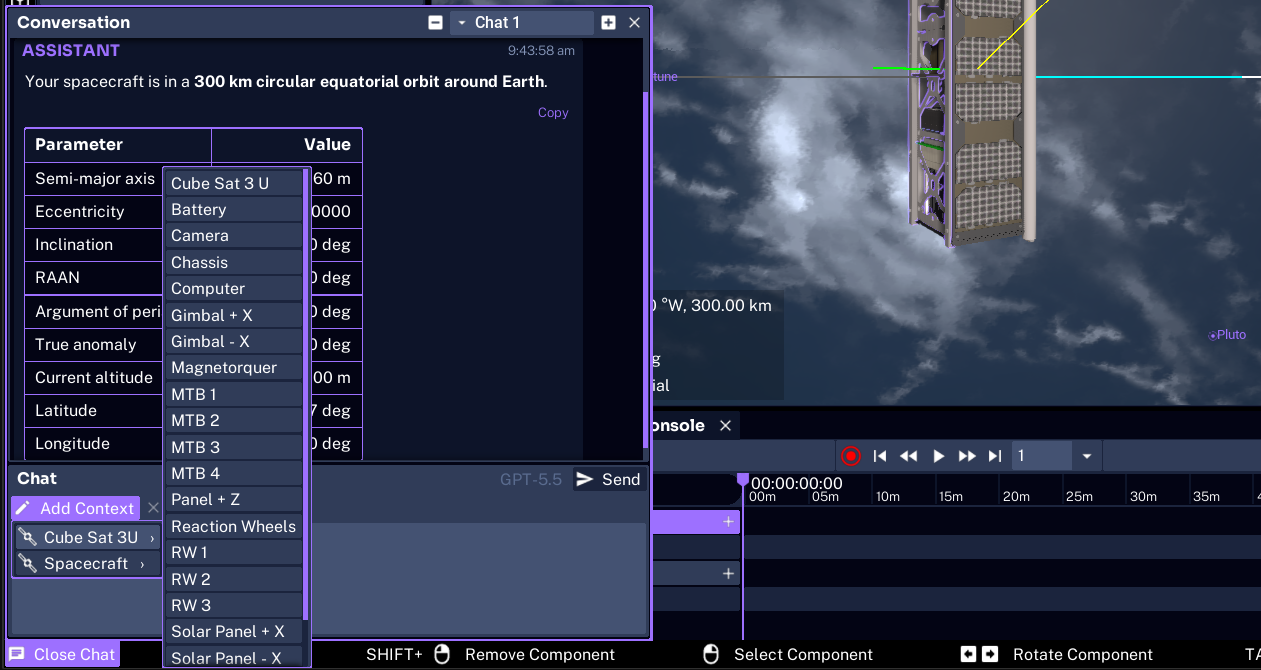
Attached objects send a focused description with the prompt: type, parent, enabled state, physical composition, behaviors, models, and non-advanced properties. A spacecraft also includes mass, attitude, orbit, and geodetic position. A ground station includes its site and access settings.
Only the latest user message carries those object tags. Earlier turns stay in the thread as conversation history.
Continuing a Conversation
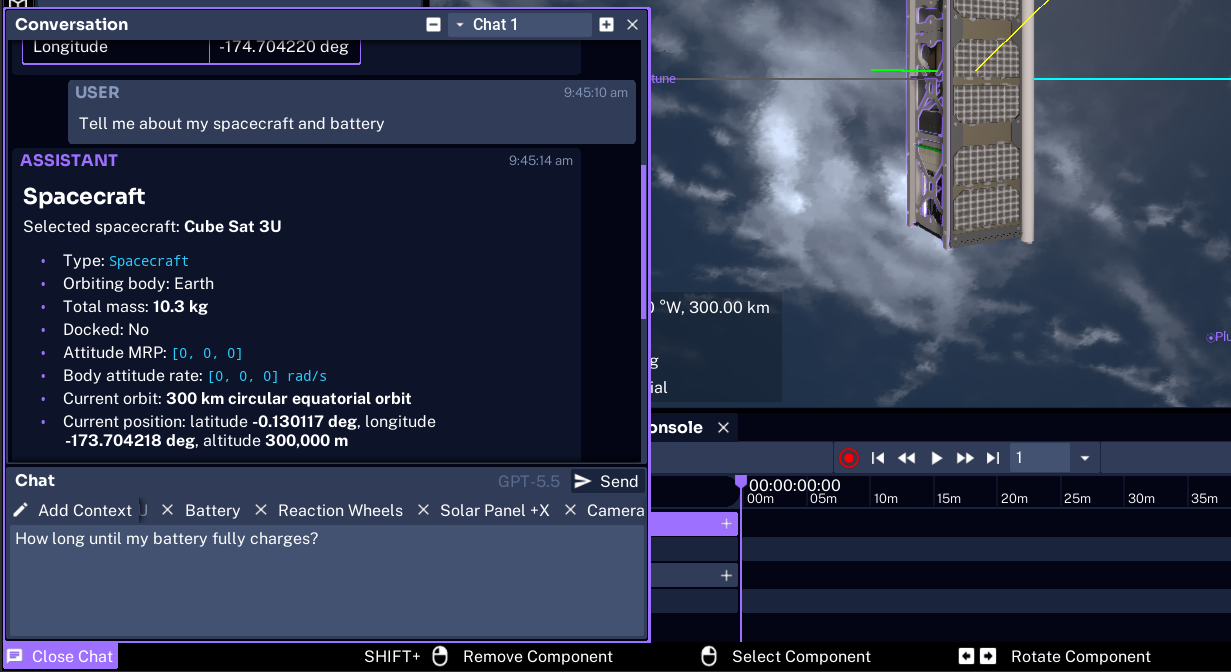
Follow-up questions stay on the same thread. The assistant can see its previous replies, so a later prompt can refer to objects you already discussed.
Keep context tags on objects you still care about. In this example, the spacecraft and several components stay attached while asking how long the battery will take to charge.
Threads that contain messages are stored with the project. Saving the simulation keeps those chats, and they return when the project is opened again.
Max Context Count in Preferences limits how many earlier messages are sent with each request. The default is 6. Older turns remain visible in the overlay, but they are not included in the next API call once the limit is passed.
Using Chat During Space Range
Mission Assistant in Zendir Operator uses this same chat system. Operators type in the browser. Studio sends the request with the AI token from Studio Preferences on the host machine.
Operators do not enter an API key. If Mission Assistant cannot answer, add the token in Studio before the session, not in Operator.
Those operator threads also appear here. Open the Conversation overlay during a live range and switch chats in the header to read what each team asked. Resetting the Space Range simulation starts a new Mission Assistant thread, so the previous operator conversation is removed.
Configuring the Provider
Select Preferences on the Toolbar Panel, then open the AI category.
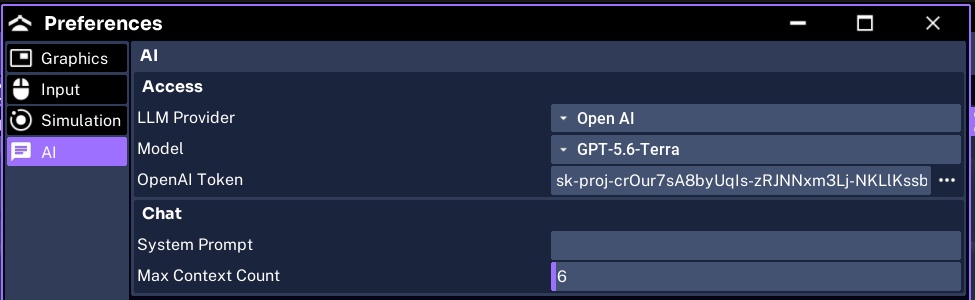
- LLM Provider:
Open AI,Anthropic, orGoogle. The token field and model list follow this choice. - Model: The model used for new prompts. The overlay shows the same name next to Send.
- Token: Your API key from that provider. Studio stores it in local preferences. It is not part of a project save or a
.zenexport. - System Prompt: Extra instructions appended to Studio’s built-in assistant prompt. Leave it empty unless you need a standing rule for every reply.
- Max Context Count: How many prior messages are sent with each request.
6is the default.
Adding an API Token
Studio has no bundled key. If the selected provider has an empty token, sending a prompt shows:
Please add a valid AI API token to the Studio Preferences.

Paste a key from the provider you selected, then send the prompt again. A token for OpenAI does not cover Anthropic or Google. Each provider needs its own key.