
Connect the range before you start the simulation. Let participants join while Studio is paused at the beginning of the scenario.
Pre-flight check
Before pressing Play, confirm:
- the correct
.zenscenario is open - the Space Range button is green
- the session name is correct
- all intended teams are enabled
- each team can join with its own access code
- the brief appears in Operator
- the Tasks panel contains the intended questions
- the event list and first trigger times are correct
- the simulation clock is at the start
- the simulation speed is correct
- Operator Admin is connected
- an AI token is set in Studio Preferences. Mission Assistant in Operator uses this host token (see Adding an API Token)
Keep the Space Range settings window off the shared display.
Start the exercise
Tell participants that the scenario is about to begin, then select Play in Studio.
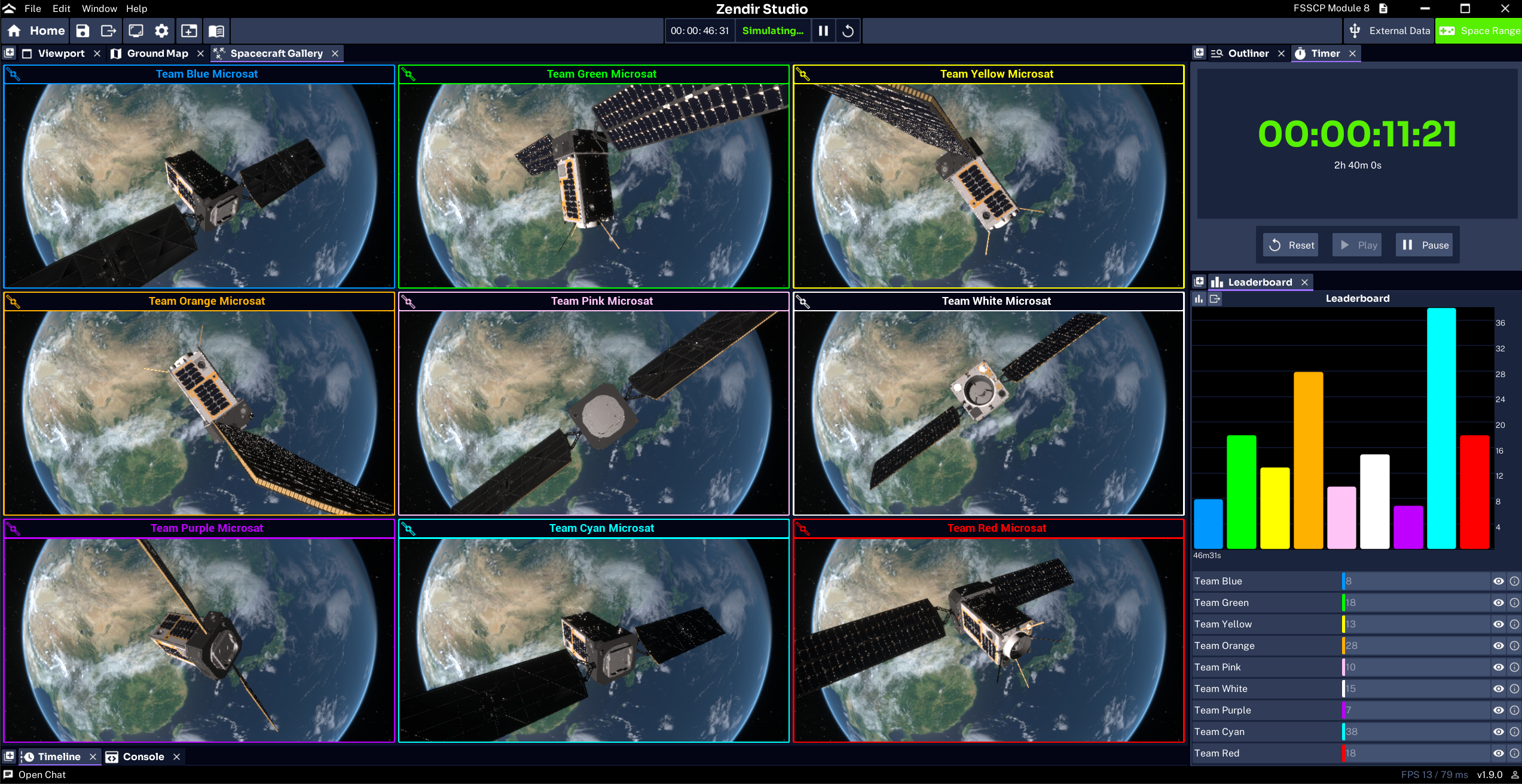
The simulation clock starts advancing. Scheduled events and time-tagged commands use this clock. Watch the Console Panel for command lines as teams act. Pausing the console list holds the rows still. It does not pause the simulation.
Adjust simulation speed
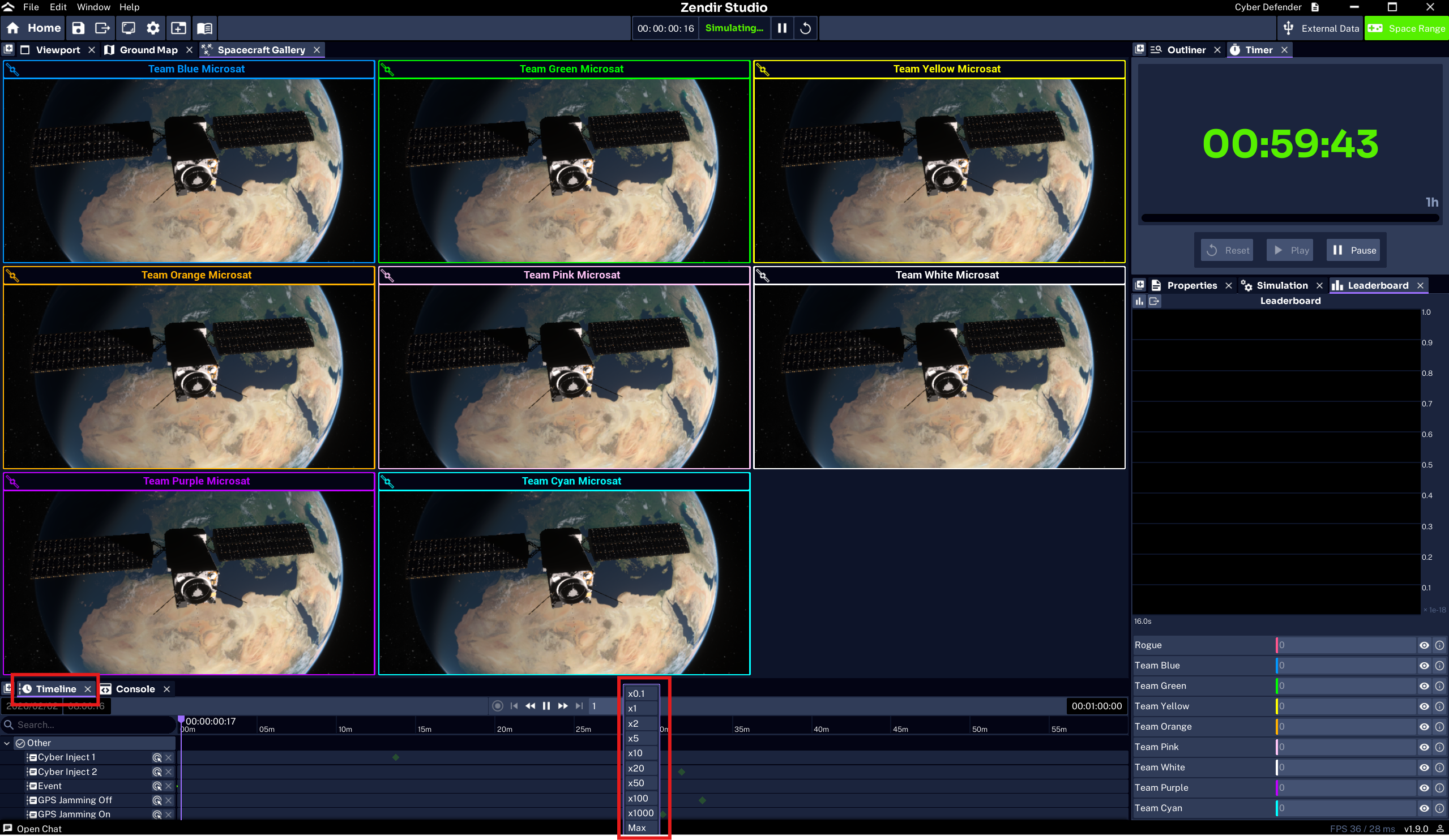
Open the Studio timeline controls and set the required speed.
At 1x, one simulation second takes one real second. At 2x, the exercise reaches a ten-minute event after five real minutes.
Tell participants before changing speed. Faster simulation changes:
- how soon events arrive
- how quickly ground access windows pass
- how often teams need to react
- how much telemetry appears in a short real-time period
If Studio cannot maintain the requested multiplier, lower the speed.
Pause without losing the run
Use Pause when:
- you need to explain a rule
- several teams have the same connection problem
- the facilitator needs time to check an unexpected state
- a safety or venue issue interrupts the exercise
Pausing freezes simulation time. It does not move events to a different simulation timestamp.
Reset carefully
Reset returns the simulation to its initial state. It clears the current run, including changing spacecraft state, queued work, event progress, and participant results tied to that run.
Only reset when you intend to restart the exercise.
WARNING
Disconnecting Space Range and resetting the simulation solve different problems. Disconnect stops browser communication. Reset starts the simulation state again from the beginning.
Monitor through Operator Admin
Open Operator Admin in a separate browser window.
Use it to watch:
- the brief and team leaderboard
- team and spacecraft data
- plots, power, and telemetry
- all-team map state
- the scenario event timeline
- live and historical exercise events
Admin also provides play, pause, reset, and time-scale controls in its top bar. These control the same simulation running in Studio. You still need Studio to configure the project, connect or disconnect the Space Range server, and recover from host-side problems.
Use the Packets refresh action when Admin needs historical telemetry and events for its analytics views.
End the exercise
When the mission reaches its configured end time, Operator shows the completion experience. If the scenario has no automatic end time, announce the end and pause Studio.
Give teams time to review their results before resetting or disconnecting.
After the review:
- capture any scores or observations you need
- close or secure the Admin view
- disconnect the Space Range client
- save the hosted Studio project if you changed the brief, teams, questions, or events
- reset only when you are ready to prepare another run
If something fails during setup or the live exercise, use Host Troubleshooting.