
An agent can arrange the Studio workspace as well as the simulation. It can open panels, move them between sections, stack them as tabs, close them, show one fullscreen, and apply a layout preset. This is the same dock described in Adding Panels, and you can keep rearranging it yourself at any time.
Panel tools can be used at any time, including while the simulation is running. They only change the main window. Panels in torn-off windows are reported to the agent but cannot be changed by it.
Choosing Panels
panel_list gives the agent every panel it can open, with a description of what each one shows and is used for, such as the 3D view in the Viewport or ground tracks on the Ground Map. The agent uses these descriptions to choose panels for a request, so you can describe what you want to see rather than name a panel.
Which panels would help me watch a spacecraft's battery during a run?Only panels with a description are offered. A panel added to Studio appears in the list once its description is filled in.
Setting a Layout
The agent can set the whole workspace in one step. Describe the sections you want, and their relative sizes if they matter:
Close everything except the viewport, and put the ground map on the right taking about a third of the width.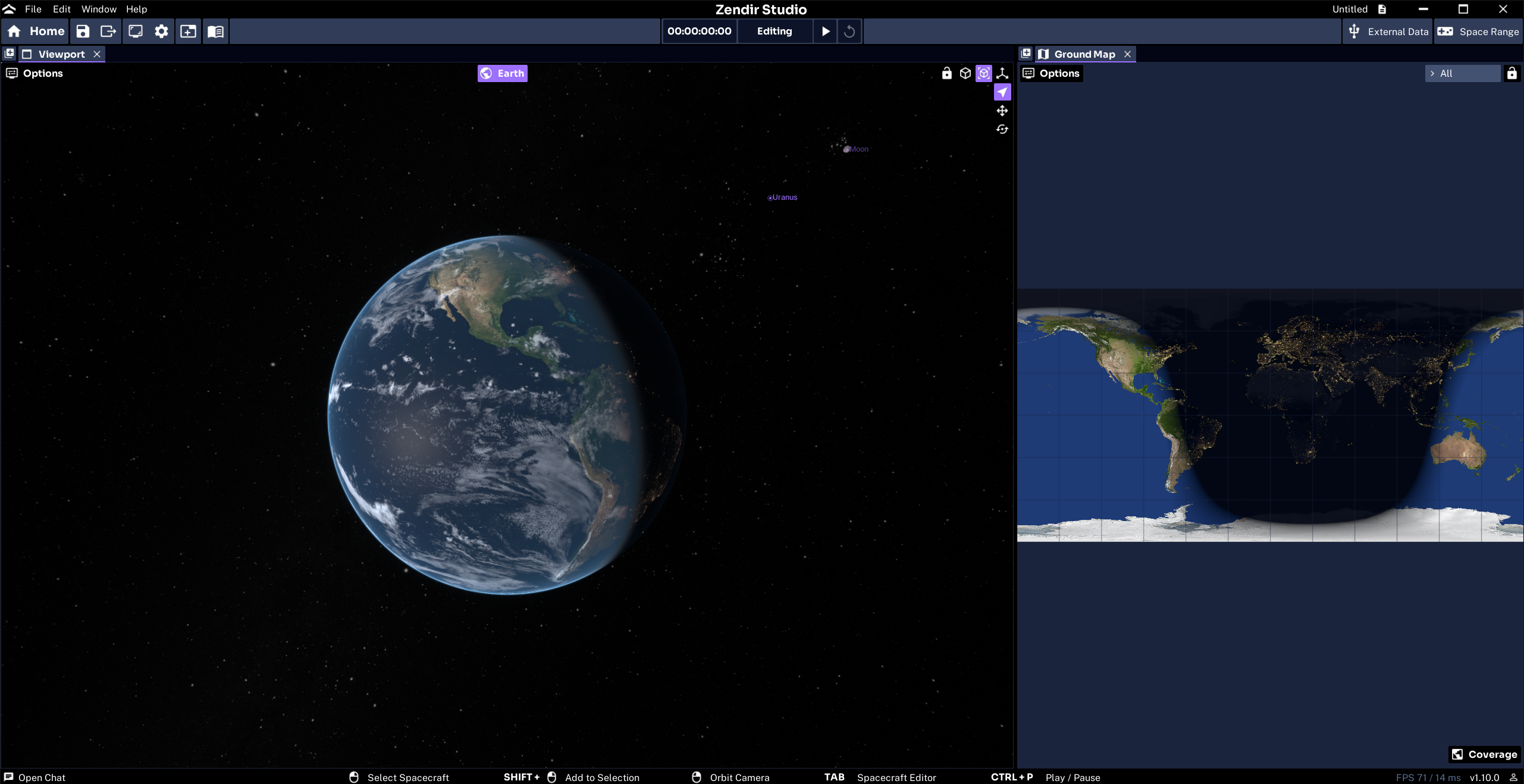
Panels that stay in the new layout keep their state, such as a viewport’s camera target or a plot’s configuration. The agent can also open more than one of the same panel, for example two viewports watching different spacecraft.
WARNING
Panels that are left out of a new layout are closed, and anything in them is lost, such as notes text, plot setups, or console history. The agent is told this, but say which panels you want to keep if you are unsure.
Opening and Moving Panels
For smaller changes, the agent opens or moves one panel at a time. A panel can be placed:
- As a tab: Behind the other tabs of an existing section.
- Beside a section: Left, right, above, or below it, in a new section.
- Along an edge: In a new section across the full height or width of the window.
Open the Timeline below the viewport, and move the Console behind it as a second tab.A moved panel is the same panel in a new place, so it keeps its state. A section left empty by a move or close is removed. New sections can be given a size, for example 30 percent of the space they split.
Focusing and Fullscreen
The agent can bring a panel to the front of its section. Focusing a viewport also makes it the active viewport, which the agent then frames objects in with viewport_focus.
Show the second viewport fullscreen while the simulation runs, then put the layout back.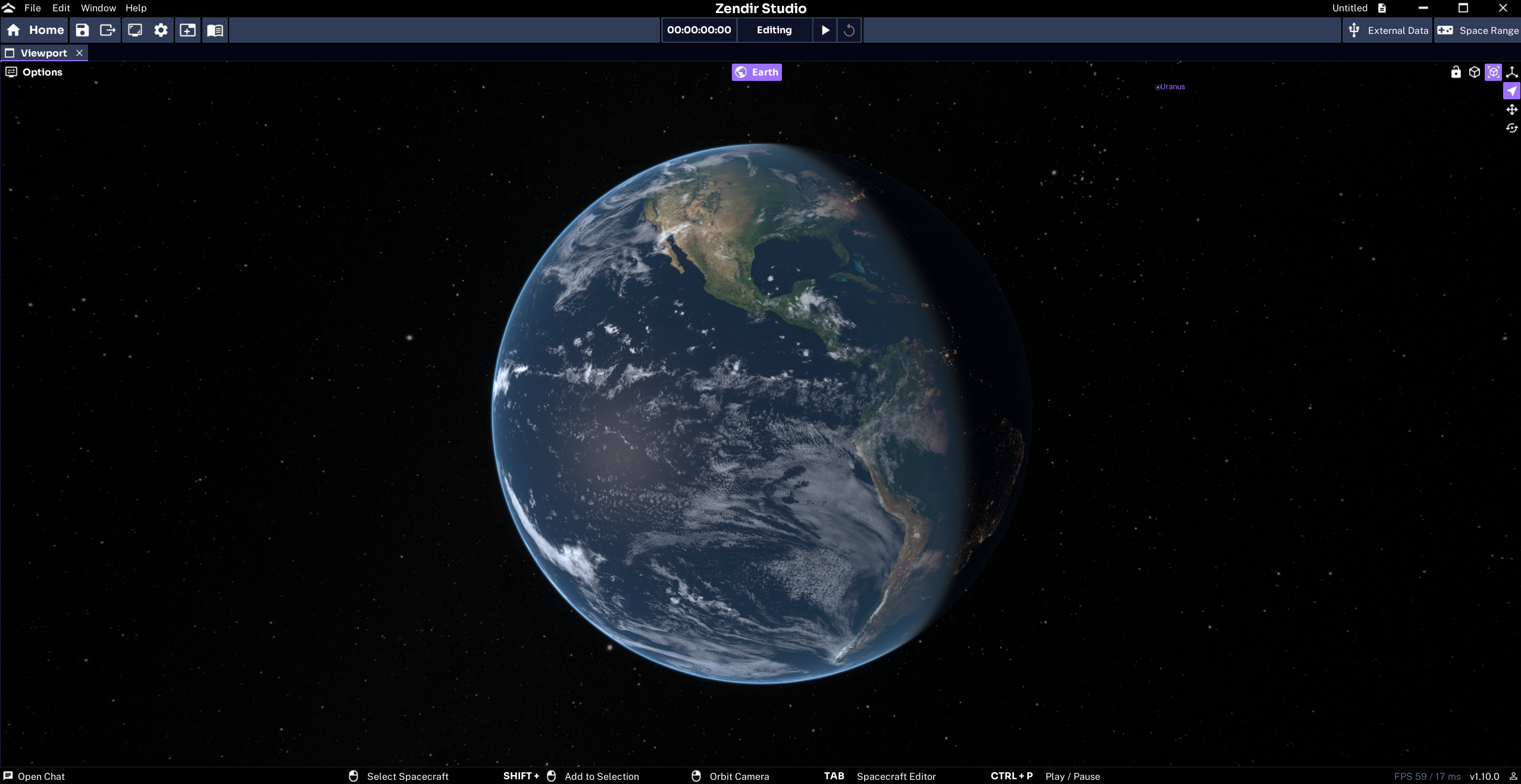
Fullscreen only hides the other sections. Restoring it brings back the layout exactly as it was.
Using Layout Presets
Studio has named layouts, such as Default View. The agent can list them and apply one by name. Open panels that the preset uses are kept with their state, and the rest are closed.
Reset the workspace to the default view.Save the project to keep the new layout, as described in Saving the Layout. Next, see the Tool Reference for every tool the server offers.