
An agent connects to Studio with the server address from Starting the MCP Server. The server uses the Streamable HTTP transport and needs no authentication, so most clients only need a name and the URL. Studio identifies itself to clients as zendir-studio.
The examples on this page use the default address, http://127.0.0.1:8765/mcp. Change the port if you started the server on a different one.
Connecting Cursor
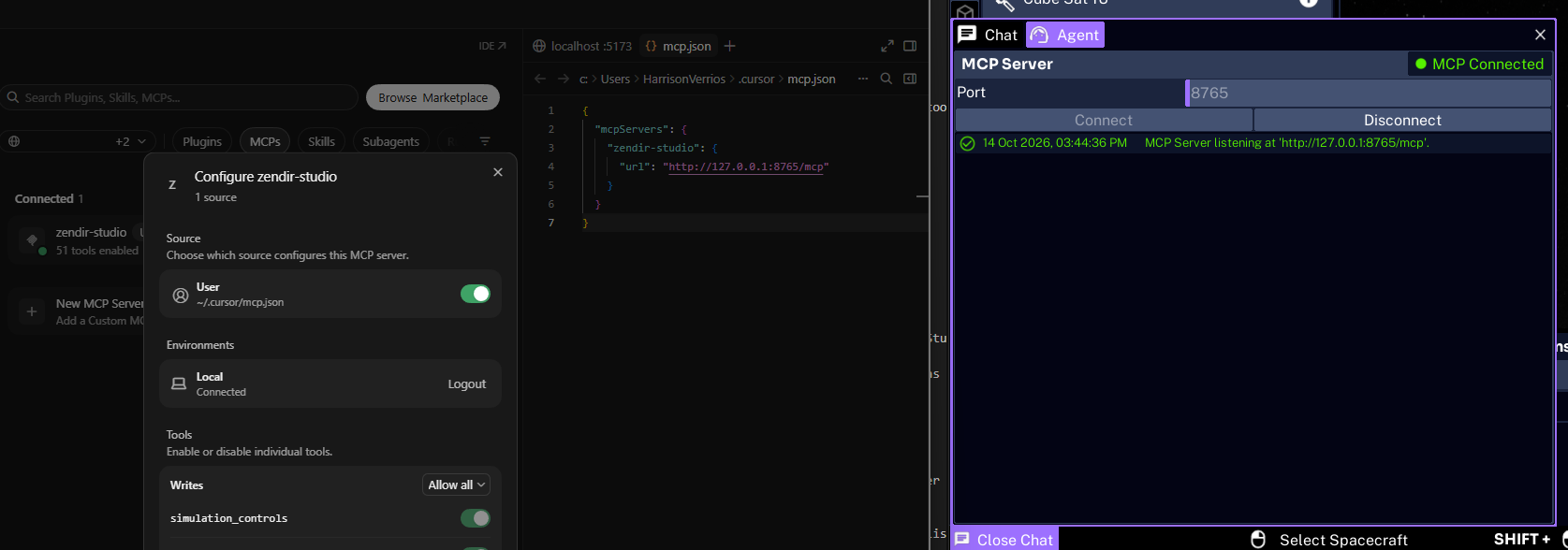
Cursor reads MCP servers from a mcp.json file. Create .cursor/mcp.json in the folder you open in Cursor to use Studio in that project only, or %USERPROFILE%\.cursor\mcp.json to use it in every project. Add the Studio server:
{
  "mcpServers": {
    "zendir-studio": {
      "url": "http://127.0.0.1:8765/mcp"
    }
  }
}
Open Cursor Settings and find the MCP section. zendir-studio will be listed with its tools once Cursor connects. If it shows as disconnected, check that the server is running in Studio, then turn the server off and on again in Cursor.
Connecting Claude Code
Claude Code adds MCP servers from the command line. Run this in a terminal:
claude mcp add --transport http zendir-studio http://127.0.0.1:8765/mcpThis adds Studio to the current project. Add --scope user before the server name to make Studio available in every project.
Start Claude Code and enter /mcp to check the connection. zendir-studio will be listed as connected.
Connecting Other Clients
Any client that supports MCP over Streamable HTTP can connect with the server URL. The server accepts the standard initialize handshake, and also answers requests sent without one, so a session is optional.
Requests are JSON-RPC 2.0 messages sent with POST. To check the server without an agent, list its tools from Command Prompt:
curl -X POST http://127.0.0.1:8765/mcp -H "Content-Type: application/json" -d "{\"jsonrpc\":\"2.0\",\"id\":1,\"method\":\"tools/list\"}"The reply lists every tool with its description and input schema. Tools are called with the tools/call method. Each result carries both a text form and a structuredContent object. A request that cannot be completed returns a result with isError set and a message explaining why, for example that the simulation must be reset first.
Sending a First Prompt
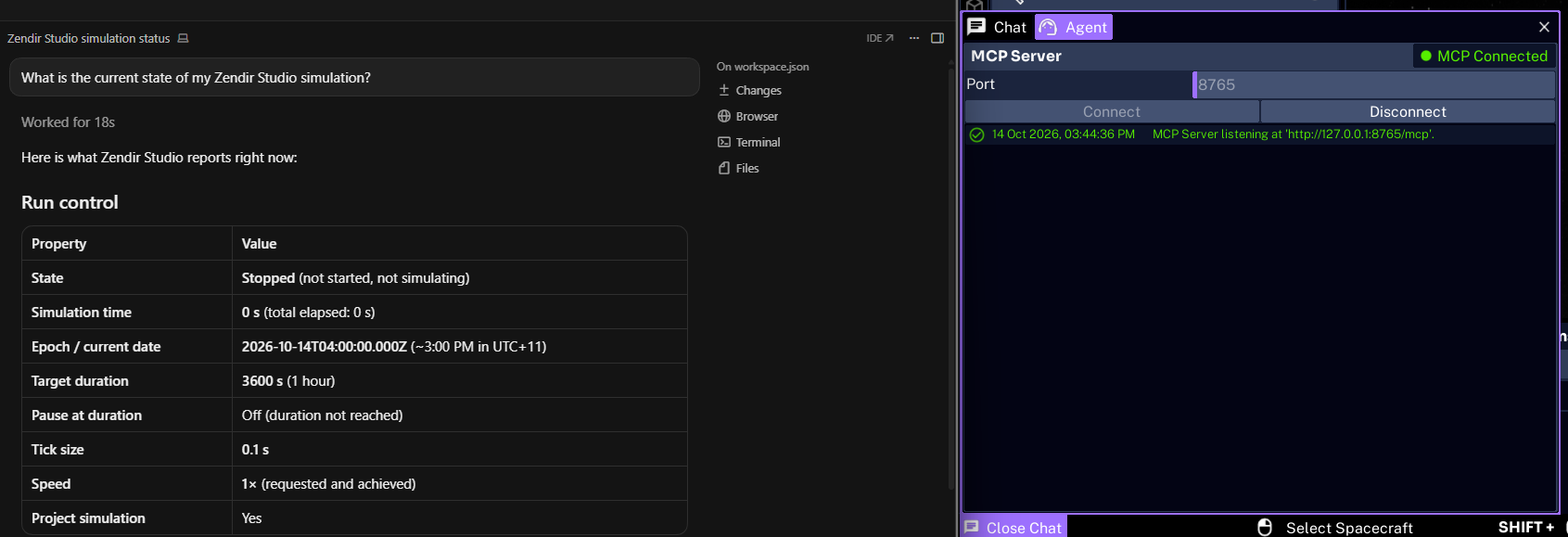
With the agent connected, ask it about the simulation. Naming Studio in the prompt helps the agent choose the Studio tools:
What is the current state of my Zendir Studio simulation?The agent will call simulation_state and reply with the simulation state, time, speed, and epoch. Any agent connected to the server sees the same project as you do in Studio.
NOTE
Most clients ask you to approve each tool call. Approve the calls you expect, or allow the Studio tools in the client’s settings if you trust the agent to make changes without asking.
Next, have the agent start building a spacecraft.