
The MCP Server is off when Studio starts. It is started from the Agents mode of the Chat overlay, and it stays running until you stop it or close Studio.
Opening Agents Mode
Select Chat in the footer at the bottom of the Studio window. This opens the same Conversation overlay used by the AI Chat Panel. Switch the overlay to Agents mode to show the MCP Server controls.
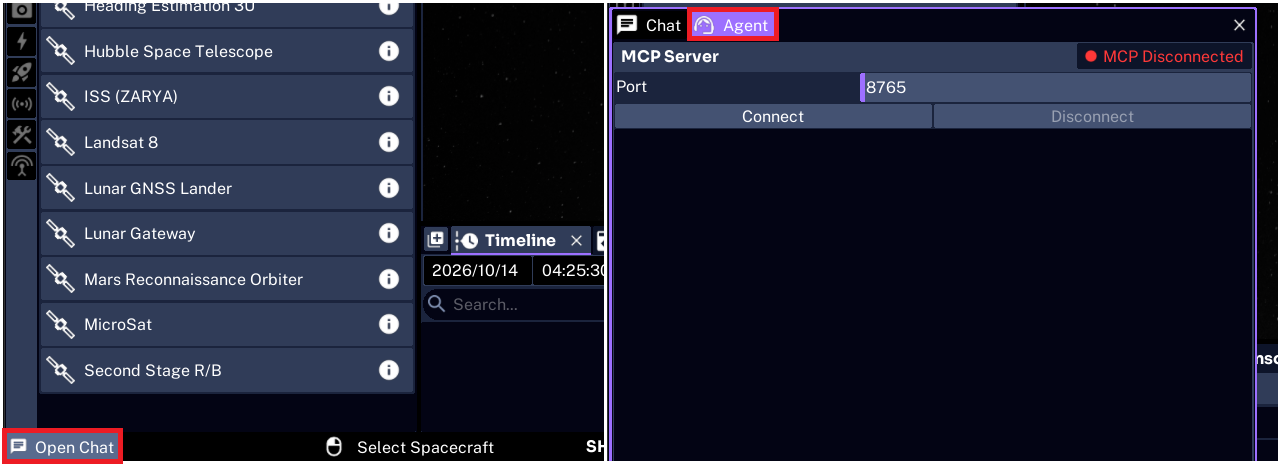
Starting the Server
Select Connect. Studio starts listening for agents at this address by default:
http://127.0.0.1:8765/mcp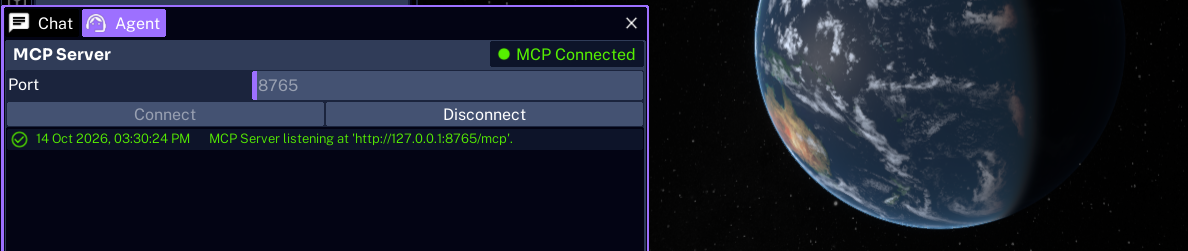
The Console Panel confirms the start with this message:
MCP Server listening at 'http://127.0.0.1:8765/mcp'.
The server only accepts connections from the same computer, so the agent must run on the machine that is running Studio. It does not use the AI token from Studio Preferences. The agent sends requests to its own model provider, and Studio only answers the tool calls it receives.
NOTE
Keep the server running while you work with the agent. The server stays running when you open a different project. Most tools need an open project, so starting the server from the Home Screen is fine, but the agent cannot build anything until a project is open.
Changing the Port
The server uses port 8765 by default. If another application already uses that port, or you want to run a second tool on it, enter a different number in the Port field before selecting Connect. Any port from 1 to 65535 is accepted, although ports above 1024 avoid conflicts with system services.
Make sure to disconnect the server before updating the port and reconnecting. Update the address in your agent to match, for example http://127.0.0.1:8770/mcp. If the port cannot be used, the Console Panel shows an error such as Failed to bind MCP server to '127.0.0.1:8765'. Choose another port and start the server again.
Stopping the Server
Select Disconnect to disconnect all agents. Any request still waiting for a reply is answered with MCP server stopped., and the Console Panel shows MCP Server stopped.
Stopping the server does not undo anything the agent has done. The objects and settings it changed stay in the project.
Next, connect an agent to the running server.