
An agent builds a spacecraft the same way you do in Studio: it picks items from the Inventory, attaches components, sets the orbit, and adjusts properties. For this example, the agent will add a Cube Sat 1U, add a component to it, and place it in a low Earth orbit.
Every object has an ID, a GUID such as 35bfe2bb-4019-a422-3c81-4ab73ffe507f. The agent finds these IDs itself by listing objects, so prompts can refer to objects by name.
Opening a Project
The agent works on the project that is open in Studio. Open an existing project from My Simulations, or create a new one from the Home Screen, before asking the agent to make changes.
Changes are only allowed while the simulation is reset. While it is running or paused, the agent can still read the simulation, but it cannot add, delete, or reconfigure objects. Reset the simulation from the Toolbar Panel, or ask the agent to reset it.
Adding a Spacecraft
The Inventory Panel holds pre-configured spacecraft and components. The agent can search the same items with inventory_list and add one with object_create. Each inventory item arrives with its real mass properties and, for spacecraft, every component it ships with.
Add a Cube Sat 1U from the inventory and call it EventSat.The spacecraft will appear in the Outliner Panel with its chassis, solar panels, battery, and other components.
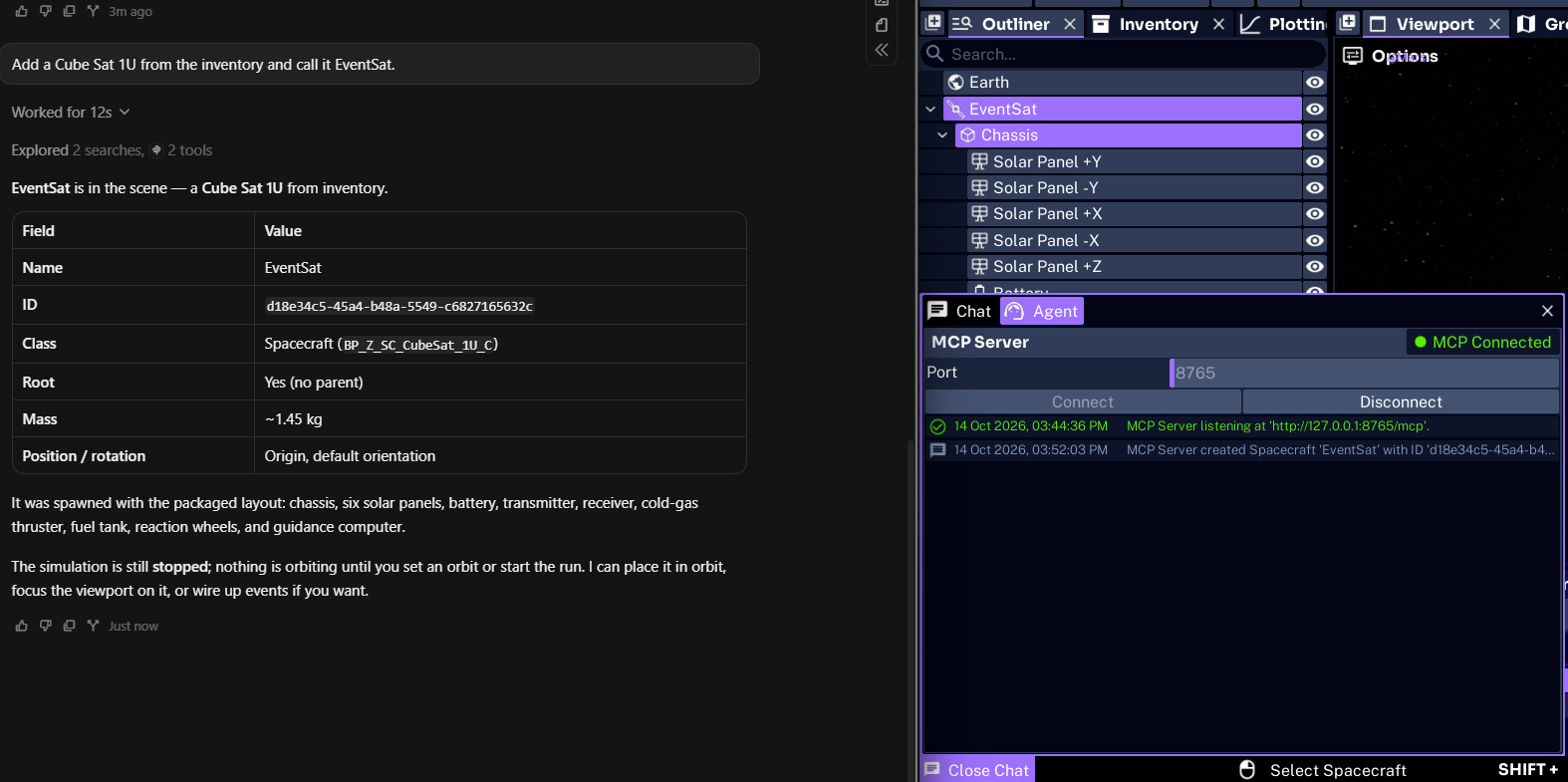
The agent can also create a plain object from a class, such as an empty Spacecraft, when no inventory item fits. class_list shows the classes that can be created, optionally only those that can attach to a chosen parent.
Adding Components
Components are added with object_create and a parent. The agent can call inventory_list with the parent’s ID to see only the items that fit, then place the component with a position in meters and a rotation in degrees.
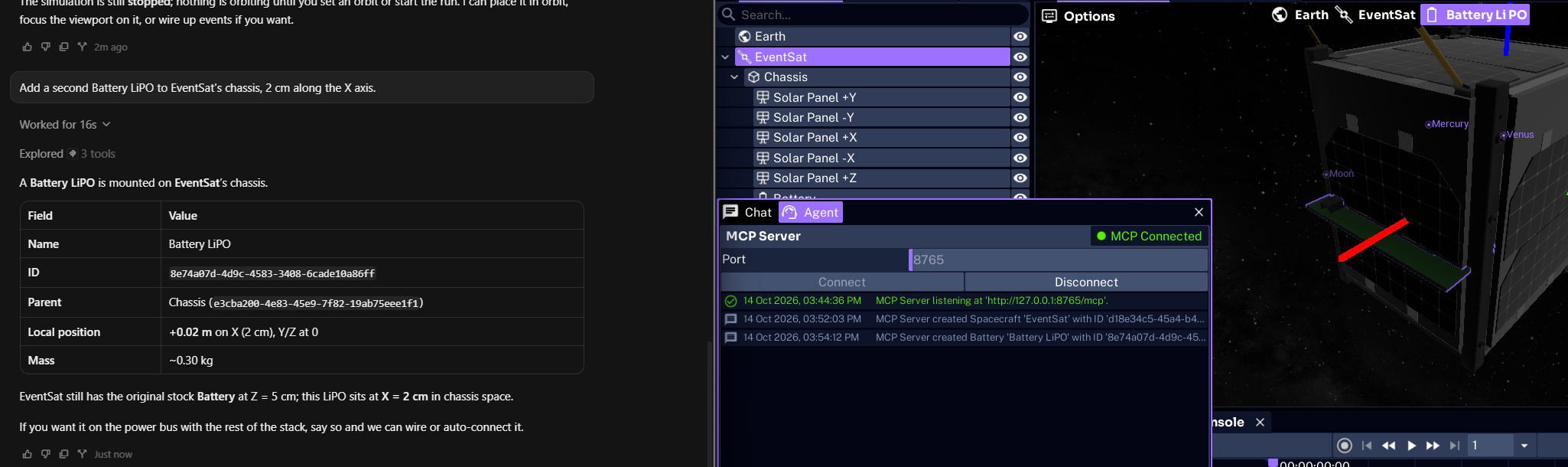
Add a second Battery LiPO to EventSat's chassis, 2 cm along the X axis.A component from the inventory keeps its inventory name and mass, and the spacecraft’s mass updates to include it.
WARNING
Spacecraft added from the same inventory design share that design. Adding a component to one of them adds it to every spacecraft that shares the design. The agent’s result reports how many other spacecraft were changed, so ask it to check before adding parts to one of several identical spacecraft.
Setting the Orbit
spacecraft_orbit sets the starting orbit of a spacecraft around any planet. It accepts classical orbital elements, a Cartesian position and velocity, or a geodetic latitude, longitude, and altitude over the planet at the current epoch.
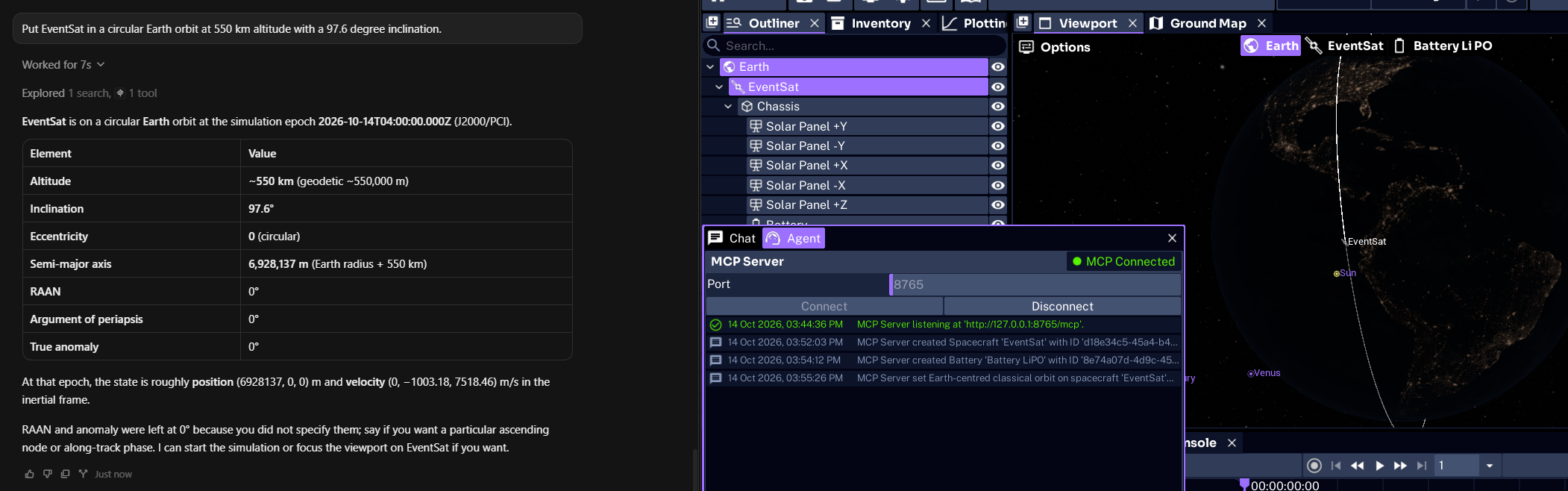
Put EventSat in a circular Earth orbit at 550 km altitude with a 97.6 degree inclination.The agent converts the request into orbital elements, and the orbit will be drawn in the Viewport Panel.
Changing Properties
Every property shown in the Properties Panel is a variable the agent can read and change. variable_list lists an object’s variables with their types and whether they are read-only, variable_get reads one, and variable_set changes one.
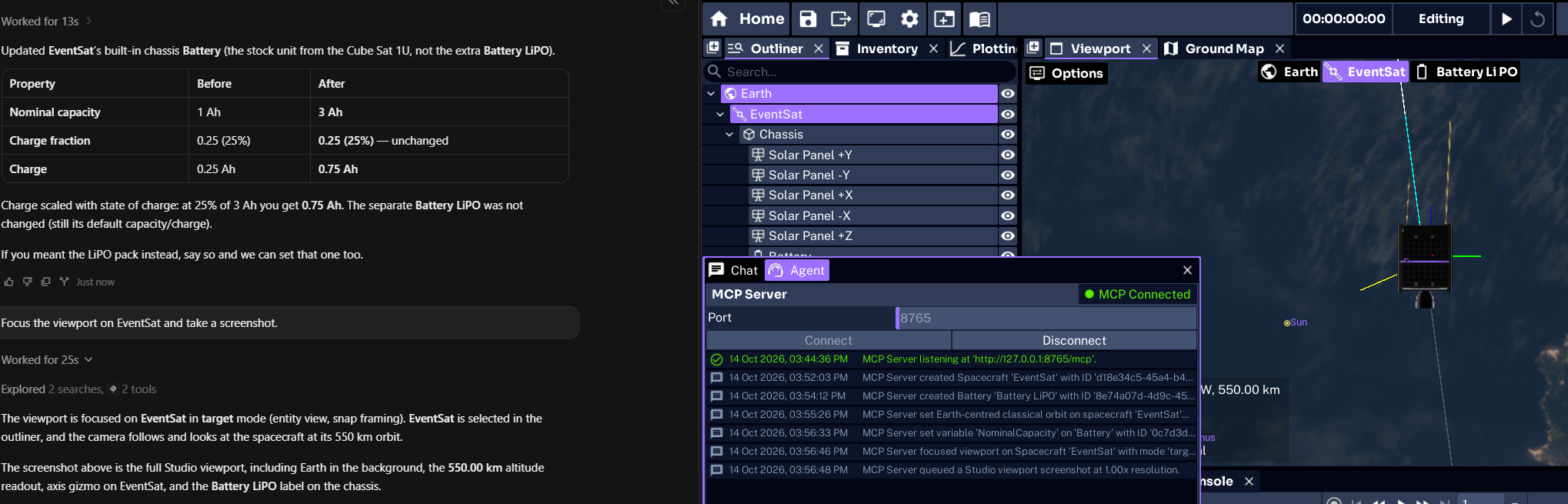
Set the nominal capacity of EventSat's battery to 3 Ah, then tell me its new charge.Read-only values, such as a battery’s current charge, can be read at any time but not set. Values that are calculated during the simulation are best read after a run. See Running and Recording Simulations.
Checking the Result
The agent can see Studio for itself. screenshot captures the Studio window, including its panels, and viewport_focus selects an object or planet and frames it in the viewport. viewport_state reports what is currently selected.
Focus the viewport on EventSat and take a screenshot.This works in agents that can view images, and it is a quick way for the agent to confirm that a spacecraft looks right before you run the simulation.
Deleting Objects
object_delete removes a spacecraft, ground station, or component, together with everything attached to it.
WARNING
Deleting a component removes it from its design, so it is also removed from every spacecraft that shares that design. The agent’s result reports how many spacecraft were affected. Deleting cannot be undone through the agent.
Saving the Project
Changes made by the agent are made to the open project, but they are not saved automatically. Save the project from Studio with File → Save when you are happy with the result. See Save Files.
Next, have the agent start wiring power and software.