
Zendir Studio keeps your work in projects. A project holds a complete simulation: the objects you added, how they are configured, the events attached to them, and the layout of the panels you were working in. Saving a project stores it in your local library, where it appears under My Simulations on the Home Screen.
A project can also be exported to a single .zen file. This is the portable form of a project, and is what you send to a colleague, copy onto another machine, or keep as an archive. For the export steps, see Exporting a Simulation.
What a Project Stores
A saved project captures everything needed to reopen the simulation as you left it:
- Simulation objects: Every spacecraft, ground station, and planet, together with the components attached to them and their configured properties.
- Custom components: Any component designs you built in the Inventory Panel.
- Events: The events configured against each component, and the conditions that trigger them.
- Constellations: Any constellations that spacecraft have been grouped into.
- Simulation settings: The step size, playback speed, duration, whether to pause at that duration, and whether data recording is enabled and at what interval.
- Panel layout: Which panels are open, how they are docked and split across windows, the plots you configured, and the object that was selected.
- Notes: Every note page attached to the project.
- Space Range configuration: The teams, assets, and ground stations, when the project is set up as a Space Range exercise.
Studio also records details about the project itself: its name and description, the categories assigned to it, when it was created and last edited, the Studio version that wrote it, and the author. A thumbnail of the application is captured each time you save, and is the image shown against the project on the Home Screen.
The author is recorded as your account email address. To record your organization instead, enable Save File as Organization in Studio Preferences.
Where Projects Are Stored
Saved projects live in your local application data folder, with one folder per project:
%LOCALAPPDATA%\Zendir\Studio\v<version>
Each project folder is named with a unique ID rather than the project name, so renaming a project never moves it or breaks the link to its recorded data. You do not need to browse this folder during normal use. The Home Screen is the intended way to open, rename, duplicate, and delete projects.
NOTE
The path includes the Studio version, and every version keeps its own separate library. After upgrading,
My Simulationswill not list the projects saved by the previous version, although they are still on disk under the older version folder. To carry a project forward, export it to a.zenfile from the old version and import it into the new one.
Saving a Project
Select the save icon in the Toolbar Panel, or use File → Save. A project must be given a name. If you have not set one, Studio saves it as Untitled.

Use File → Save As to keep the current project and create a second copy under a new name. The copy is added to My Simulations as an independent project, and Studio continues working in the copy rather than the original.
Saving during a run stores the state the simulation had before you pressed play, not the state it has reached. A saved project therefore always reopens at its configured start, which is also the state that the reset control returns to.
NOTE
To export recorded results from a run, use the
Database Fileoption on Exporting a Simulation. This writes the SQLite database and CSV tables for the objects recorded in that simulation. The option is available only while the simulation is running or paused.
Opening a Project
Projects are normally opened from My Simulations on the Home Screen. To open a .zen file directly, select the open icon in the Toolbar Panel, or use File → Open.

Examples in the built-in Library tab are read-only. Opening one creates a copy with (Copy) appended to the name, so the original example is never modified and your changes are saved to the copy.
Exporting and Importing Projects
Exporting packs the project into a single .zen file. Studio adds the extension if you leave it out, and remembers the folder you last exported that project to.
Exporting the project that is currently open saves it first, so the export always reflects your latest changes and also counts as a save for that session.
Recorded simulation data is not included in a .zen file, because a database of results can be far larger than the project itself. Export the database separately when you need to share results.
To bring a project in, open My Simulations on the Home Screen and select Import, then choose the .zen file. Importing never overwrites an existing project: if the incoming project has the same identity as one already in your library, Studio gives the imported copy a new identity instead. Importing the same file twice therefore produces two independent entries.
Using Simulation Files
Studio can also import a .json simulation file. This is the portable simulation configuration shared across the Zendir products, and is the same format used with the Zendir API.
A simulation file describes only the simulation itself. It carries no panel layout, notes, custom inventory, or other Studio data, so Studio builds a new project around it using default settings. Export a .json file when you want to run a configuration through the API, and a .zen file when you want to preserve the full Studio project.
Checking Version Compatibility
Studio checks the version that last wrote a project against the version you are running, comparing the major, minor, and patch numbers.
| Version that saved the project | Result |
|---|---|
| The same as your Studio version | Loads |
| Older, back as far as 1.3.0 | Loads |
| Older than 1.3.0 | Refused |
| Newer than your Studio version | Refused |
When a project is refused, Studio reports both versions and opens an empty project instead. Nothing is written to the file you tried to open.
WARNING
A project saved by a newer version of Studio cannot be opened by an older one. When sharing a
.zenfile, confirm that the recipient is running the same version or newer. Otherwise they will be unable to open it.
Recovering Unsaved Work
Pressing play does not overwrite your saved project. Instead, Studio writes a hidden recovery snapshot of the work in progress, leaving the saved copy untouched.
If Studio closes unexpectedly, the next launch promotes that snapshot into your library as a new project with (Unsaved) appended to the name. The recovered project appears in My Simulations on the Home Screen, but is not opened automatically, so you can compare it against the copy you had already saved. Saving, using Save As, or exporting clears the snapshot, because your work is then stored in the project itself.
To keep the saved project current instead, enable Auto-Save on Run in Studio Preferences. Every play then saves the project directly and no recovery snapshot is kept.
WARNING
With
Auto-Save on Runenabled, pressing play overwrites the stored project. Use Save As first if you want to preserve the configuration you started from.
Making Notes
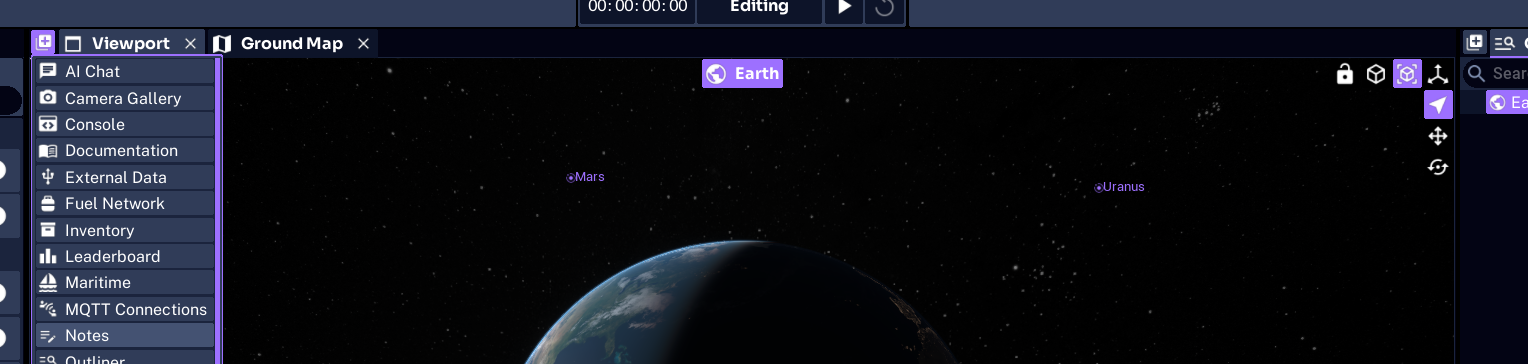
The Notes panel records free text alongside the project. Add it by selecting the plus icon at the top of the Viewport Panel, or of any other panel, and choosing Notes.
A note is a single multi-line text box with no formatting. It is useful for recording assumptions, outstanding tasks, or the data a reviewer should look at, so that this context travels with the project when it is shared.

Notes are stored in the project, so they are included when it is saved and when it is exported to a .zen file.
NOTE
A project can hold several notes. Use the drop-down beside the note title to rename the current note or switch between pages, and the plus icon to add another.