
Saving keeps a project in My Simulations on the current machine. Exporting writes a .zen file that can be sent to someone else, copied between computers, or imported later. Neither action changes the built-in Library catalog.
A .zen file is a packed copy of the project, including spacecraft, components, events, notes, and the editor layout. Studio excludes the recorded simulation database from this project export.
Exporting a Project
Select the export action in the Toolbar Panel or the File menu, then choose a folder and file name. Studio will add the .zen extension if it is missing. If a file already exists at that path, confirm whether Studio should replace it.
When exporting the open project, Studio saves the latest changes before packing the files. The export therefore also counts as a save for the current session. The next export of that project will default to the last location used.
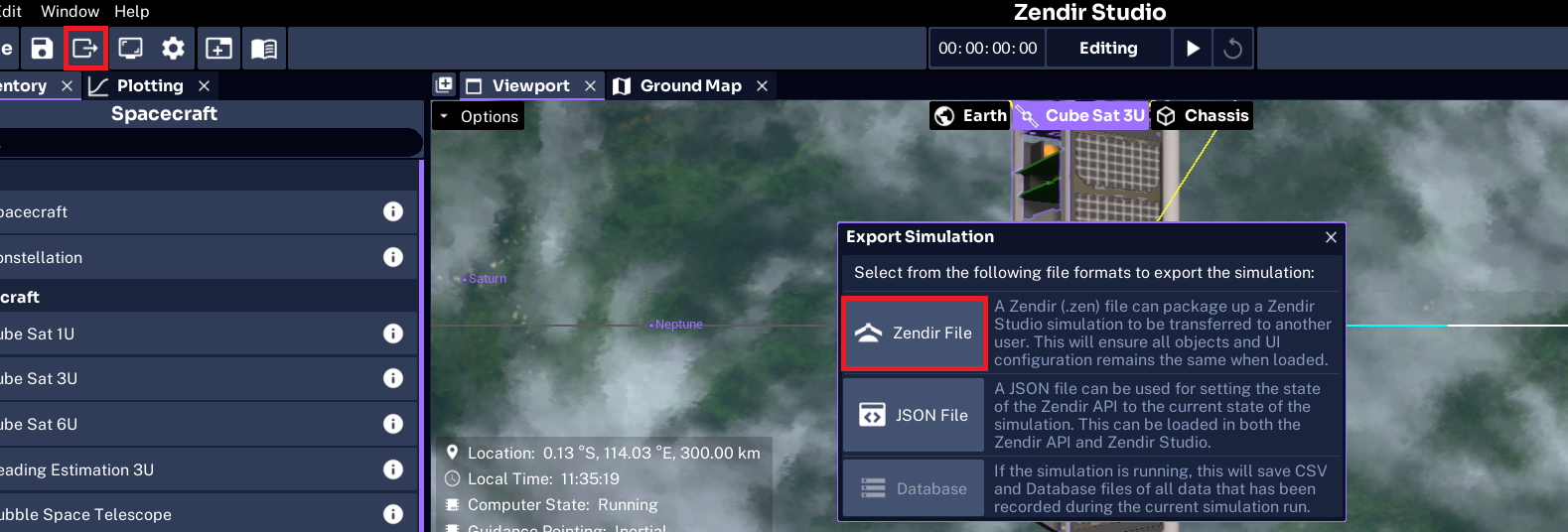
Exporting for the API
Select the JSON File export when you need only the simulation configuration. The JSON file can be used with the Zendir API to run the simulation in the cloud or without visualization. It does not include Studio project files or the saved user interface layout.
Exporting Recorded Data
While the simulation is running or paused, select the Database File export to save recorded results. Studio will export the SQLite database and CSV tables for the objects recorded in the simulation.
This option is available only when database recording is enabled for the simulation.
Importing an Exported Project
On the Home Screen, open My Simulations and select Import. Choose the .zen file. After the import finishes, expand the simulation row and select Load.
WARNING
A
.zenfile can only be imported by the same version of Studio that exported it, or a newer one. When sharing a file, confirm that the recipient is not running an older version. See Save Files for more information.
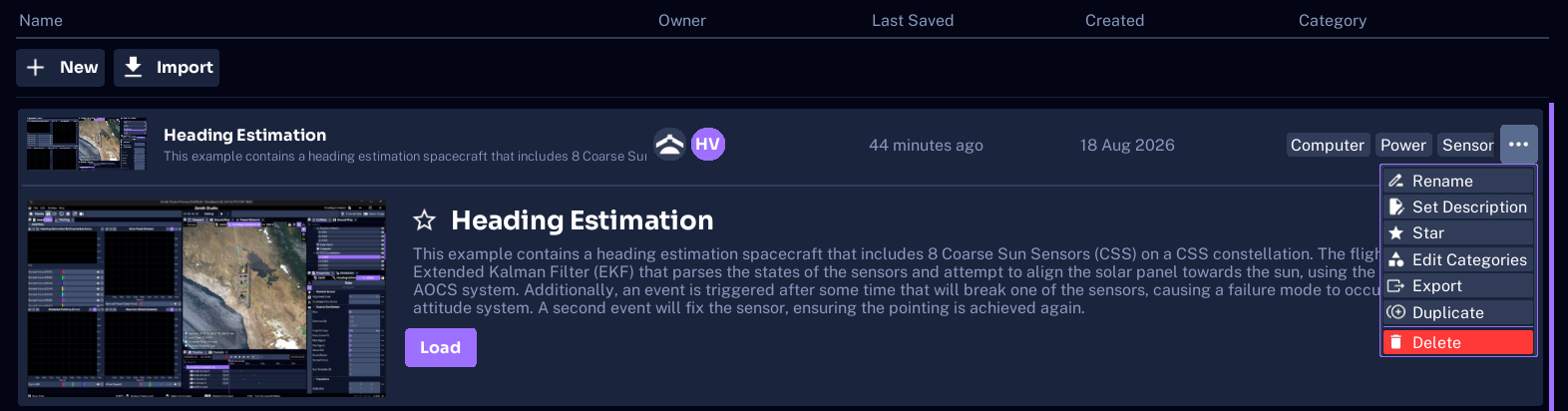
You can also export a saved project without loading it. Open the row’s overflow menu on the Home Screen, then select Export.
Facilitators who are importing a training scenario next should follow Operator Training.