
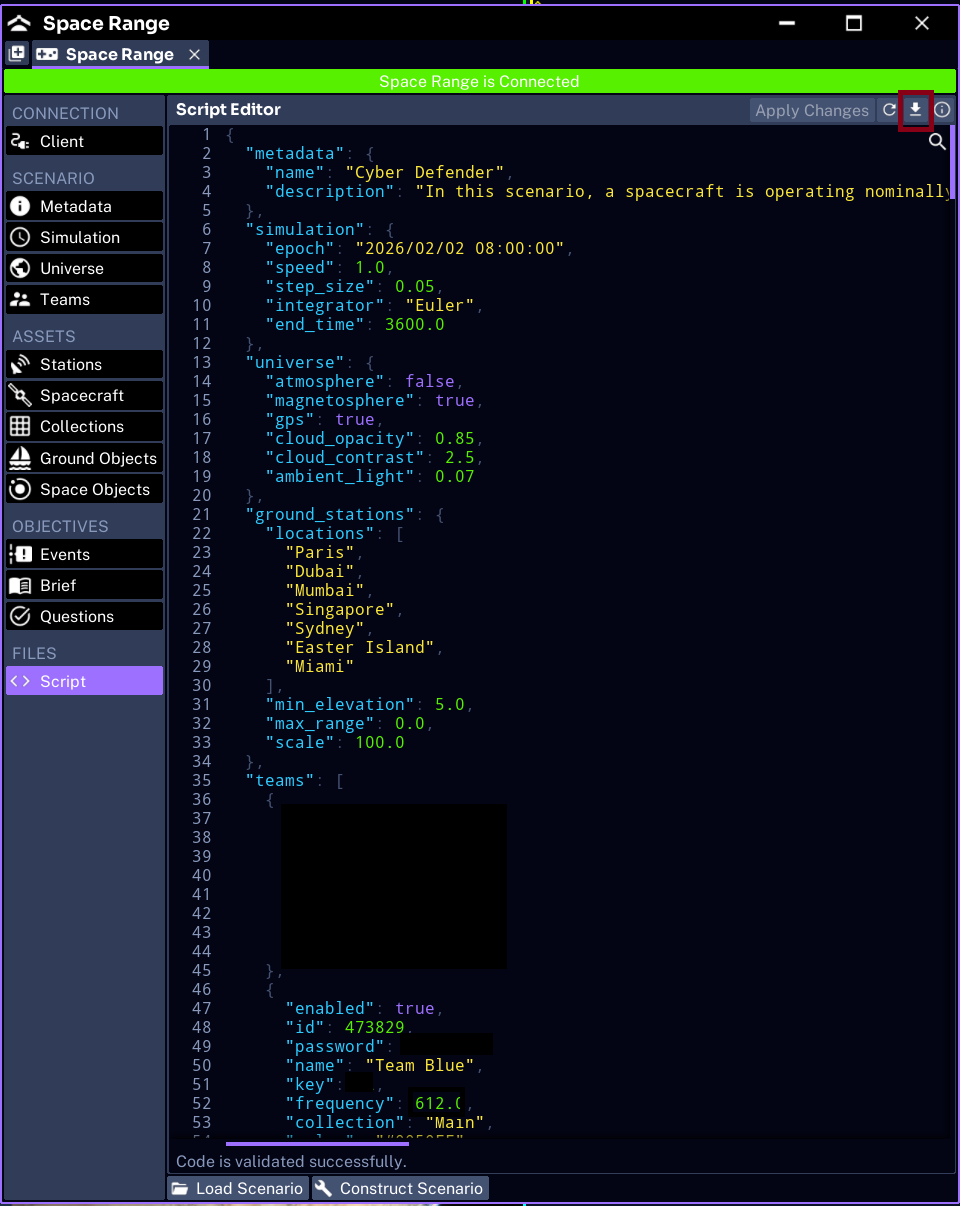
The Script tab shows the whole scenario as a single JSON document. Everything you configured across the other tabs is serialized here, and this is the exact text that Construct Scenario builds from. It is the bridge between the window-based path in this guide and the JSON authoring path.
What the script contains
The script is the full scenario definition, organized into the same areas as the tabs:
| Section | Comes from | Key |
|---|---|---|
| Metadata | Metadata tab | metadata |
| Simulation | Simulation tab | simulation |
| Universe | Universe tab | universe |
| Ground stations | Stations tab | ground_stations |
| Teams | Teams tab | teams |
| Spacecraft and collections | Spacecraft and Collections tabs | assets |
| Ground and space objects | Ground Objects and Space Objects tabs | objects |
| Events | Events tab | events |
| Objectives | Objectives tab | objectives |
| Questions | Questions tab | questions |
NOTE
The Client connection settings are not part of the script. Game name, server, port, and admin password are live connection state and are set per host, not saved in the scenario.
Using the script to review the scenario
Reading the script is the fastest way to sanity-check the whole scenario at once. Confirm:
- the spacecraft ID matches the collection entry and the team’s collection
- event and objective targets name real components
- question expected values are present
- end time extends past every event and objective window
Because the whole chain is visible in one place, broken references such as a team pointing at a missing collection are much easier to spot here than by clicking through tabs.
Moving to the JSON path
The script is the same format the advanced path edits directly. You can copy it out to:
- version the scenario in source control
- hand it to the JSON path for features the window does not expose, such as neutral assets and docking
- diff two versions of a scenario
For editing scenarios as JSON, see Authoring a Space Range in JSON.
WARNING
Treat the script as the source of truth when something does not match. If a tab and the script disagree after a manual edit, reload the scenario so the window and the script are back in sync before constructing.