
Space Range events introduce faults, environmental effects, or packet changes at a configured simulation time.
Using the correct event system
Studio has two separate event systems:
- spacecraft Properties → Events runs normal Studio actions such as camera pointing or user-input behavior
- Space Range → Events defines exercise faults and anomalies
Use the second system here. A normal Studio event does not become a Space Range event automatically.
Finding available event types
Open Events in the Space Range window. The toolbar includes the add control and a preset dropdown of the shipped events available in the current Studio build.
Use a preset when possible. It provides a supported combination of:
- event type
- target component
- target model
- parameter names
Available presets are the best in-product source for event shapes supported by the installed Studio version. Duplicate or add the closest preset, then change its name, timing, and target assets.
Adding Low Bit Rate
Create this Pathfinder Checkout event:
- Name:
Low Bit Rate - Enabled: on
- Time:
100 s - Repeat: off
- Type:
Spacecraft - Assets:
Any - Target Class:
Transmitter - Target Component:
Transmitter - Target Model: off
- Parameters:
Bit Rate = 500
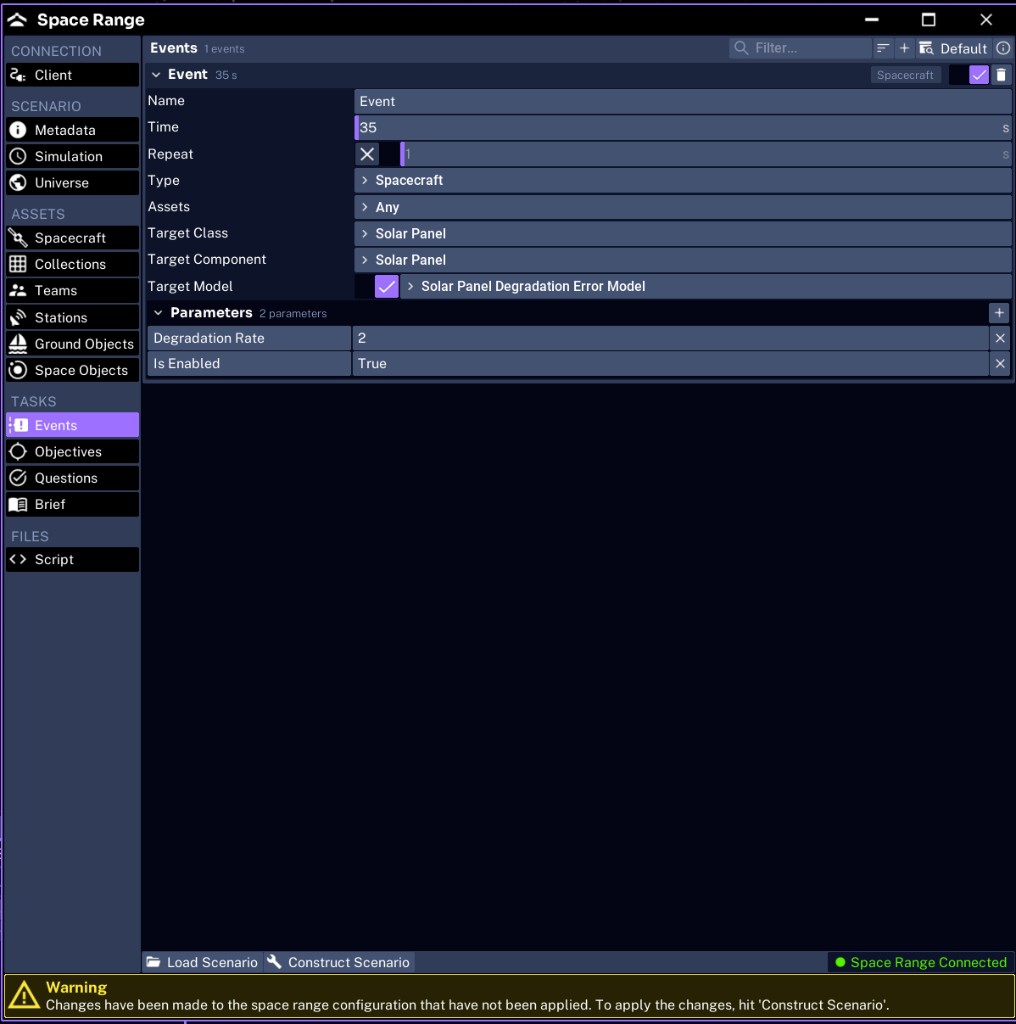
This event changes a direct Transmitter property and is easier to diagnose than a model-based fault. A model-based fault instead enables Target Model and names a supported error model, such as Solar Panel Degradation Error Model with a Degradation Rate parameter.
WARNING
Anytargets every matching spacecraft. Use it only when that blast radius is intentional. Select specific assets for team-specific faults.
Understanding event timing
Time and Interval use simulation seconds.
real seconds to event = event time / simulation speedAt 1x, the event at 100 simulation seconds arrives after about 100 real seconds. At 5x, it arrives after about 20 real seconds.
The scenario end time must extend beyond the event.
Choosing an event type
Spacecraft
Use Spacecraft for:
- direct component changes
- component error models
- supported guidance or rendezvous actions
Common presets include transmitter corruption, battery leakage or intermittent behavior, solar-panel degradation, reaction-wheel faults, and sensor fault states.
GPS
Use GPS for supported spoofing and jamming effects. GPS events act on the global GPS environment rather than one ordinary component.
Cyber
Use Cyber for application process identifier (APID)-targeted packet changes. These require packet-format knowledge and belong in an advanced exercise.
Configuring the target
A Spacecraft event targets hardware through three fields:
- Target Class selects the component class, such as
TransmitterorSolar Panel - Target Component narrows to a specific named component when a spacecraft has more than one of that class
- Target Model is enabled only when the fault is a supported error model attached to that component
Then add the fault values under Parameters, using only parameters supported by that target. Component names matter: a class of Transmitter will not match a component that was renamed Radio TX unless you also set that exact Target Component.
NOTE
In the scenario JSON these three fields collapse into
Target(the class or component, with a-Modelsuffix for a model) andTarget Name(the component name). See Writing Spacecraft Events.
Testing the result
- use an early trigger time
- construct the scenario
- verify the event appears in Operator Admin
- run past the trigger
- confirm the event appears in history
- confirm the target telemetry or behavior changes
- reset before testing again
An event marker proves the timer fired. It does not prove the target or parameters worked.
For event failure symptoms and author checks, see An event appears but does nothing.
Next, add scored objectives.