
The Universe tab controls the shared environment every spacecraft and team experiences. It enables or disables global physics models and sets the look of the rendered world.
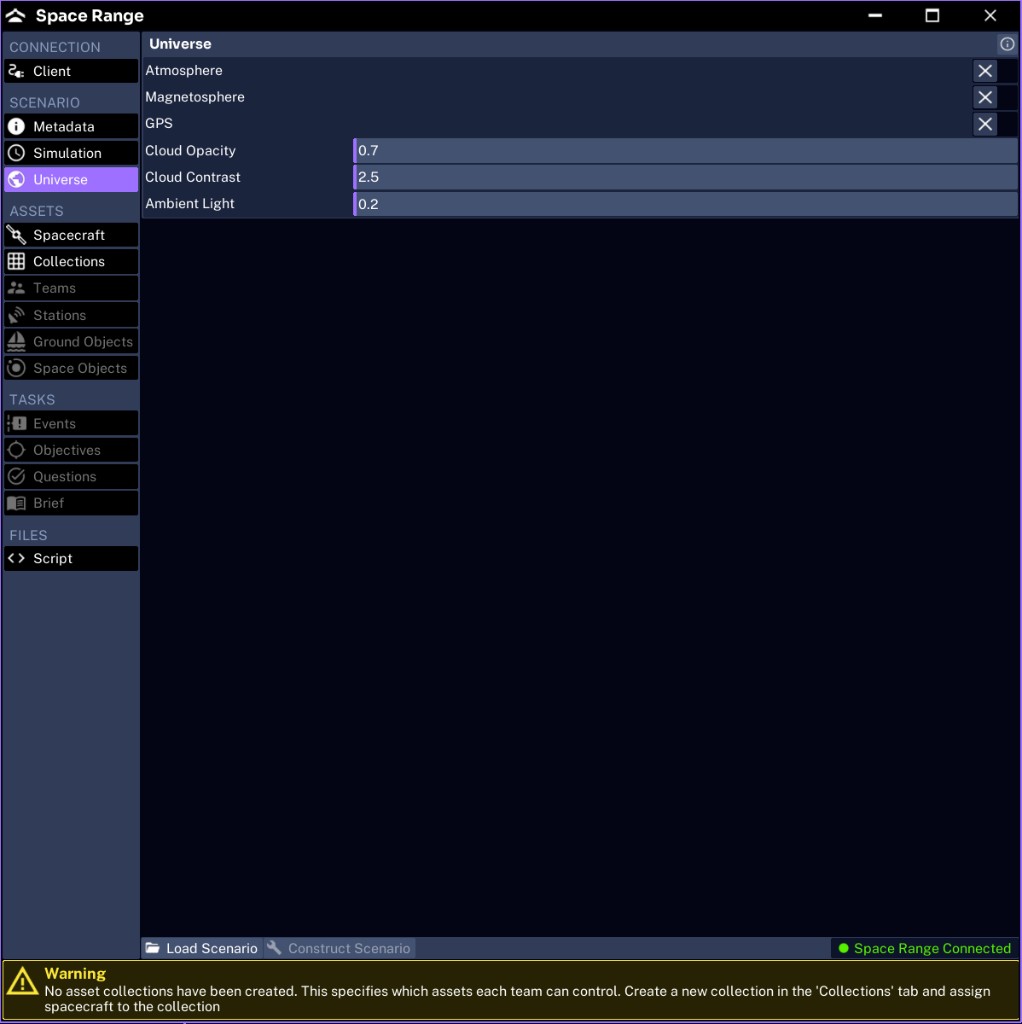
Reviewing the fields
| Field | Purpose | Default | JSON key |
|---|---|---|---|
| Atmosphere | Enables the atmospheric drag model | off | universe.atmosphere |
| Magnetosphere | Enables the magnetic field model | off | universe.magnetosphere |
| GPS | Enables the global GPS environment | off | universe.gps |
| Cloud Opacity | Visual density of the cloud layer | 0.7 | universe.cloud_opacity |
| Cloud Contrast | Visual contrast of the cloud layer | 2.5 | universe.cloud_contrast |
| Ambient Light | Base scene lighting level | 0.2 | universe.ambient_light |
Enabling only what the exercise needs
Each physics model adds realism and compute cost. Enable a model only when a task depends on it.
- Atmosphere matters for low orbits and decay exercises. Leave it off for a simple circular orbit.
- Magnetosphere matters when a spacecraft uses magnetorquers or studies the field. Leave it off otherwise.
- GPS must be on if any question, objective, or event depends on GPS position or on GPS spoofing and jamming.
For Pathfinder Checkout, enable GPS so operators can read a navigation solution, and leave atmosphere and magnetosphere off.
NOTE
A GPS event has no effect unless the GPS environment is enabled here first. If a spoofing or jamming event appears to do nothing, confirm GPS is on.
Adjusting the visuals
Cloud opacity, cloud contrast, and ambient light change only how the world looks. They do not affect orbits, power, or sensor results. Adjust them for a clearer picture on the facilitator display, then leave them.
Next, define Pathfinder.