
Spacecraft created in the Space Range window are reusable definitions. A collection later decides which definition is constructed for each team.
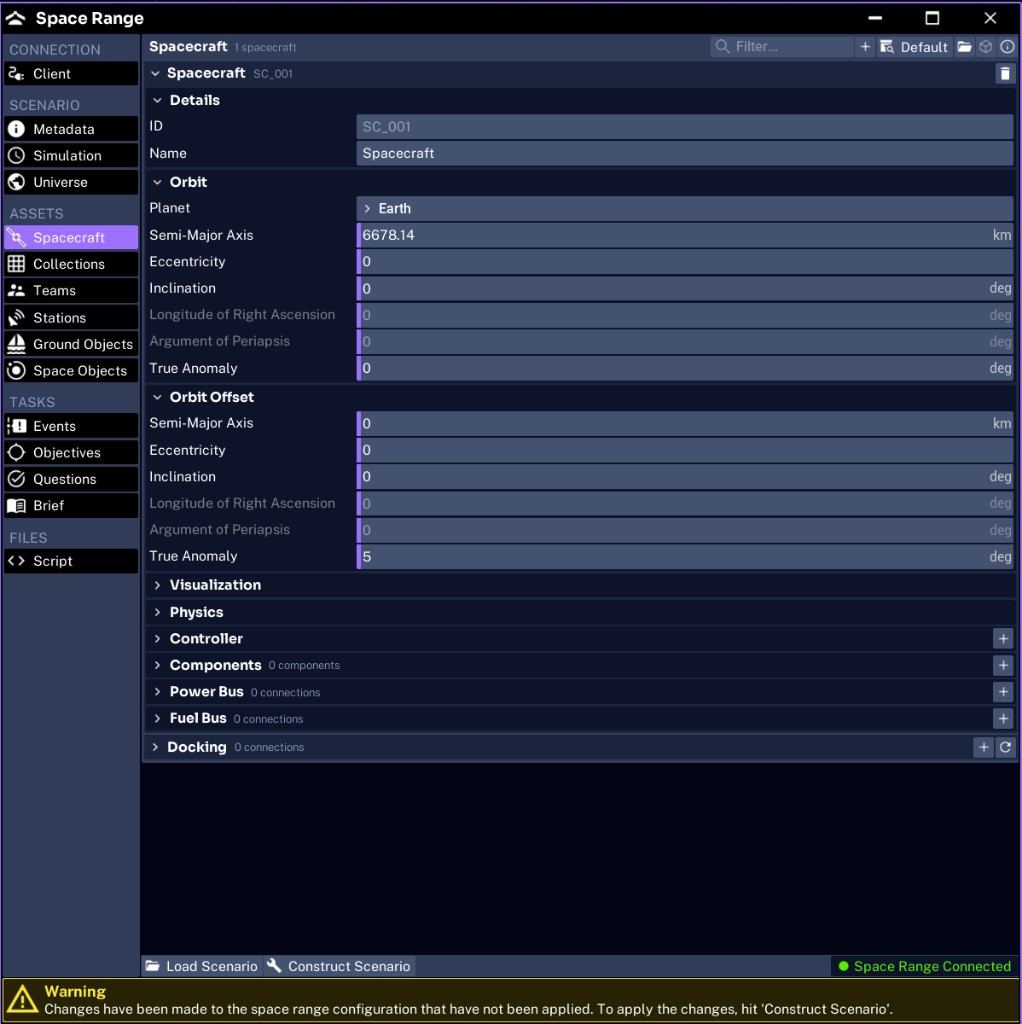
How the Spacecraft tab is organized
Each spacecraft entry expands into a stack of collapsible sections. A preset dropdown at the top of the tab lets you start from a shipped spacecraft instead of a blank one.
| Section | What it configures |
|---|---|
| Details | ID and name |
| Orbit | The six Keplerian elements of the base orbit |
| Orbit Offset | A per-instance offset added to the base orbit |
| Visualization | Mesh, scale, and visibility |
| Physics | Mass, center of mass, and inertia |
| Controller | Space Range controller behavior and software |
| Components | The onboard hardware stack |
| Power Bus | Explicit electrical wiring between components |
| Fuel Bus | Explicit propellant plumbing between components |
| Docking | Connections that start the scenario already docked or linked |
The next pages in this path cover Components, and the JSON path covers Power Bus, Fuel Bus, and Docking in depth.
Adding Pathfinder
Open Spacecraft and select the add control. Configure:
- ID:
SC_001 - Name:
Pathfinder - orbital planet: Earth
The ID is the stable reference used by collections and events. The name is the label shown to users. Keep IDs and names unique.
Configuring the orbit
Configure a circular Earth orbit with these Keplerian elements:
| Element | Value |
|---|---|
| Semi-major axis | 7000 km |
| Eccentricity | 0 |
| Inclination | 51.6 deg |
| Right ascension of ascending node | 0 deg |
| Argument of periapsis | 0 deg |
| True anomaly | 0 deg |
The default semi-major axis in a new spacecraft is 6678.14 km; this example overrides it to 7000 km.
Using the Orbit Offset
The Orbit Offset section adds a per-instance offset to each Keplerian element of the base orbit. It exists so that when several teams fly copies of the same definition, or several spacecraft share one orbit, each copy can start at a slightly different point instead of overlapping. A new spacecraft ships with a True Anomaly offset of 5 deg for exactly this reason. Leave the offset at its default for a single-spacecraft mission like Pathfinder Checkout.
For background on orbit configuration, see Configuring Spacecraft.
Configuring physical properties
Leave automatic mass calculation enabled for this basic mission. Studio will calculate the spacecraft mass from its components.
Use a mass override only when you know the intended total mass, center of mass, and inertia tensor. Incorrect values can make attitude motion unrealistic even when the spacecraft looks correct.
Set the initial attitude and attitude rate to zero for Pathfinder Checkout.
Configuring visualization
Choose a spacecraft mesh or keep the default. Visual scale and offset affect rendering; they do not change the orbit or automatically change mass.
Keep Pathfinder visible. Hidden spacecraft are useful for discovery or adversary scenarios, but they make a poor first exercise.
Understanding the controller options
Space Range spacecraft can also define controller behavior such as:
- low-battery safe-mode threshold
- energy cost for capture and downlink commands
- ping interval
- reset interval
- jamming multiplier
- rendezvous and proximity operations software
- uplink interception
Leave the defaults for the first scenario. Enable specialized software only when the components and operator tasks require it.
WARNING
A spacecraft definition with no components can be constructed, but operators have nothing useful to command. Add the required hardware on the next page before creating the collection.
Next, add Pathfinder’s components.