
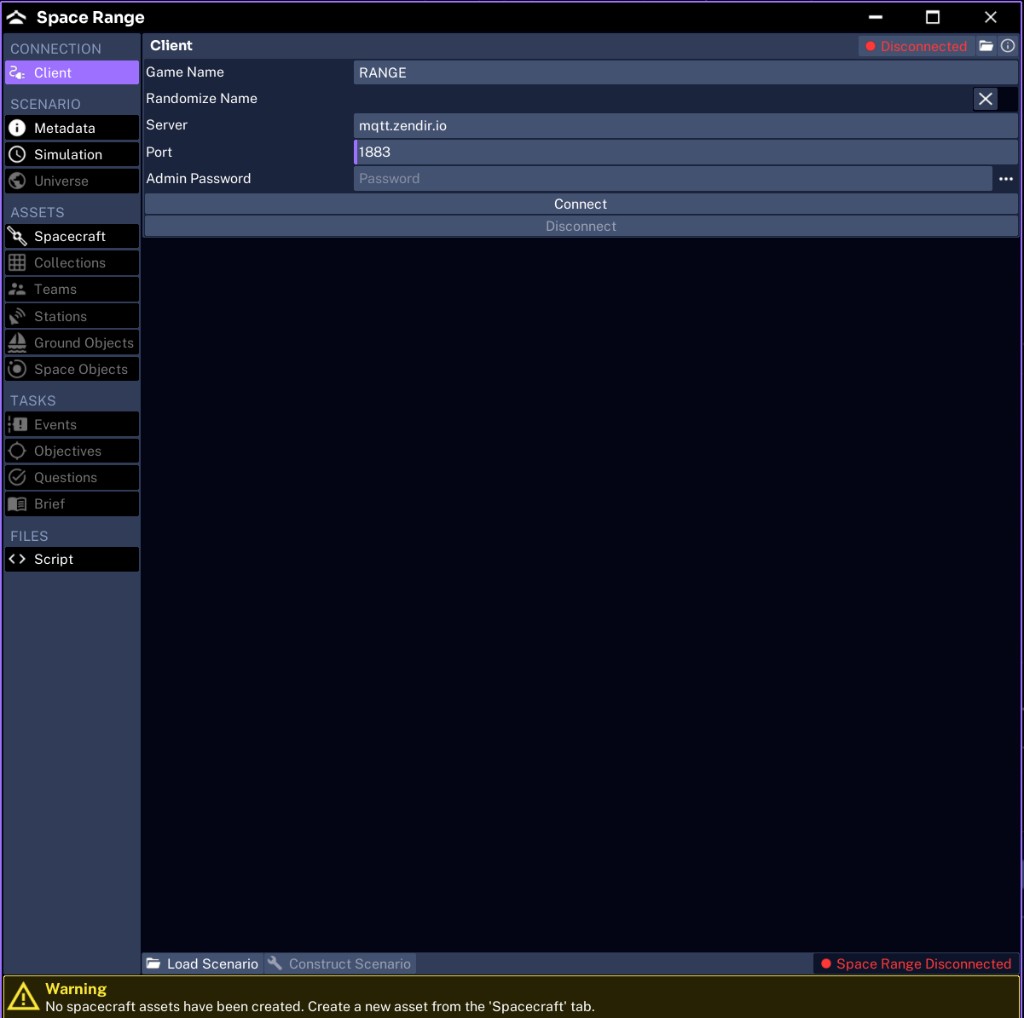
The Client tab is the first tab in the Space Range window. It holds the live connection between Studio and an MQTT broker. Everything operators see comes from the instance Studio publishes while connected, so it helps to understand this tab before you build anything.
When you use this tab
You do not need a connection to author a scenario. The Client tab matters at two points:
- while testing, so you can join your own scenario from Operator
- when handing the scenario to a facilitator, who uses the same fields to host the session
Leave the client disconnected while you configure the scenario tabs. Connect only when you are ready to construct and test.
NOTE
The Client settings are live connection state, not part of the scenario file. They are not saved into the
.zenexport or the scenario JSON. Each host sets them when they run the session.
Reviewing the fields
| Field | Purpose | Default |
|---|---|---|
| Game Name | The session name operators search for when joining | RANGE |
| Randomize Name | Appends a random suffix so repeated hosts do not collide | off |
| Server | The MQTT broker address | mqtt.zendir.io |
| Port | The broker TCP port | 1883 |
| Admin Password | The password that unlocks the admin and master controls for this instance | empty |
Choosing a game name
The game name is how Operator finds your session. Use a clear, unique name for each live exercise.
Enable Randomize Name when several people might host from the same machine or broker at once. It appends a suffix so each instance stays distinct.
Choosing a broker
The default broker is the hosted Zendir broker. For a self-hosted or air-gapped exercise, point Server and Port at your own broker.
For running your own broker and the topics Studio expects, see Running Your Own MQTT Broker.
Setting the admin password
The Admin Password protects the admin instance that controls the running exercise. Leave it empty only for local testing. Set a real password for any session other people can reach, and deliver it to the facilitator through a secure channel.
Connecting and disconnecting
Use the connect control to publish the instance, and the disconnect control to tear it down. Connection status is shown in the tab. For the full host workflow, see Hosting a Space Range.