
The Metadata tab gives the scenario its identity. It is the first configuration tab after the live connection, and a good place to understand how the Space Range window is laid out before you fill in the rest.
Opening Space Range
Create a new Studio project, name it Pathfinder Checkout, and save it. Open Space Range from the toolbar.
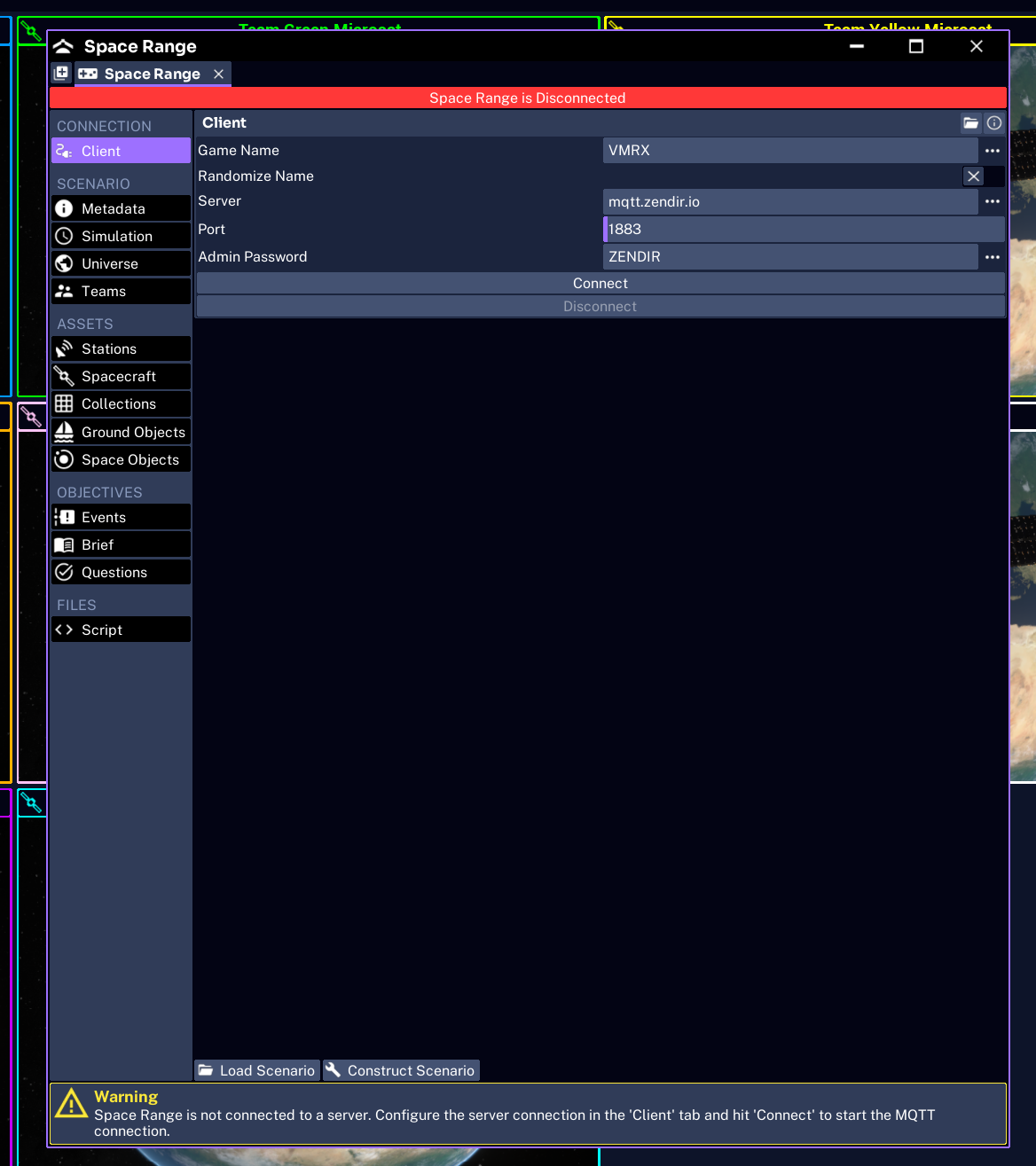
The window is organized into labelled sections of tabs that you work through in order. Later tabs unlock as earlier ones are configured, so the natural flow is top to bottom:
- CONNECTION: Client, for the live connection
- SCENARIO: Metadata, Simulation, and Universe, for scenario-wide configuration
- ASSETS: Spacecraft, Collections, Teams, Stations, Ground Objects, and Space Objects
- TASKS: Events, Objectives, Questions, and Brief, for exercise content
- FILES: Script, for the full JSON representation
The bottom of the window has Load Scenario and Construct Scenario controls and a connection status indicator, and a warning bar reports anything still missing.
NOTE
The tabs build on each other. A collection needs a spacecraft to list, a team needs a collection to fly, and events, objectives, and questions need components to target. Working top to bottom avoids empty dropdowns.
Configuring metadata
Open Metadata and set:
| Field | Purpose | JSON key |
|---|---|---|
| Name | The scenario’s stable name | metadata.name |
| Description | A short summary of the exercise | metadata.description |
For Pathfinder Checkout:
- Name:
Pathfinder Checkout - Description:
A one-team spacecraft and communications checkout.
Use a stable scenario name here. This is the name saved in the file, not the live session name operators search for. The live session name is configured separately under Client.
The participant brief is written on its own tab later; see Writing the Brief.
Reading the warning area
The warning area at the bottom of the window describes missing or incomplete configuration. At this early stage, warnings about teams, stations, collections, or spacecraft are expected, because those tabs have not been filled in yet. They clear as you work through the remaining tabs.
Do not connect a live session until the warnings are resolved and the scenario has passed the final test.
Next, configure the simulation.